Free MOV to MP3 Converter Online
Turn QuickTime, iPhone, or camera MOV files into MP3. Upload one file up to 4GB, adjust the audio, and download without signing up.
Click to upload or drag and drop
MP4, MOV, WEBM, MP3, M4A, WAV, FLAC and more
Convert QuickTime to MP3 Directly
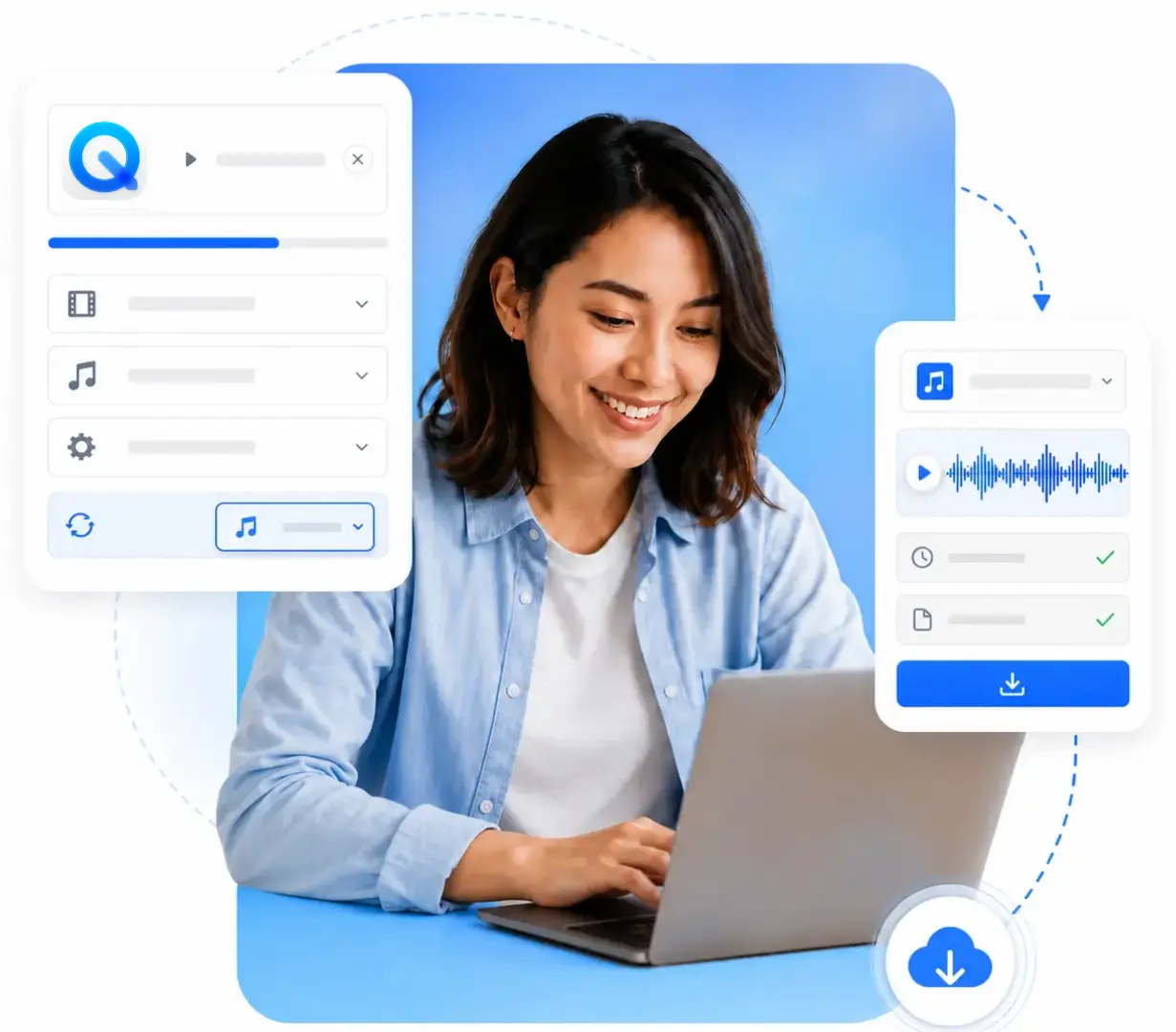
QuickTime’s Audio Only export creates an MPEG-4 audio file rather than an MP3. Use Decopy to convert QuickTime to MP3 by uploading the original MOV and creating the MP3 directly, without exporting M4A first.
Convert MOV Recordings Up to 4GB
MOV files from cameras, iPhones, screen recordings, and editing projects can become large quickly. Upload one recording up to 4GB, then trim away setup footage, silence, or unnecessary sections before creating the MP3. There is no need to split the source into several smaller clips first.

Reuse Audio From Finished MOV Exports
Finished MOV files may be the only version left after an editing project is archived or the original audio tracks are unavailable. Convert MOV to MP3 to create a separate narration, interview, testimonial, or review copy without rebuilding the timeline. The original MOV export remains unchanged.

MOV to MP3 Editing and Output Controls
Fine-tune what the finished audio contains and how it plays. Select the exact range, adjust the sound, choose an output format, and manage completed files from one focused workspace.
Select the Exact Audio Range
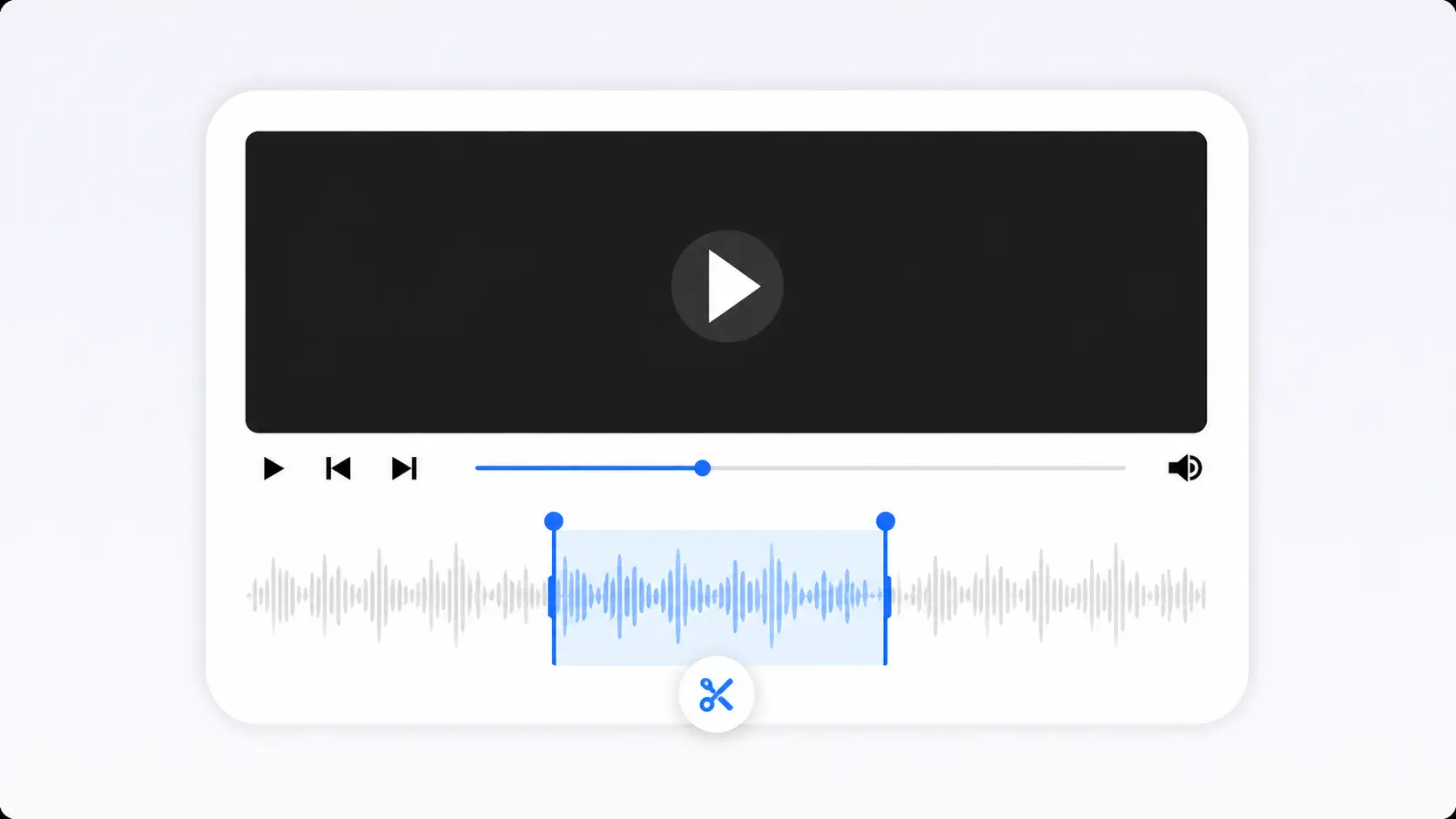
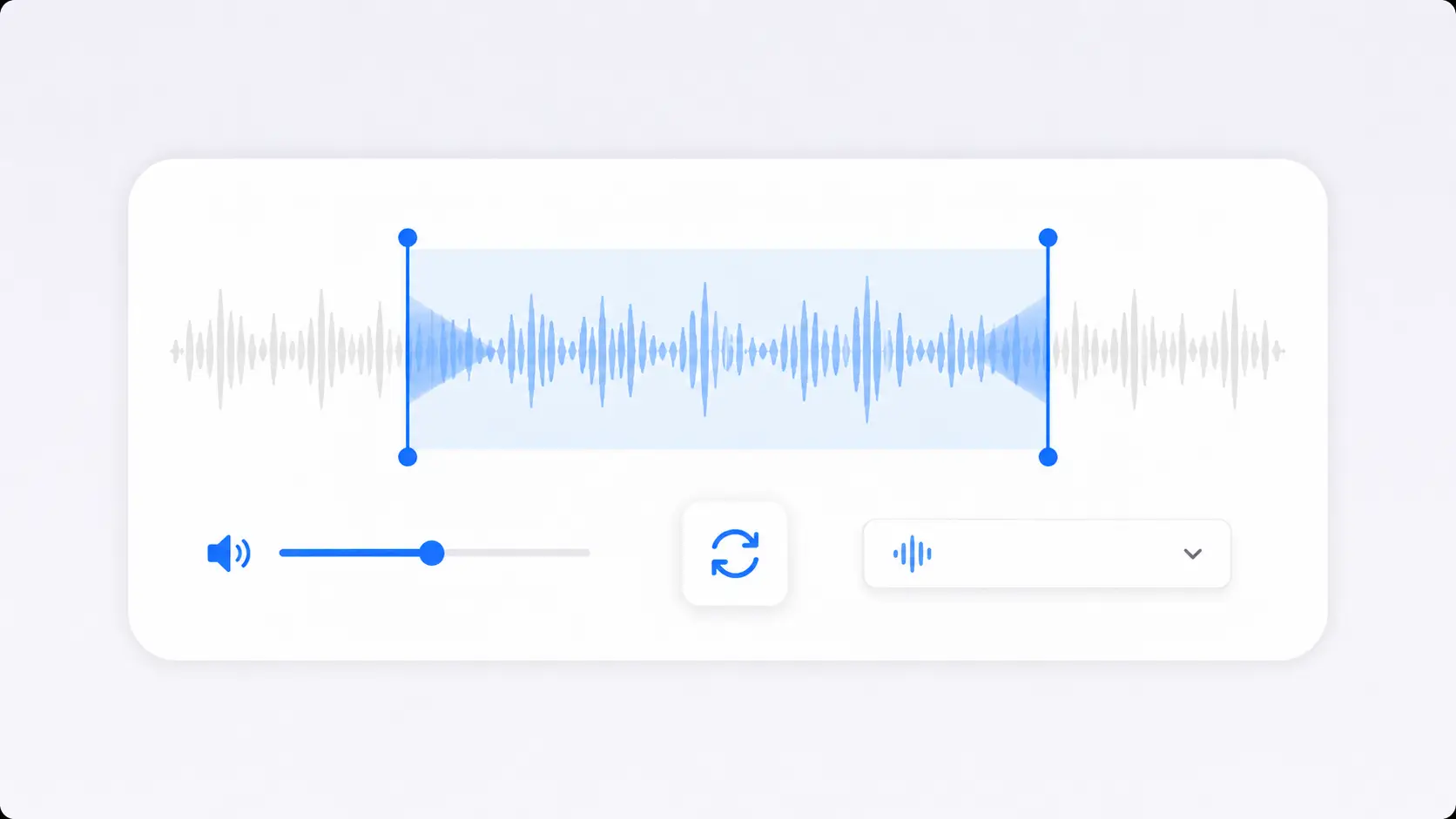
Set where the audio should begin and end before you convert MOV to MP3. Remove waiting time, unwanted introductions, repeated takes, or unnecessary endings so the downloaded file contains only the section you want.
Balance the Output Volume
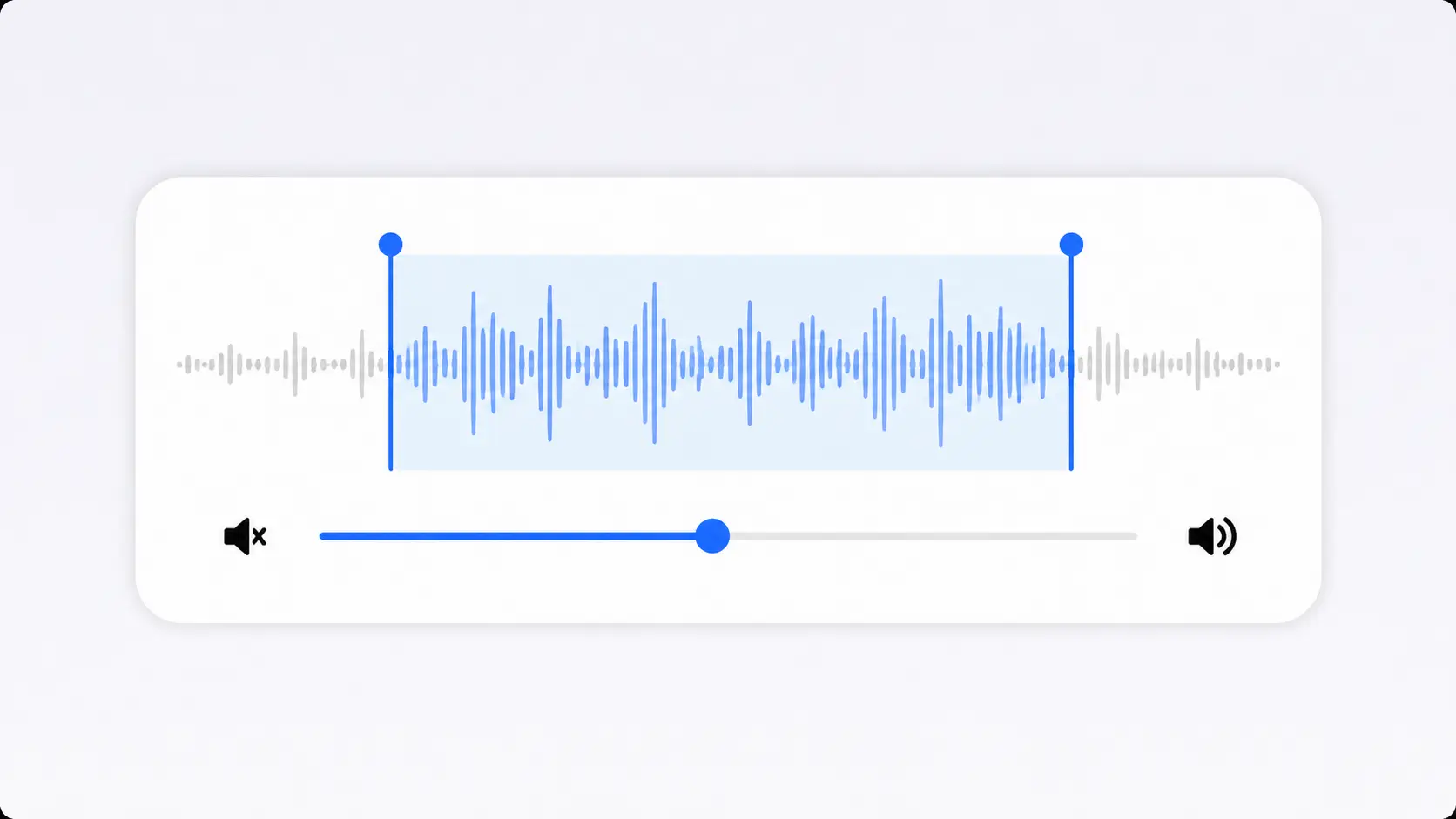
Raise audio that is difficult to hear or reduce sound that is louder than needed. The volume control helps create a more comfortable listening level before the new MP3 is generated.
Smooth the Start and Finish
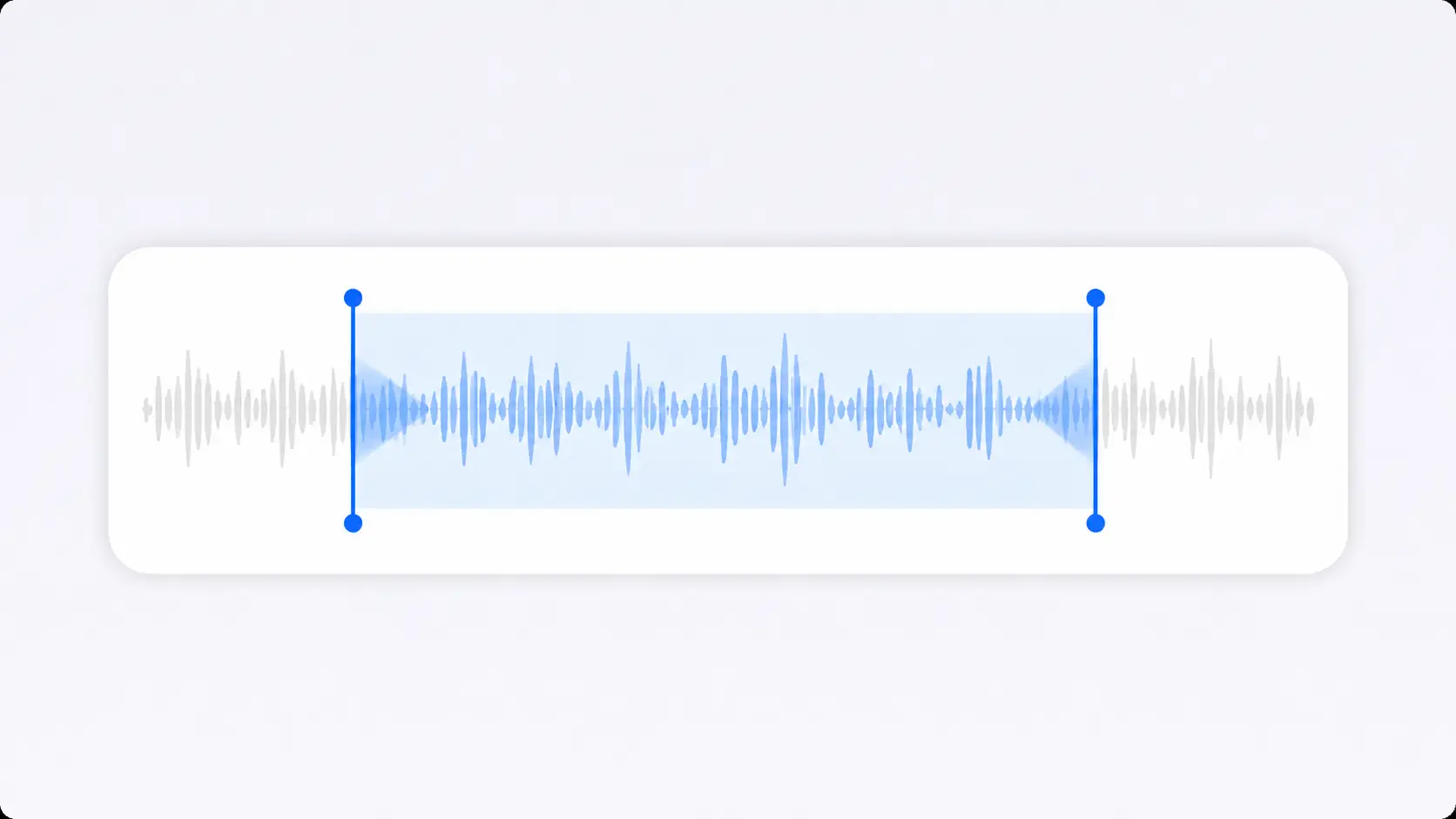
Add fade-in or fade-out effects when the recording begins or ends too abruptly. These controls can make voiceovers, music, presentations, and spoken clips feel cleaner without requiring another audio editor.
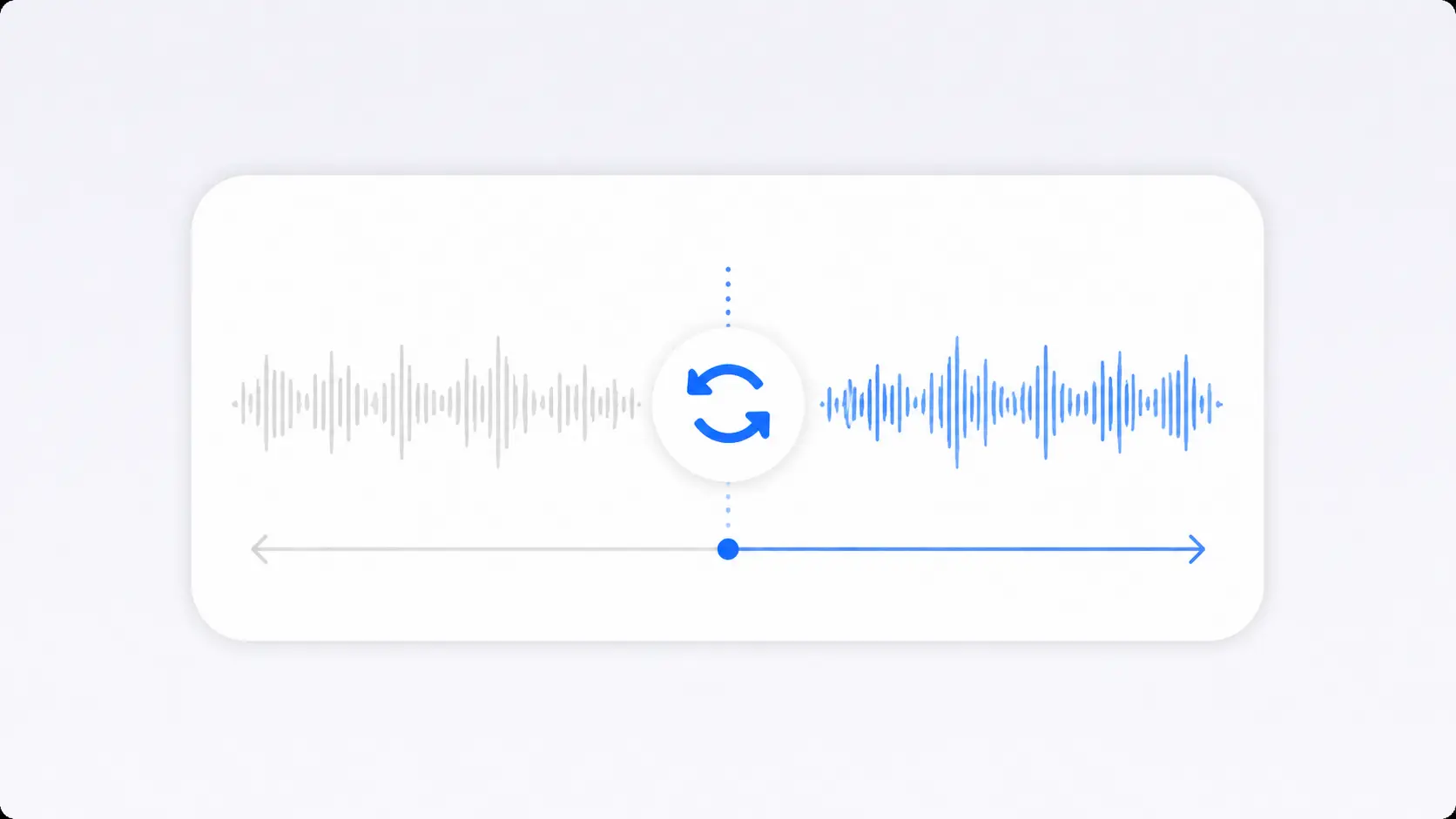
Reverse the Audio
Create a reversed version of the sound for creative edits, experiments, sound design, or a specific production effect. The reverse setting is optional and can be applied before the MOV to MP3 conversion begins.
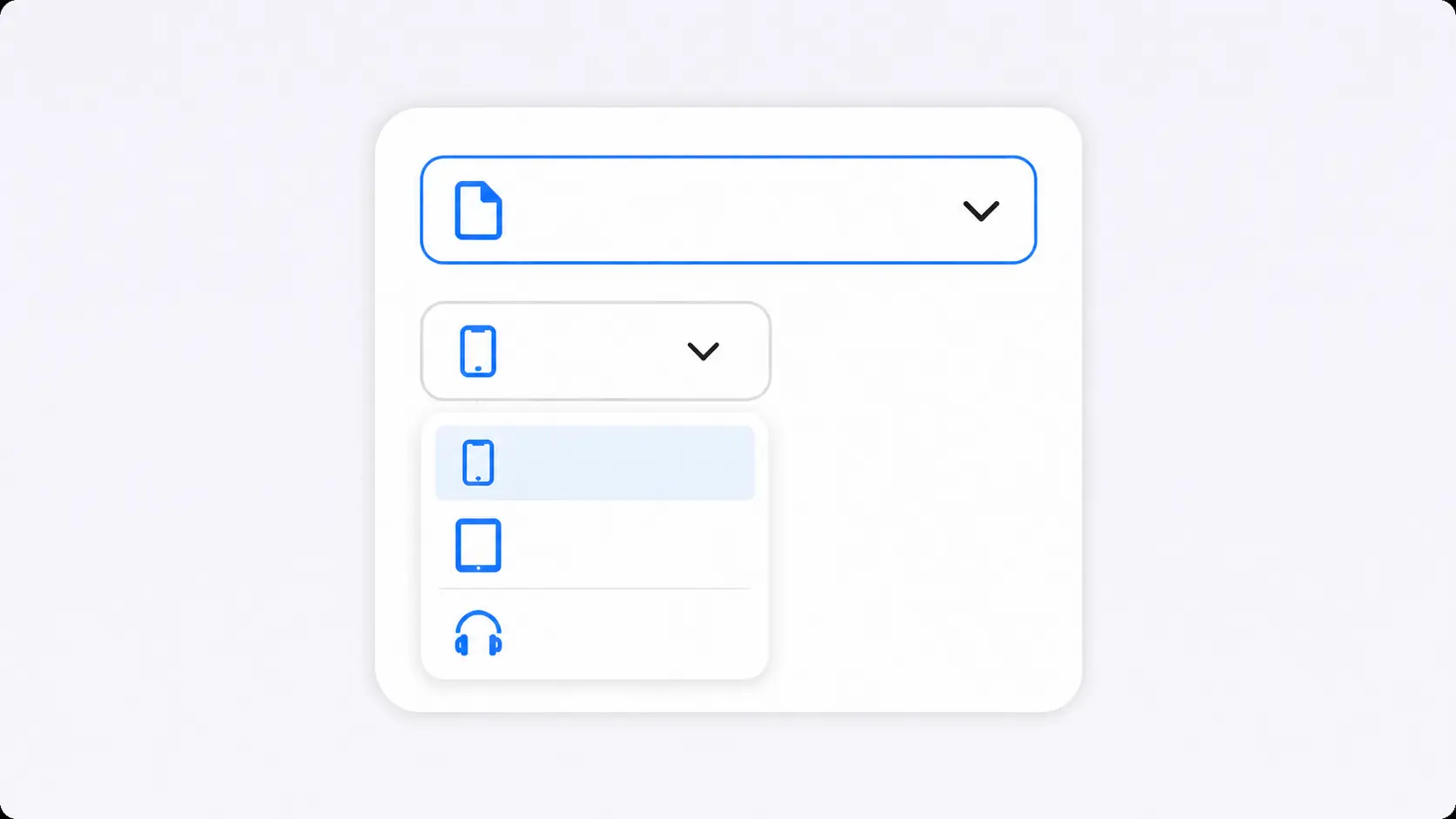
Choose a Format or Device Preset
MP3 is selected by default, but you can switch to AAC, AIFF, ALAC, AMR, FLAC, M4A, OGG, WAV, or WMA. Device presets are also available for Android, iPhone, iPad, and iPod playback.
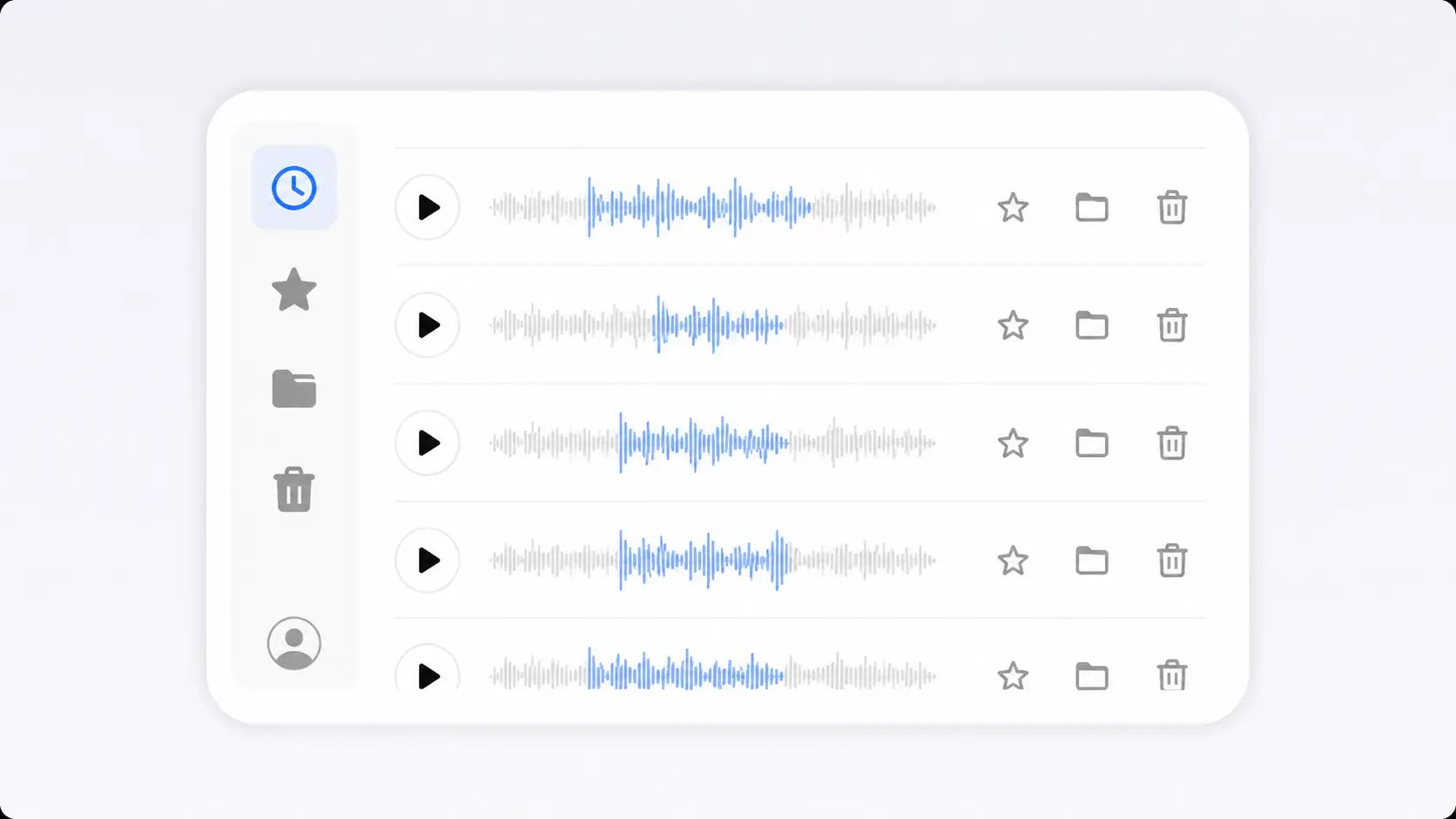
Return to Converted Files Later
Conversion and download do not require an account. After signing in, access files in Recent Uploads for up to 30 days, move selected items to All Assets or folders for permanent storage, or delete them manually.
How to Convert MOV to MP3 Online
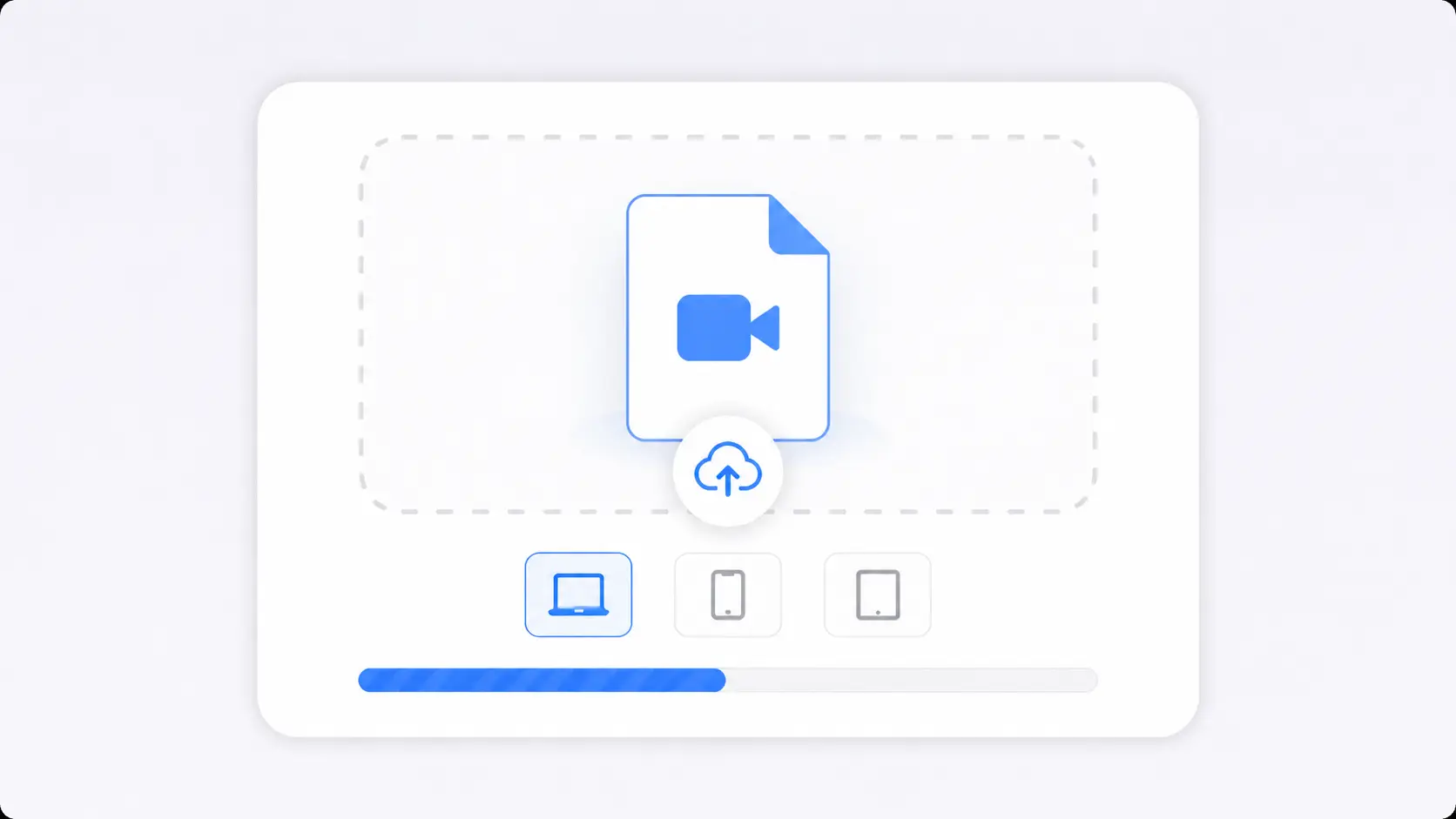
Upload Your MOV File
Prepare the Audio
Convert and Download
Practical Ways to Reuse Audio From MOV Files
MOV recordings can contain music, speech, or ambient sound that is difficult to reuse while attached to video. Create a separate audio copy for focused listening, editing, recovery, or playback in another device or application.
iPhone Concert Audio
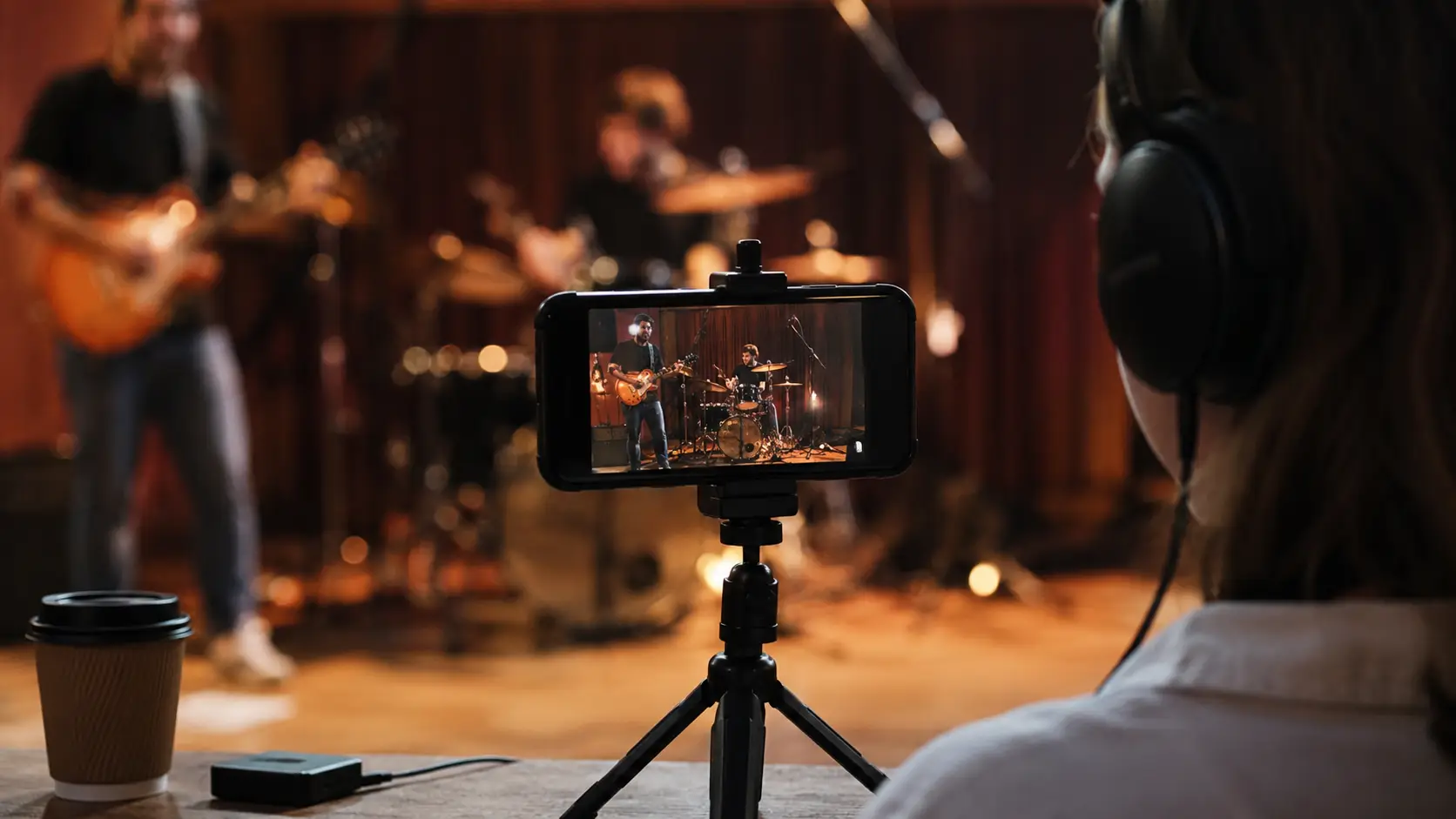
Turn an iPhone rehearsal, performance, or concert video into a listening copy. Convert MOV to MP3 so the recording can be organized with other music files without reopening the camera-roll video each time.
MP3 for Car Stereos
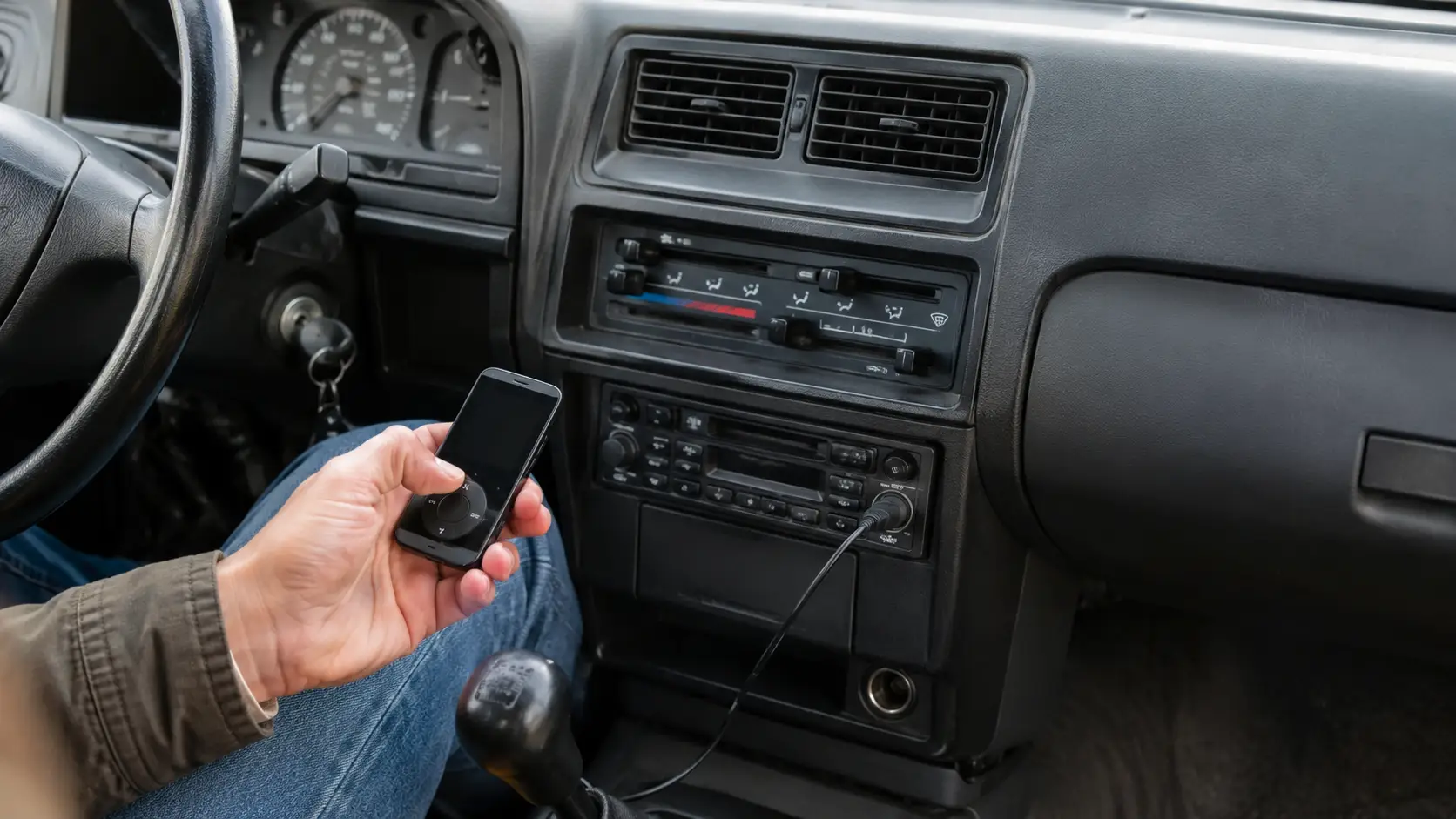
Some older car stereos and MP3-disc systems work best with MP3 files. Create a compatible audio copy from the original MOV for easier playback in older vehicles and legacy media players.
Camera Roll to GarageBand
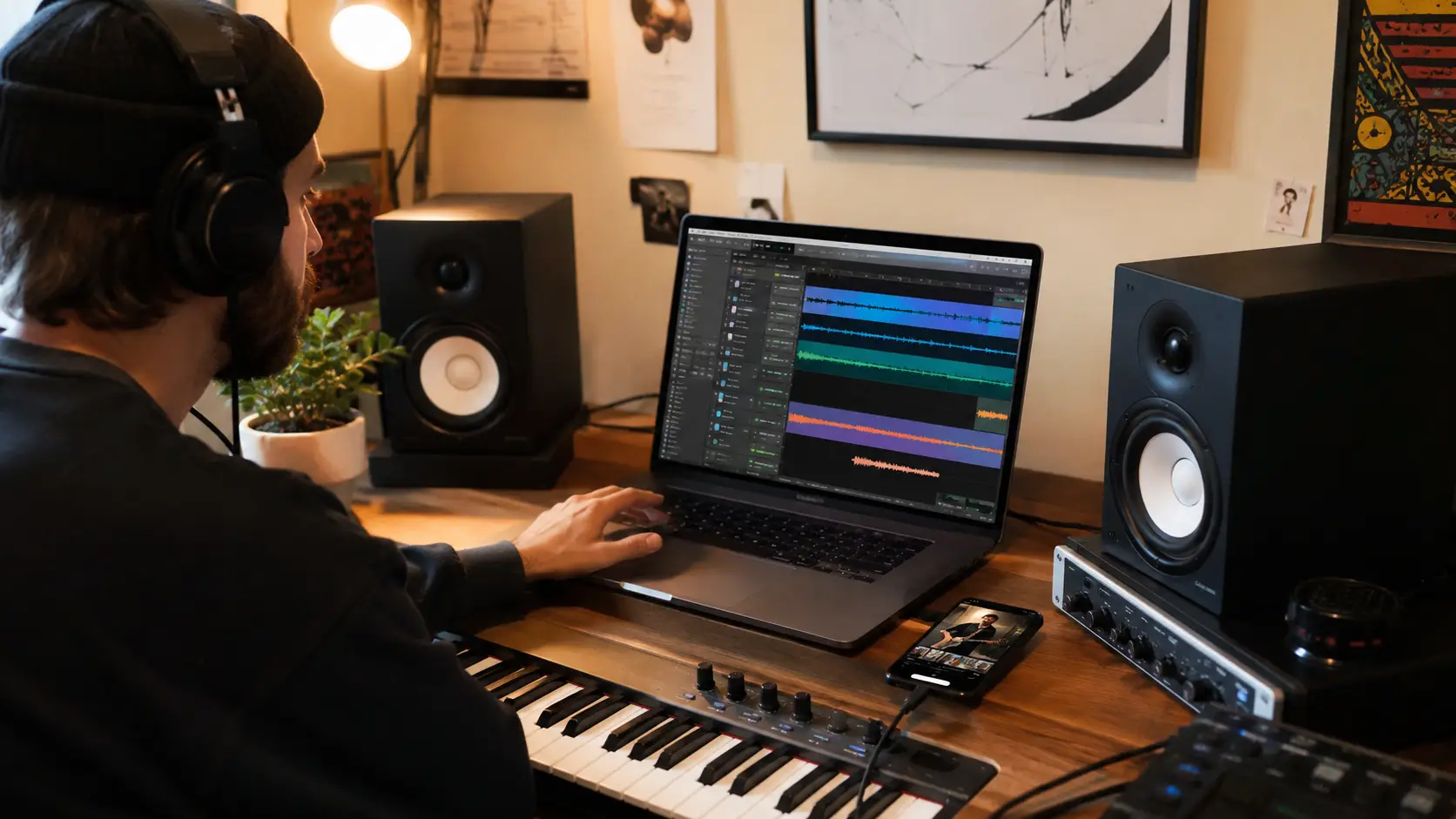
A spoken line, instrument idea, or ambient sound may exist only inside an iPhone video. Extract audio from MOV and import the standalone file into GarageBand for sampling, arranging, reference, or further editing.
Create an Audio Reference Track
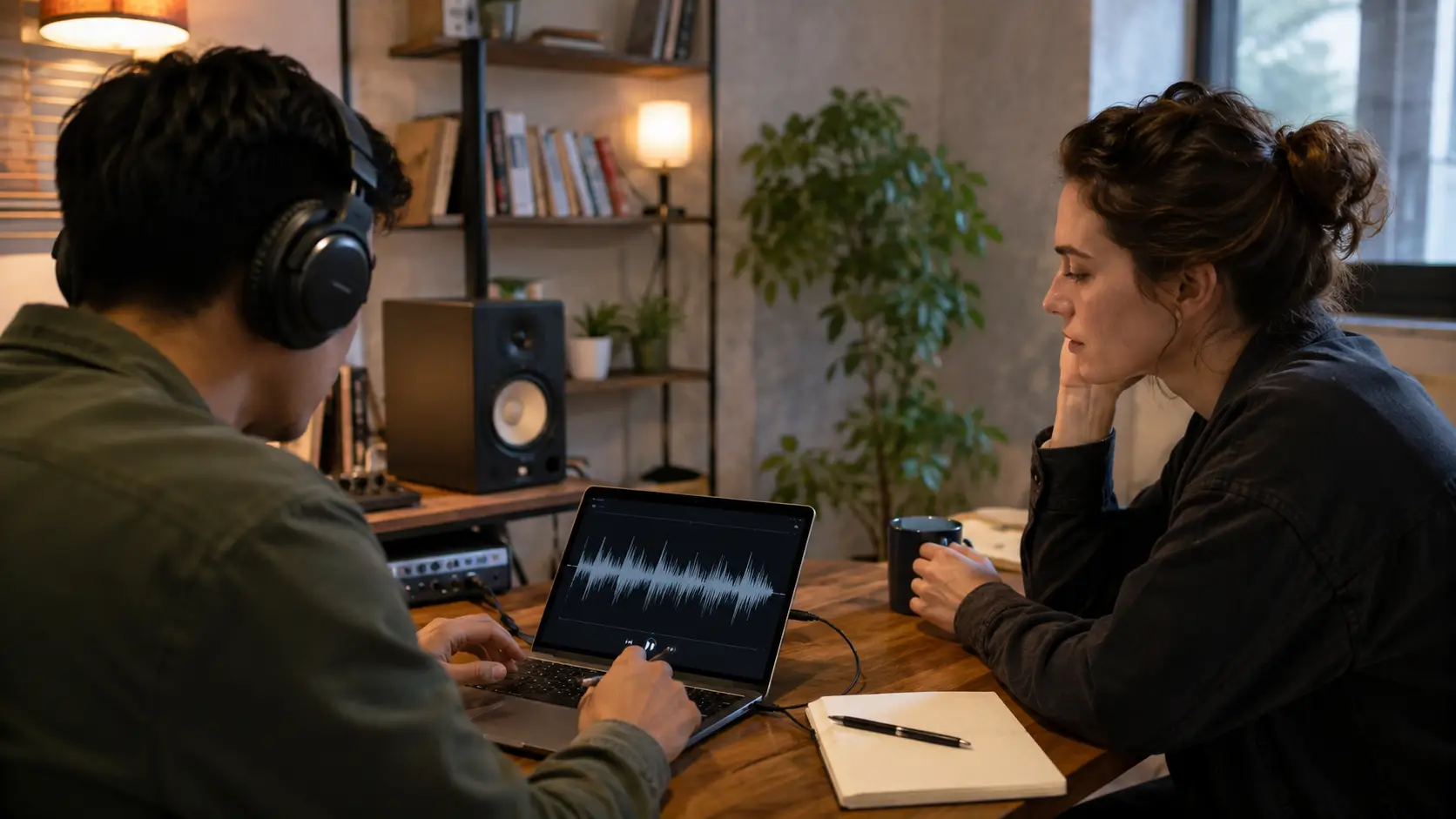
When collaborators only need dialogue, timing, music cues, or narration from a finished MOV, create an MP3 reference track instead of sending the full video. The lighter audio copy is easier to use during voice recording, sound design, review, or approval.

Rehearsal Audio Copies
Musicians, actors, dancers, and speakers often record rehearsals as video. When only timing, delivery, or music needs review, an MP3 copy is easier to replay than returning to a long MOV clip.
QuickTime Screen Audio
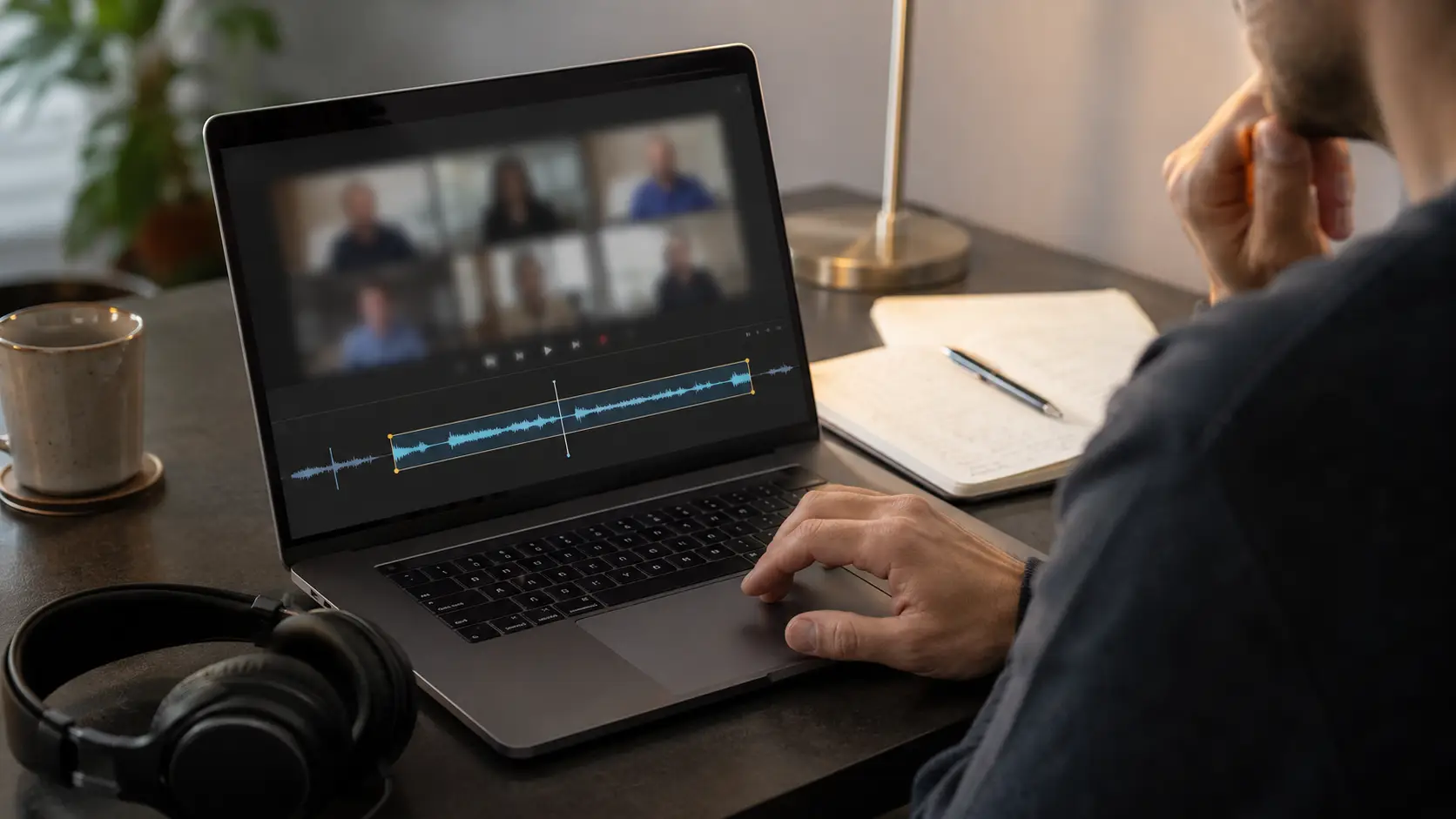
QuickTime screen recordings may include spoken explanations, remote conversations, notification sounds, or reference clips. Trim the useful section and create an audio copy when the sound matters more than the recorded screen activity.
Why Choose Decopy's MOV to MP3 Converter?
Free to Use
Convert MOV files without paying for desktop editing software or a separate conversion app. Decopy supports up to 100 individual conversion tasks each day.
Works Online
Complete the conversion in a supported browser without installing software. Upload the source file, review the available settings, and download the audio from the same page.
Supports Multiple Devices
Use the MOV to MP3 online converter on Windows, macOS, iPhone, iPad, Android, tablets, and other devices with a compatible browser.
Available in Multiple Languages
Use the converter through localized webpages in supported languages. Clear translated labels and instructions make the workflow easier to understand for users in different regions.
No Sign-Up Required
You do not need to create an account before converting or downloading. Sign in only when you want to manage uploaded files through Recent Uploads, All Assets, or folders.
No Audio Watermark
The downloaded MP3 does not include an added audio watermark. The finished file is ready for listening, review, sharing, editing, or other permitted uses.
What Users Say About the MOV to MP3 Converter
Frequently Asked Questions (FAQs)
MOV is a multimedia container closely associated with Apple QuickTime. It may contain video, audio, subtitles, timing information, and metadata. QuickTime recordings and exports commonly use the `.mov` file extension.
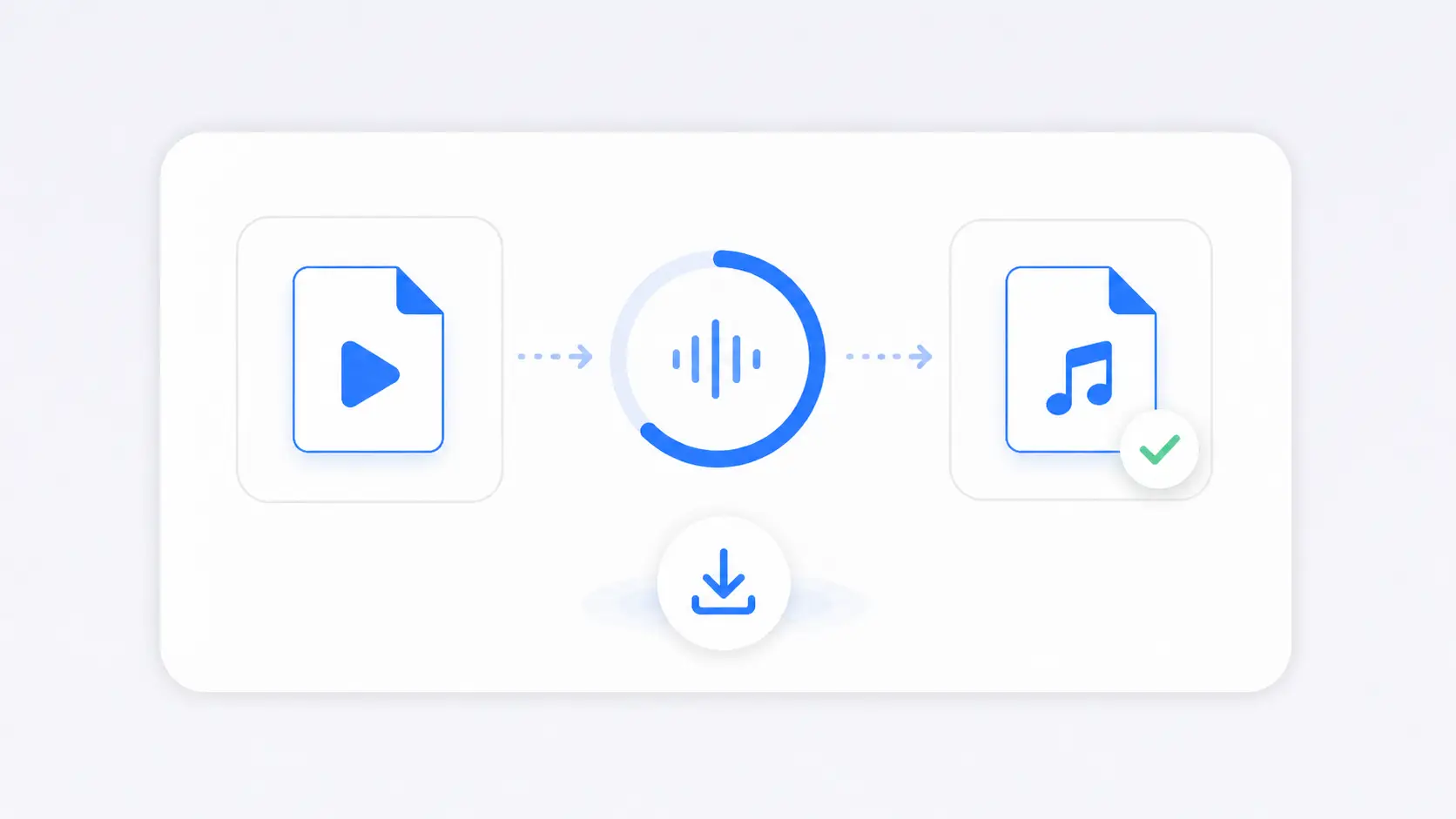
Upload one MOV file, keep MP3 selected, review the optional audio controls, and start the conversion. When processing finishes, download the completed audio file directly from the page.
Yes. You can upload the original MOV or QuickTime recording and create an MP3 directly. This avoids exporting an M4A file from QuickTime first and then completing a second conversion.
Yes. Open the MOV to MP3 converter in a supported browser on your Mac, upload the source file, and download the completed audio. You do not need to install a separate conversion application.
Yes. Select an available MOV recording from your iPhone, Files app, or connected cloud storage through a supported mobile browser. The downloaded MP3 can then be saved or opened in another compatible application.
The converter supports one MOV file up to 4GB. Upload and processing times may vary depending on the file size, media content, device performance, and internet connection.
Yes. Set the beginning and ending points before you convert MOV to MP3. This helps remove silence, camera preparation, repeated takes, or other sections that should not appear in the finished audio.
It can. MP3 uses lossy compression, and the audio inside the MOV may need to be encoded again. The noticeable difference depends on the source recording and output settings. Keeping the original MOV provides a better source for future exports.
Yes. MP3 is selected by default, but Decopy also supports AAC, AIFF, ALAC, AMR, FLAC, M4A, OGG, WAV, and WMA. Choose the output that fits your playback, editing, or storage requirements.
No. The converter currently processes one MOV file at a time. You can complete up to 100 separate conversion tasks each day.
No. You can upload, convert, and download without creating an account. Signing in is only required when you want to access Recent Uploads, organize files in folders, or use All Assets.
Signed-in users can access uploaded files in Recent Uploads for up to 30 days. Move important files to All Assets or a folder for permanent storage, or delete them manually when they are no longer needed.
No. Decopy does not add an audio watermark to the converted MP3.