MP4 to MP3 Converter Online
Extract audio from MP4 videos and convert it to MP3 online with preview, output format, volume, fade, reverse, and trim settings.
Click to upload or drag and drop
MP4, MOV, WEBM, MP3, M4A, WAV, FLAC and more
Convert MP4 to MP3 for Easier Listening
An MP4 file may contain a lecture, interview, voice recording, soundtrack, or presentation that you want to hear without watching the video. Converting MP4 to MP3 creates an audio-only file for easier listening, playback, and sharing across devices.
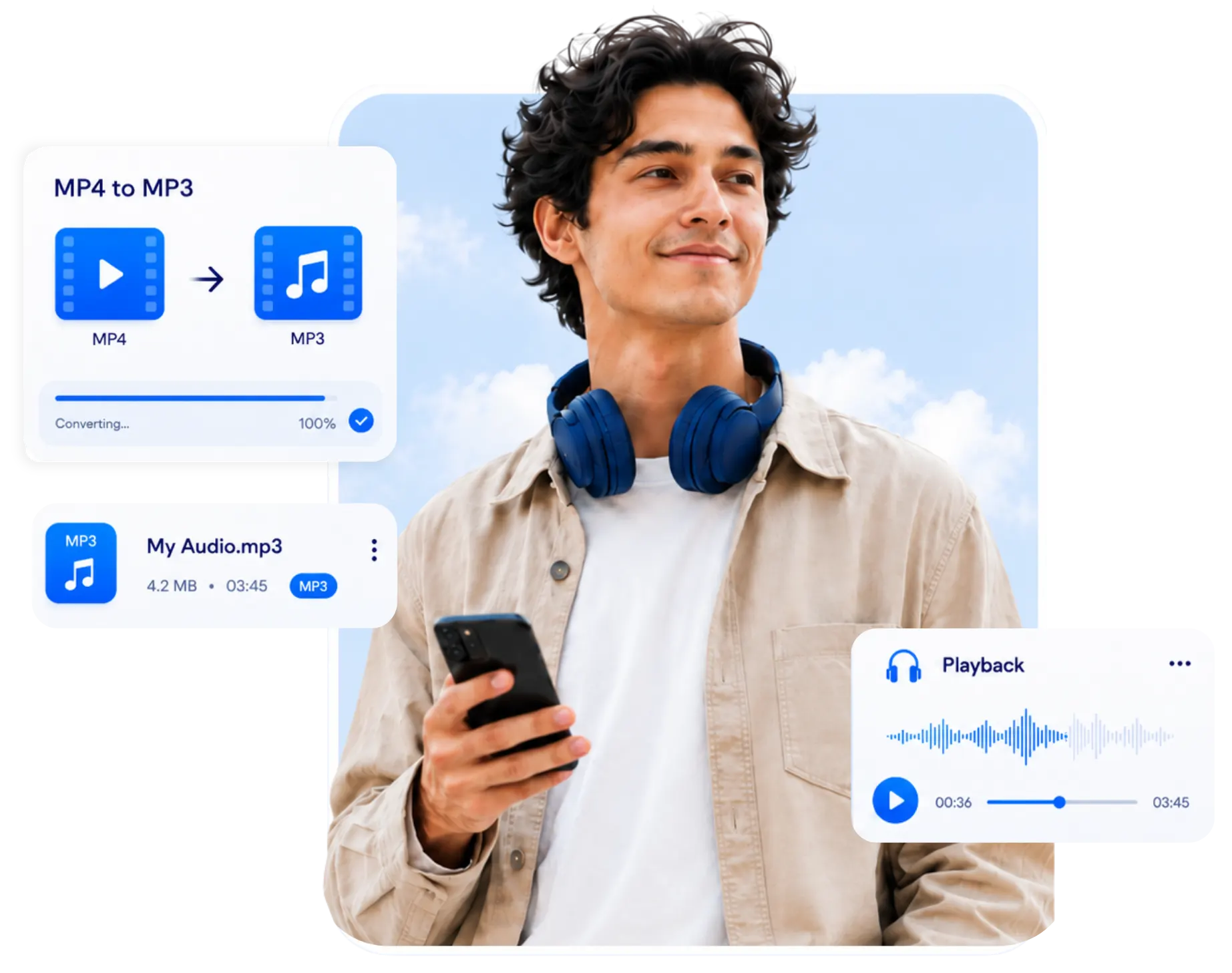
Extract Audio from MP4 Without Editing
Desktop editing software often requires codec, bitrate, and export settings just to save audio. An MP4 to MP3 converter keeps the process simple: upload the video, keep MP3 selected, and create the audio file you need.
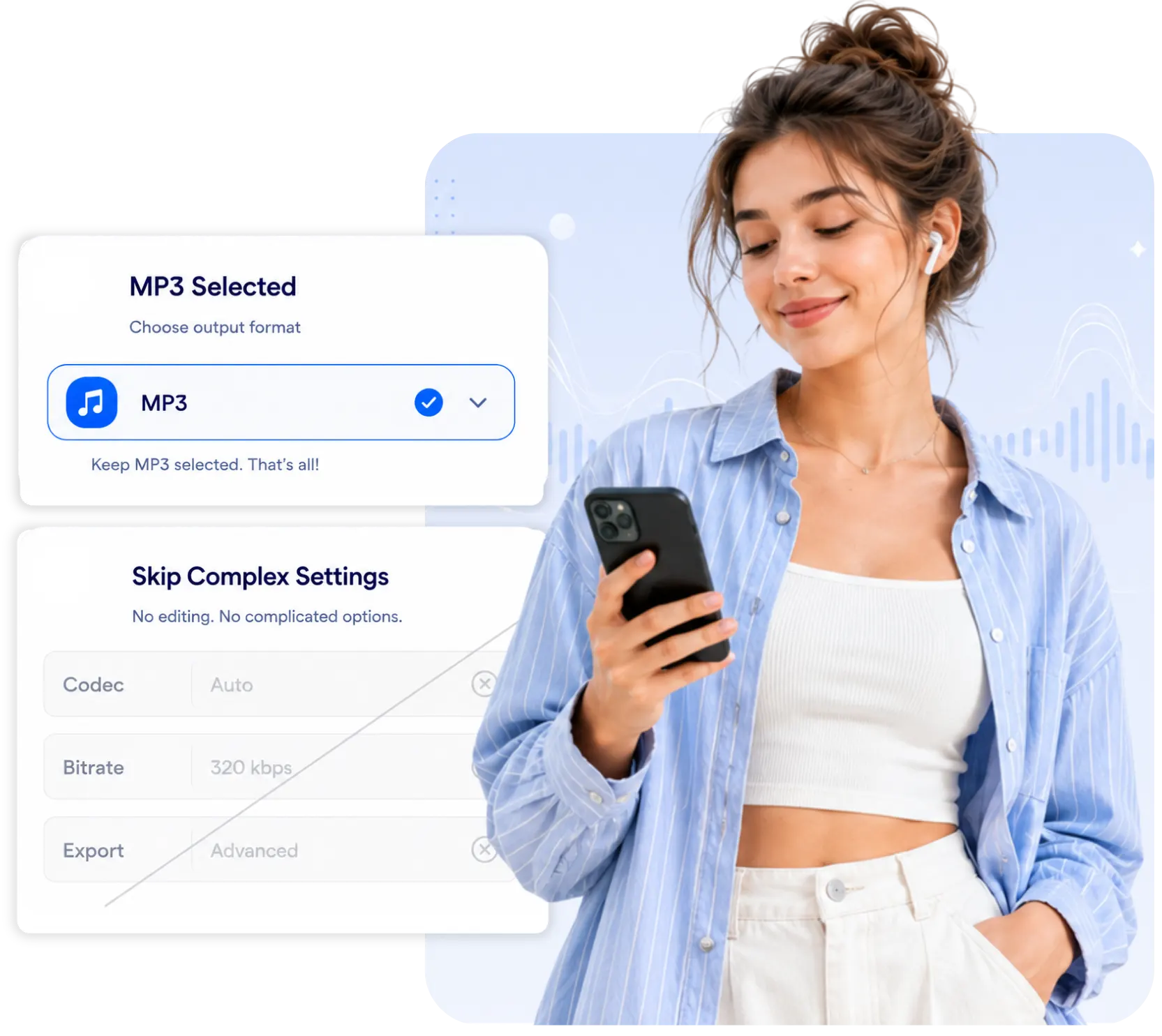
Make MP4 Audio Easier to Store and Share
A video file can be unnecessarily large when you only need the sound. After you convert MP4 to MP3, the audio is easier to store, transfer between devices, add to a library, or share without carrying the original video.
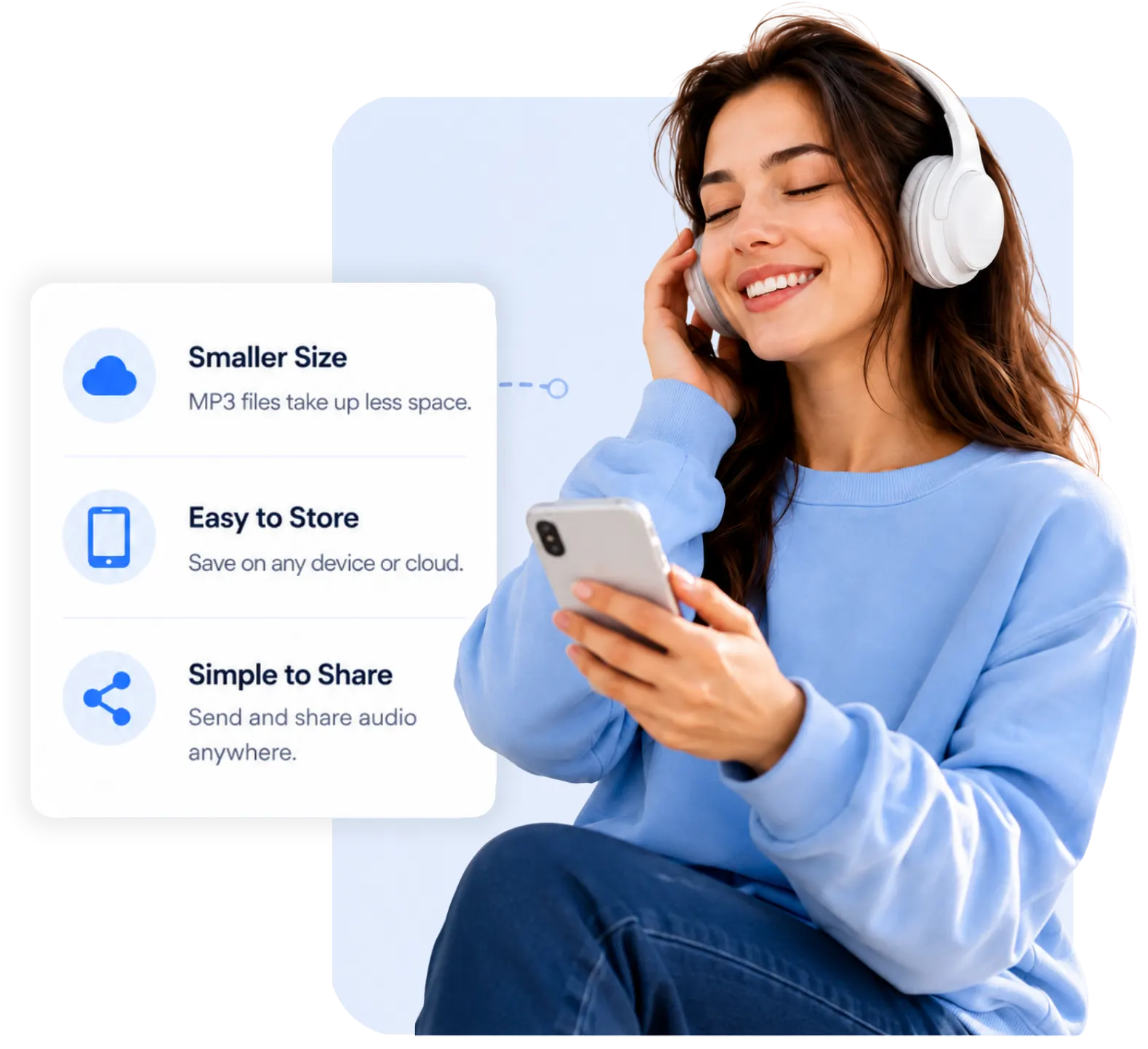
Prepare MP3 Audio for the Next Task
The extracted audio may be needed for editing, review, or another audio workflow. Converting MP4 to MP3 creates a widely supported file that is easier to organize, use, and move into the next stage.
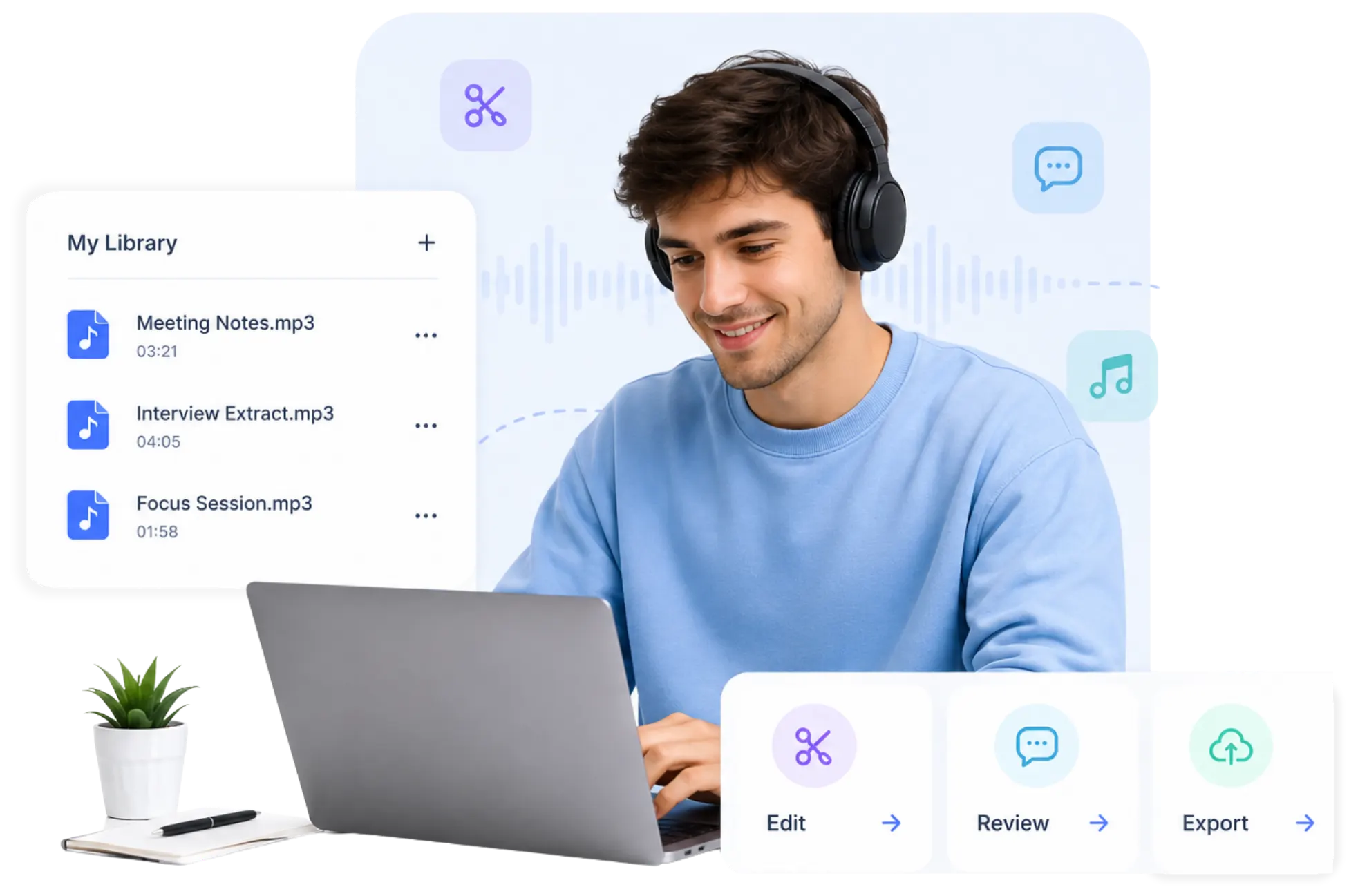
MP4 to MP3 Converter Features
Extract MP3 audio from an MP4 video, adjust the sound when needed, and complete the conversion without using complex video editing software.
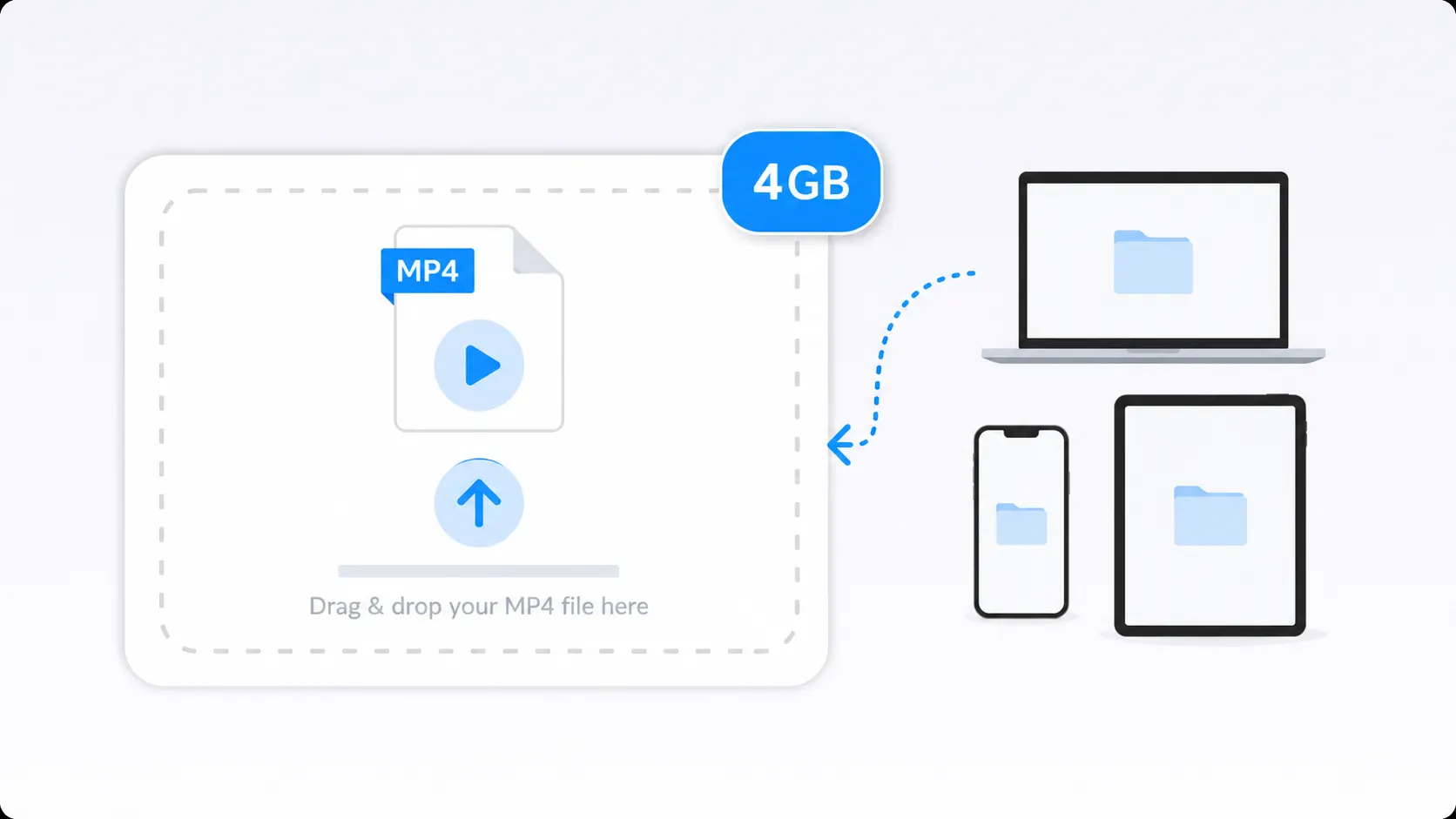
Upload MP4 Files Up to 4GB
Select an MP4 file from your computer, phone, or tablet, or drag it into the upload area. The converter supports MP4 files up to 4GB, making it suitable for longer or larger recordings.
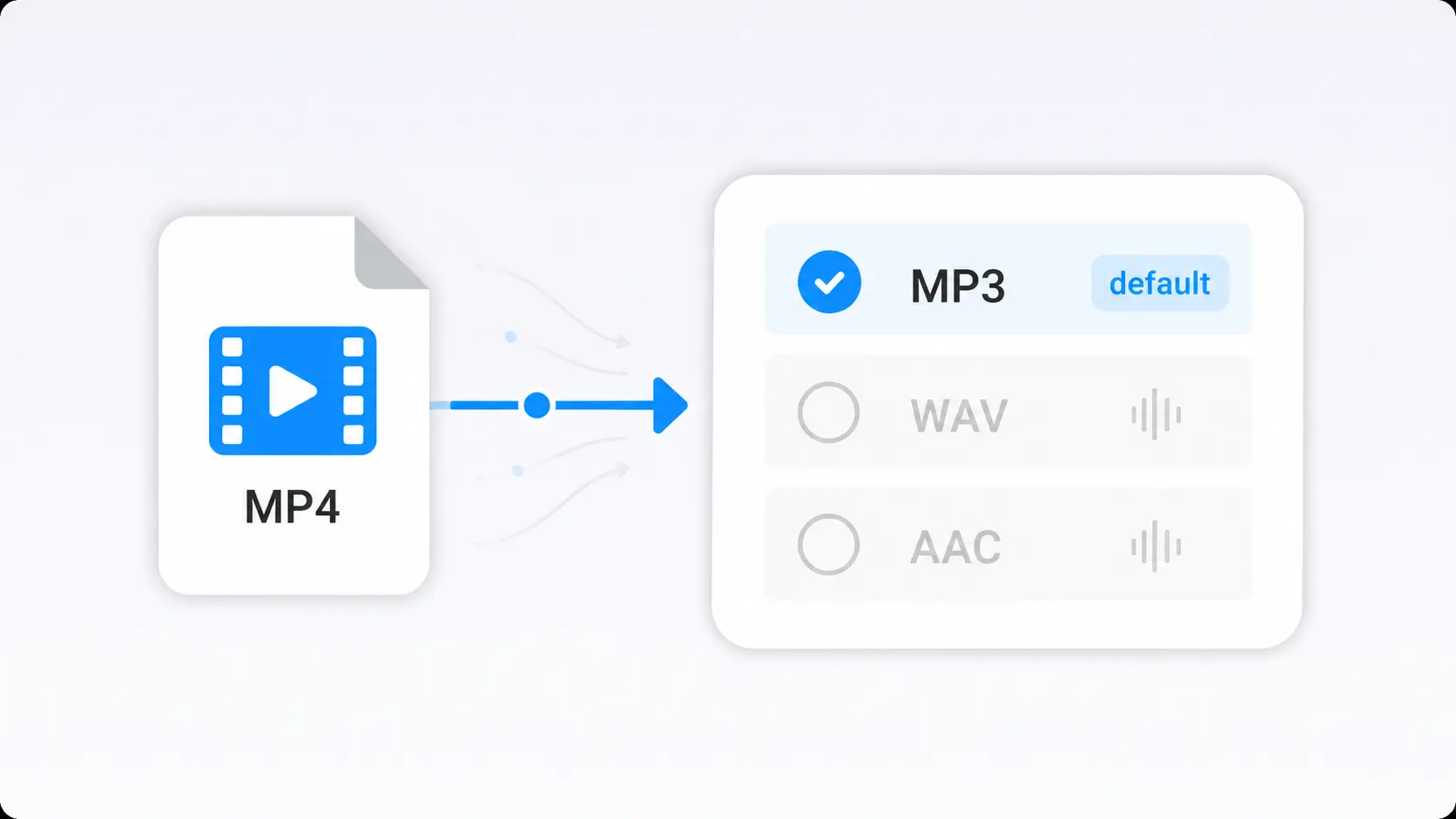
Keep MP3 as the Default Output
MP3 is selected as the default output, so you do not need to work through unnecessary format settings before converting. Upload the source video, review the MP3 output, and continue when you are ready.
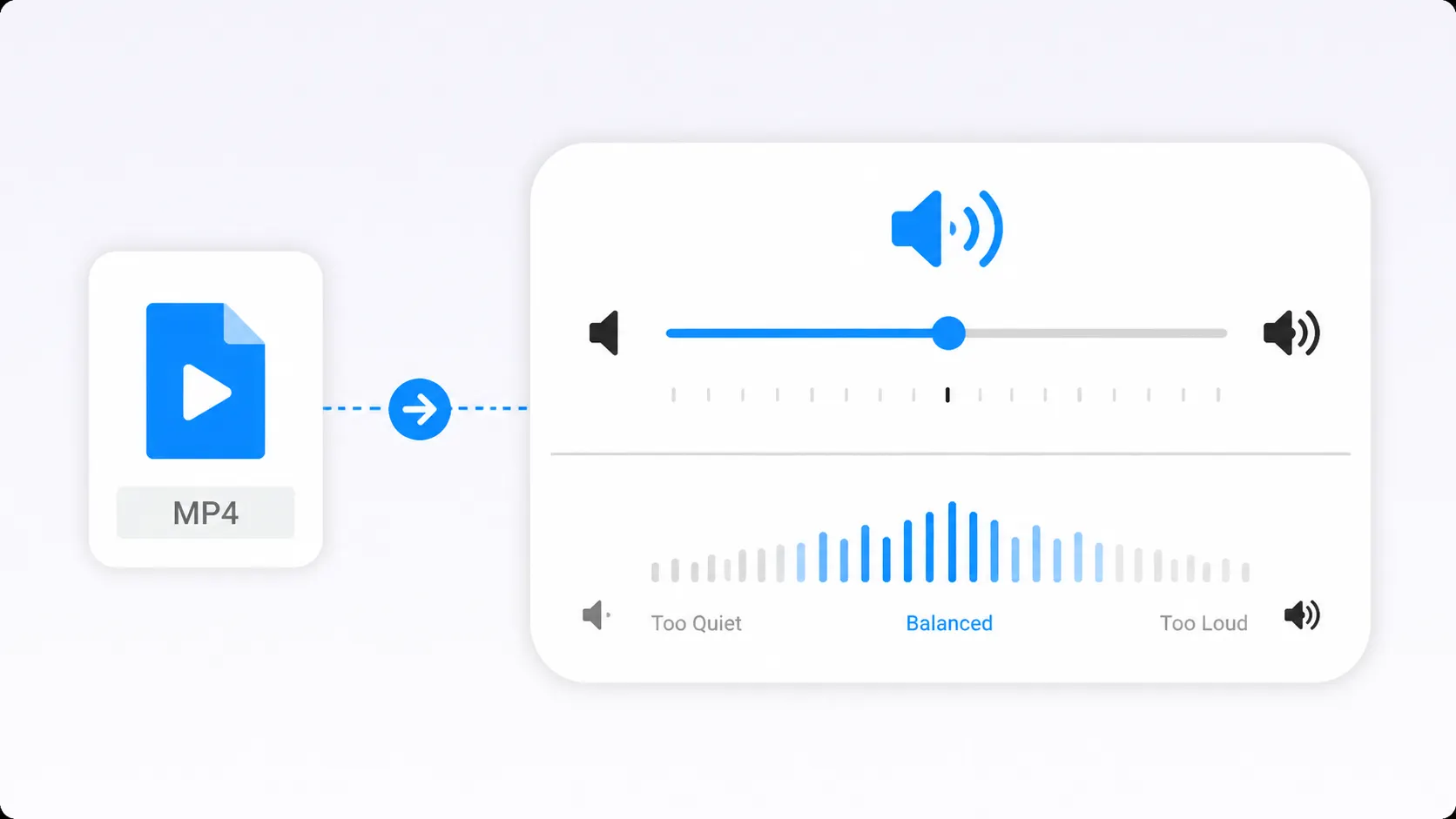
Adjust the Audio Volume
The sound inside an MP4 may be too quiet, too loud, or inconsistent with the other audio in your project. Use the volume setting to adjust the output before you convert MP4 to MP3.
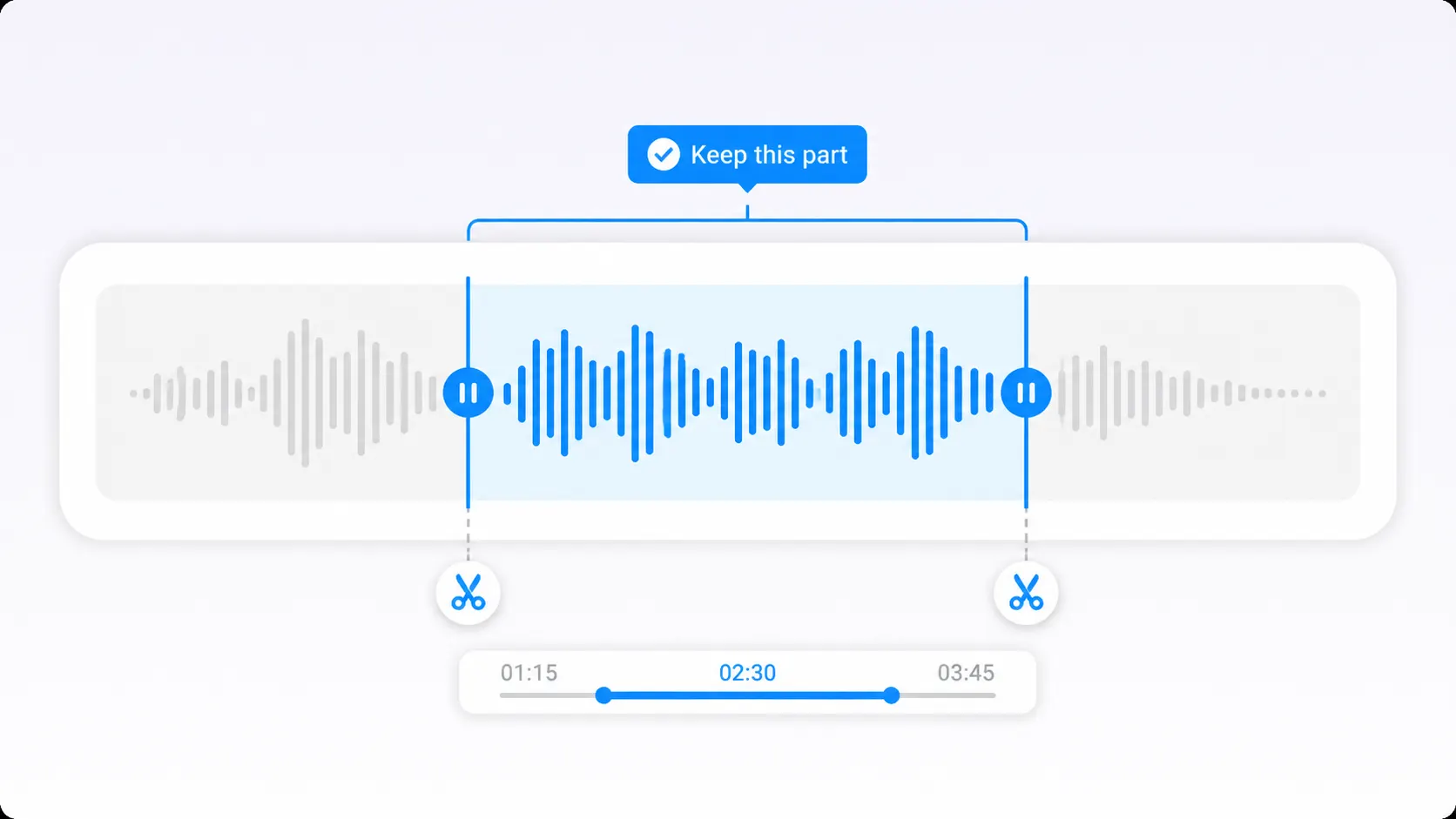
Trim the Audio You Want to Keep
A video may include an introduction, silence, setup time, or an unwanted section that does not belong in the final MP3. Use the trim settings to focus the conversion on the part of the recording you actually need.
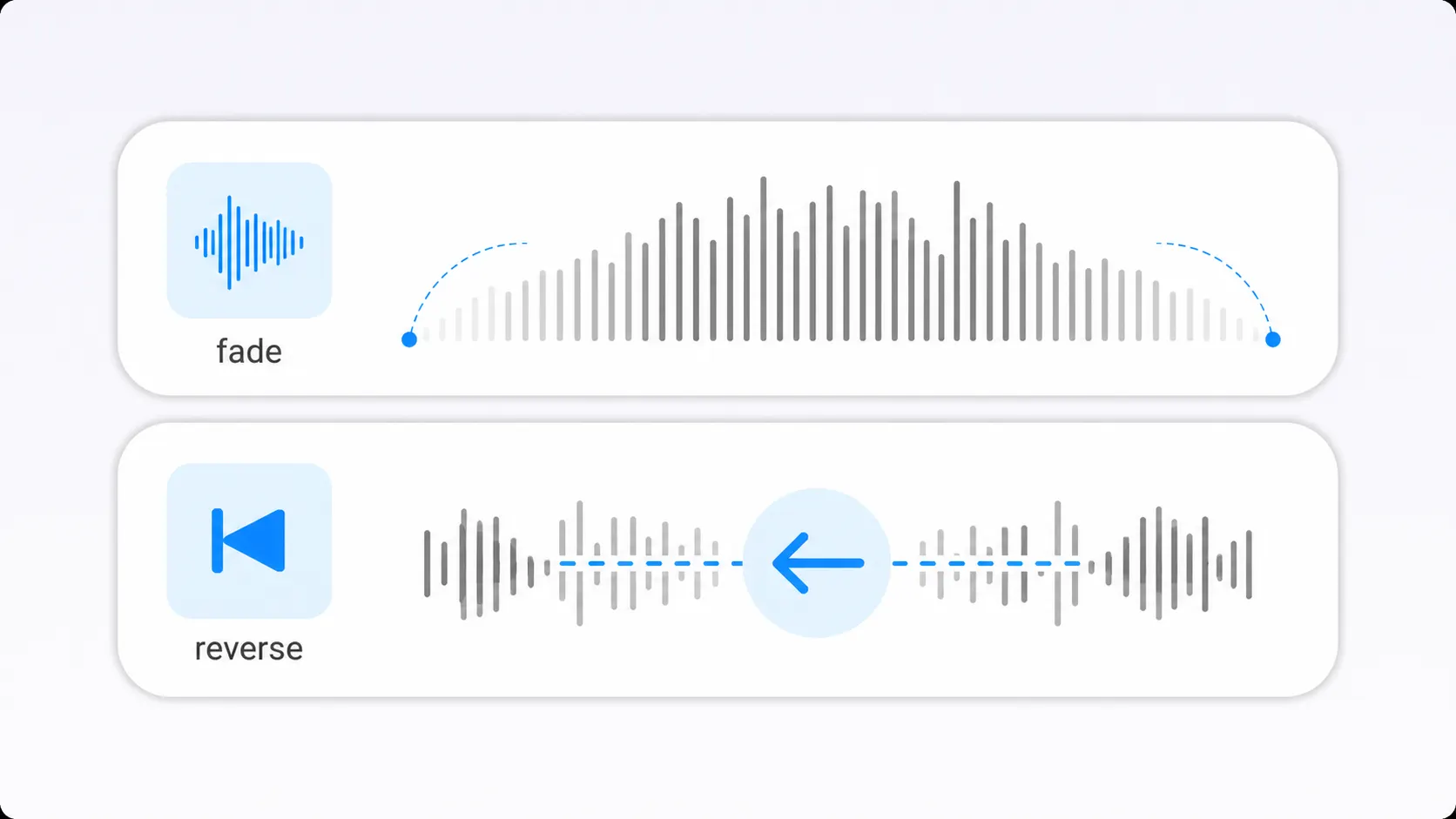
Add Fade Effects or Reverse the Audio
Apply fade-in or fade-out effects when the audio needs a smoother beginning or ending. You can also reverse the sound for creative projects, audio experiments, or specific editing tasks.
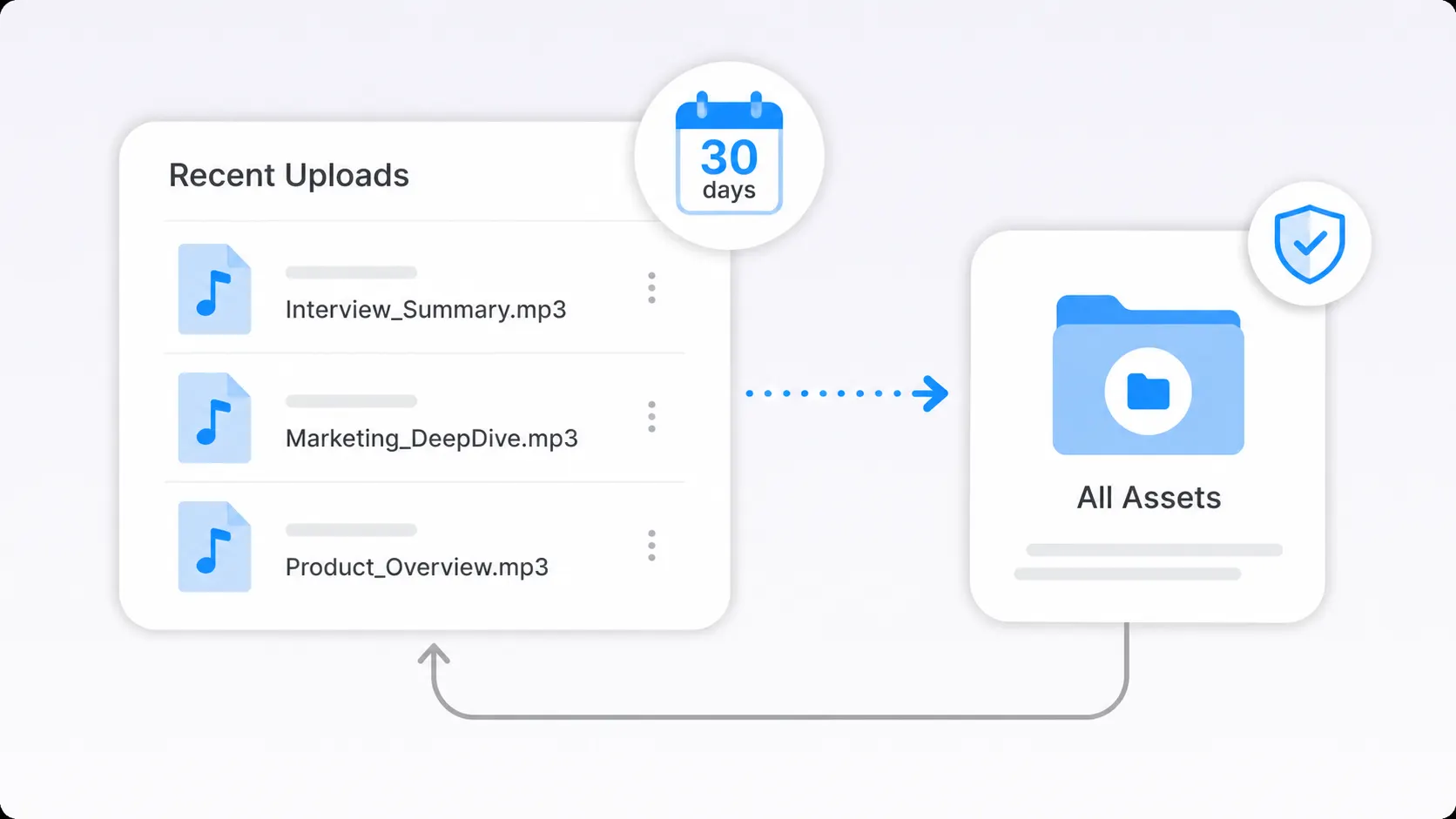
Return to Files in Recent Uploads
After signing in, files uploaded through the converter appear in Recent Uploads for up to 30 days. Move important files to All Assets or a folder to keep them permanently.
Common MP4 to MP3 Use Cases
An MP4 to MP3 converter can help whenever the sound inside a video is more useful than the visual track. The following tasks show where an audio-only result is more practical.

Listen to Lectures Off-Screen
Convert a recorded class, lecture, webinar, or training video into MP3 audio for screen-free review. The result can be easier to replay while commuting, exercising, organizing notes, or preparing for an exam.
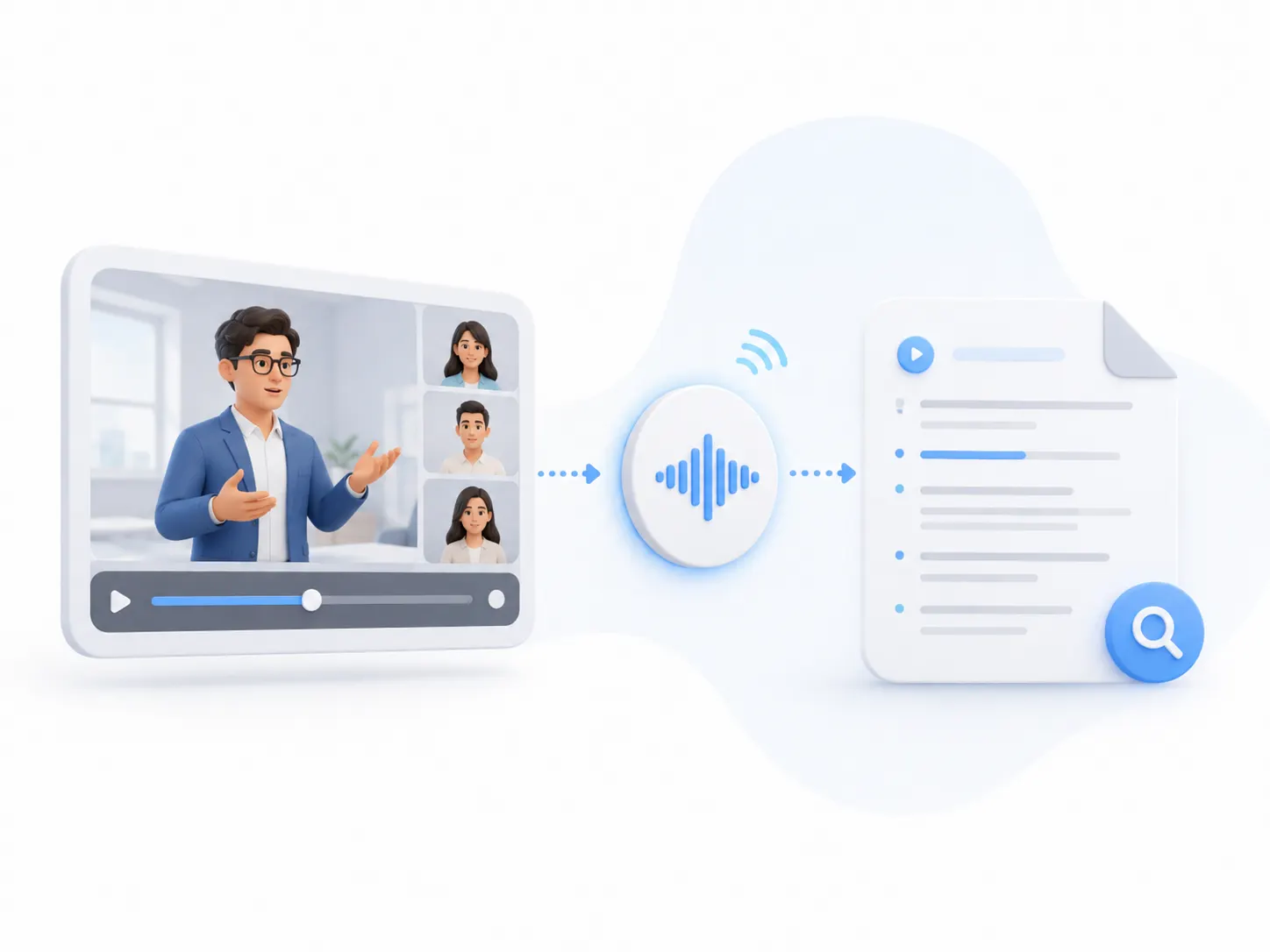
Extract Interview Audio
Extract audio from an MP4 interview, customer conversation, research session, or recorded discussion. A separate MP3 is easier to review, share with colleagues, or use as the source for a transcript.
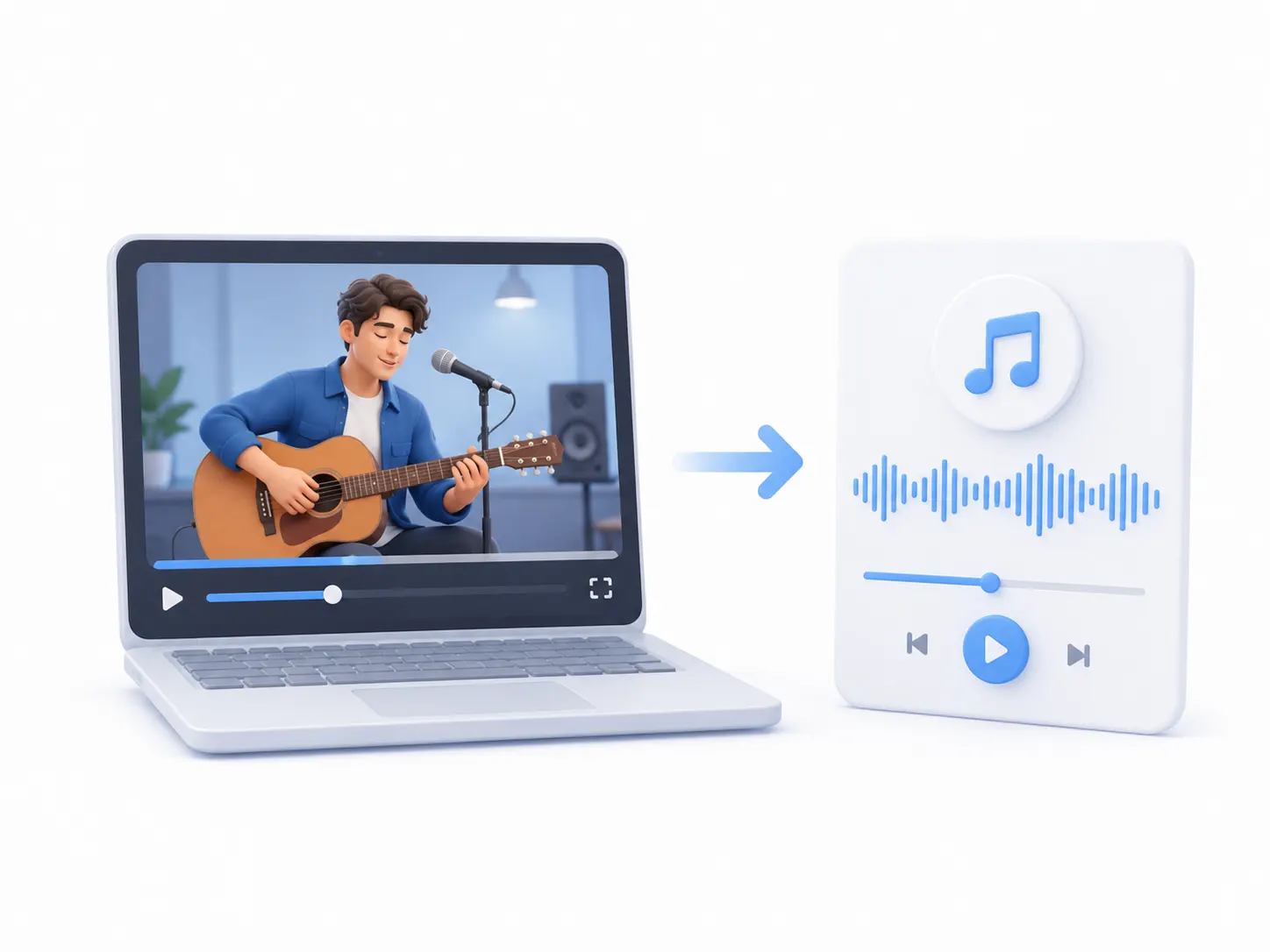
Extract Soundtracks from MP4 Videos
Use the MP4 audio extractor when you need music, performance audio, or a soundtrack from an MP4 video. The resulting MP3 is easier to organize and play without loading the original video. Only convert material that you own or have permission to use.
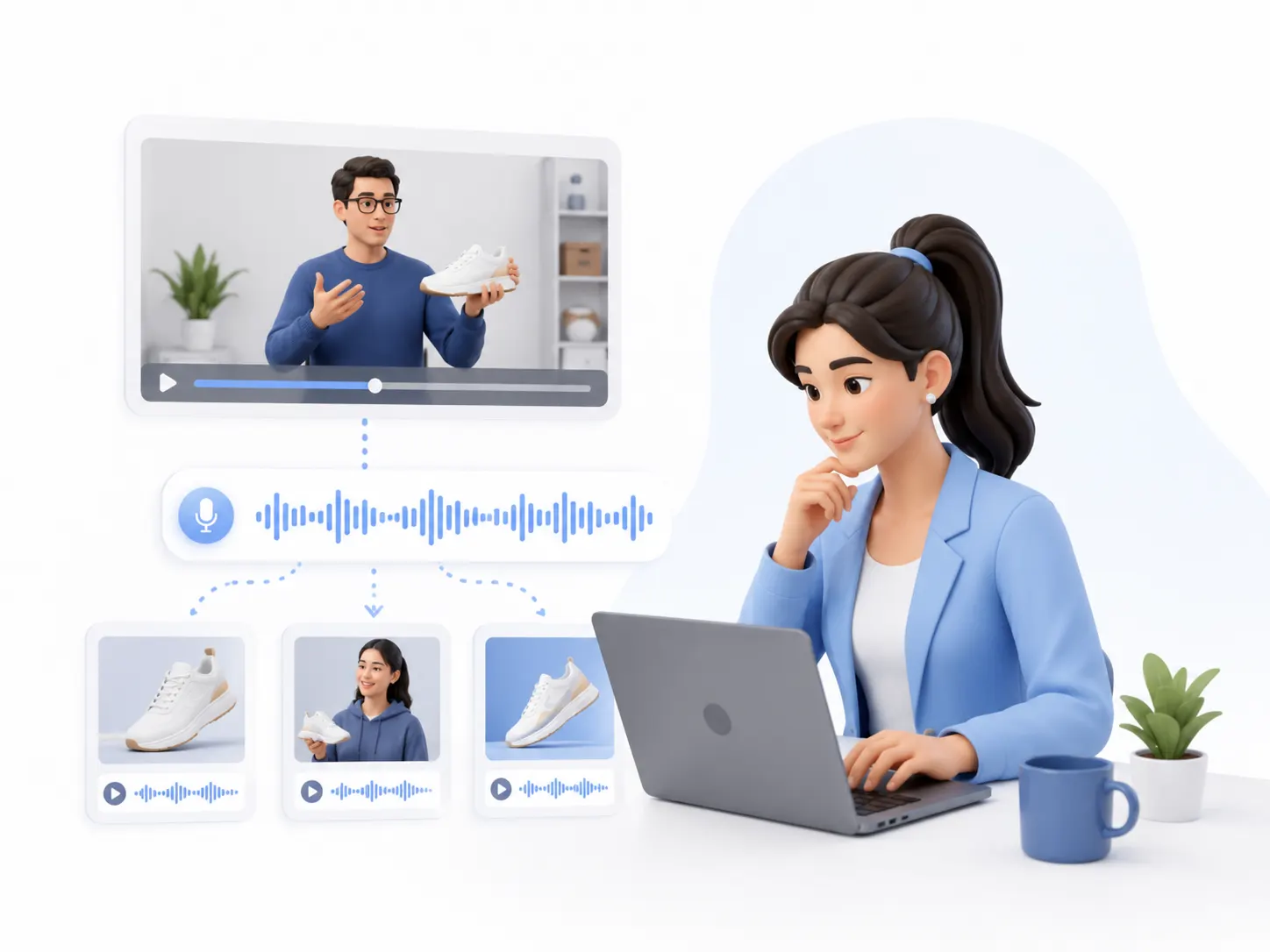
Reuse Voiceovers and Spoken Clips
Content creators and marketing teams can extract narration, testimonials, product explanations, or spoken segments from MP4 files. The audio can then support editing, content repurposing, internal review, or a new creative project.
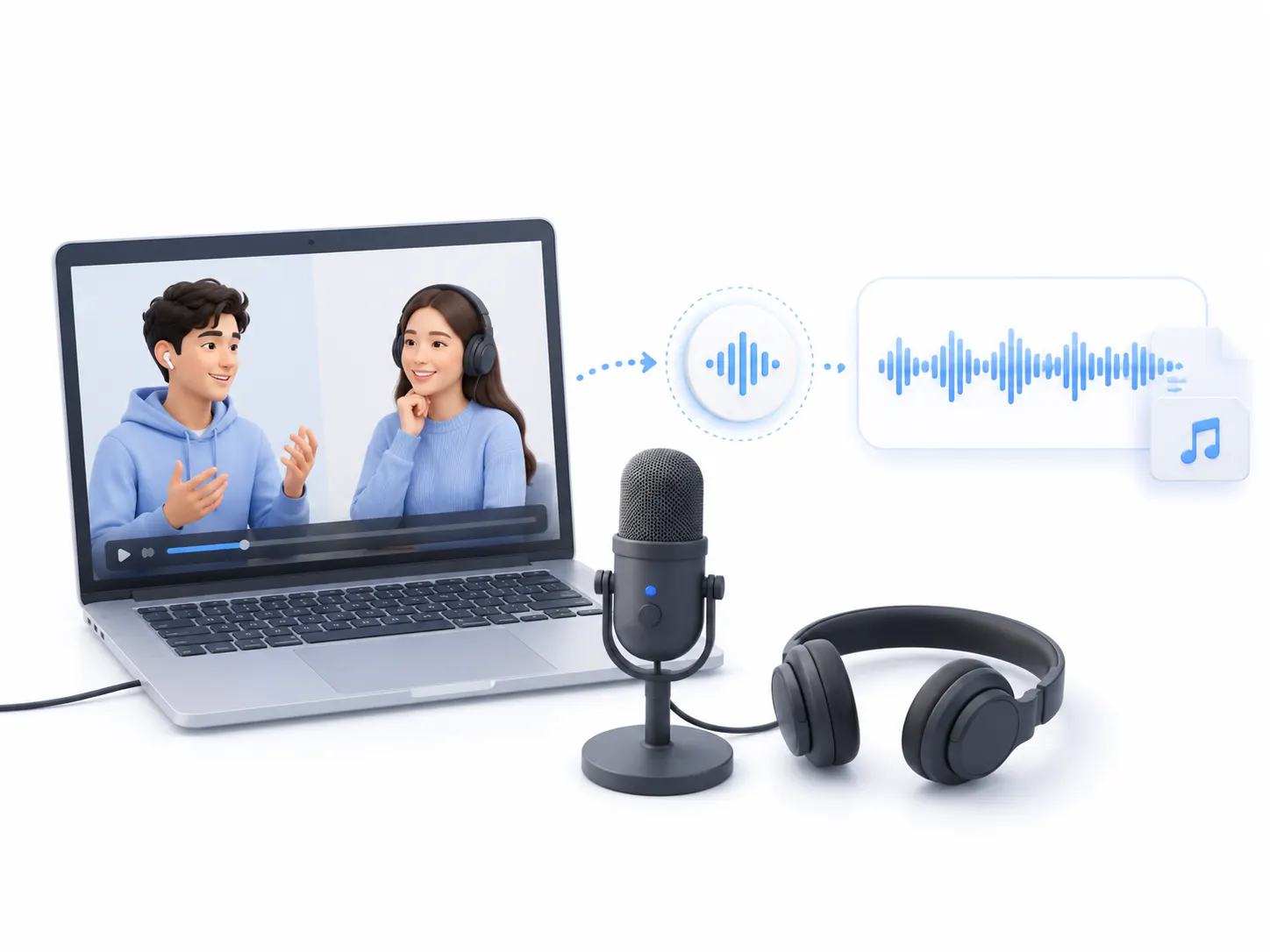
Prepare MP4 Audio for Podcasts
Video recordings are often used for remote interviews and podcast conversations, even when the final project only needs audio. Converting MP4 to MP3 creates a more practical file for reviewing the recording or preparing an editing draft.
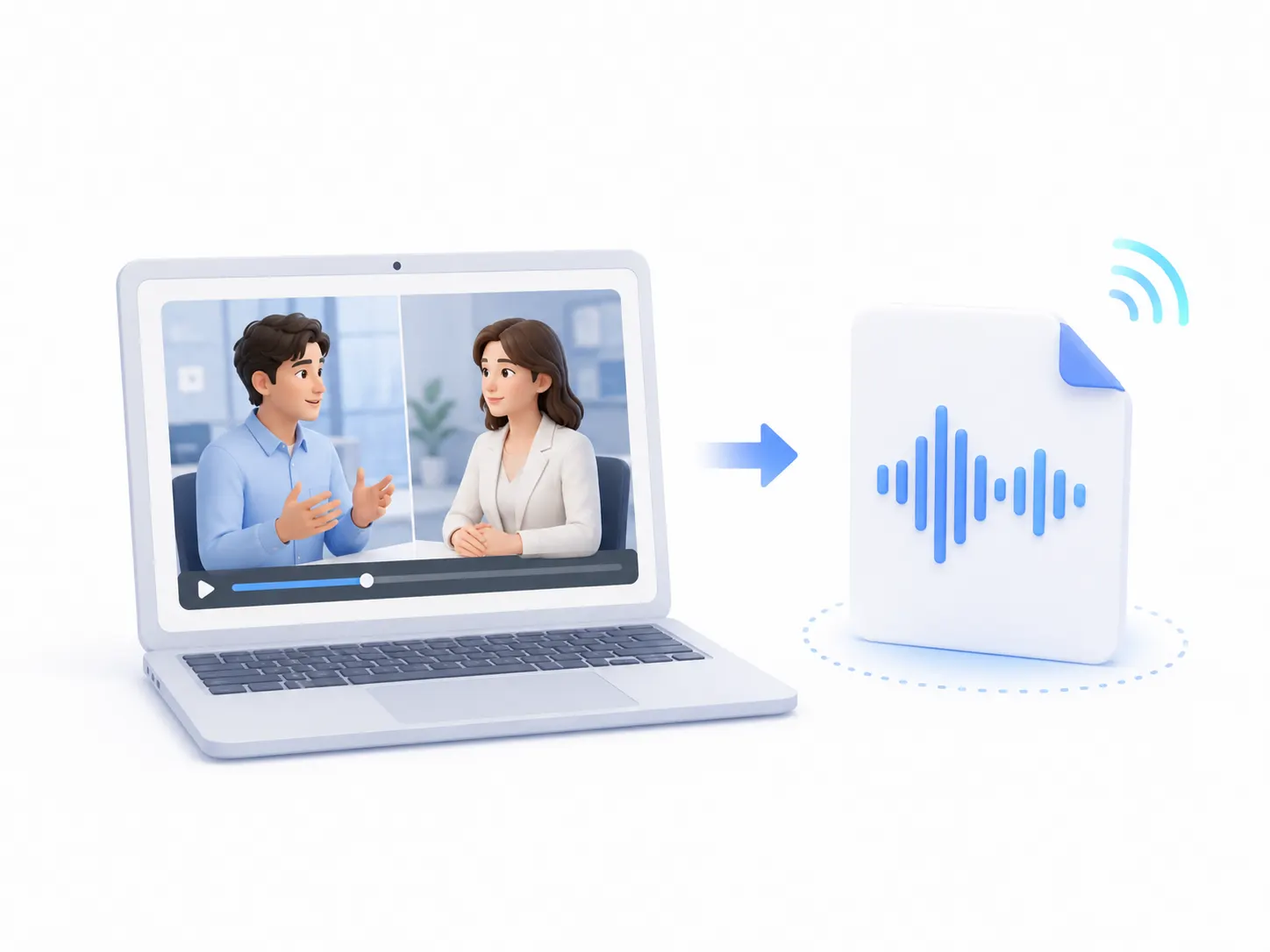
Prepare MP4 Audio for Transcription
Spoken content inside an MP4 may need to become searchable text, meeting notes, subtitles, or a written reference. First convert the video to MP3, then continue with an audio to text toolwhen you need a transcript.
How to Convert MP4 to MP3 Online
The free MP4 to MP3 converter uses a straightforward three-step workflow. No software installation or account registration is required.
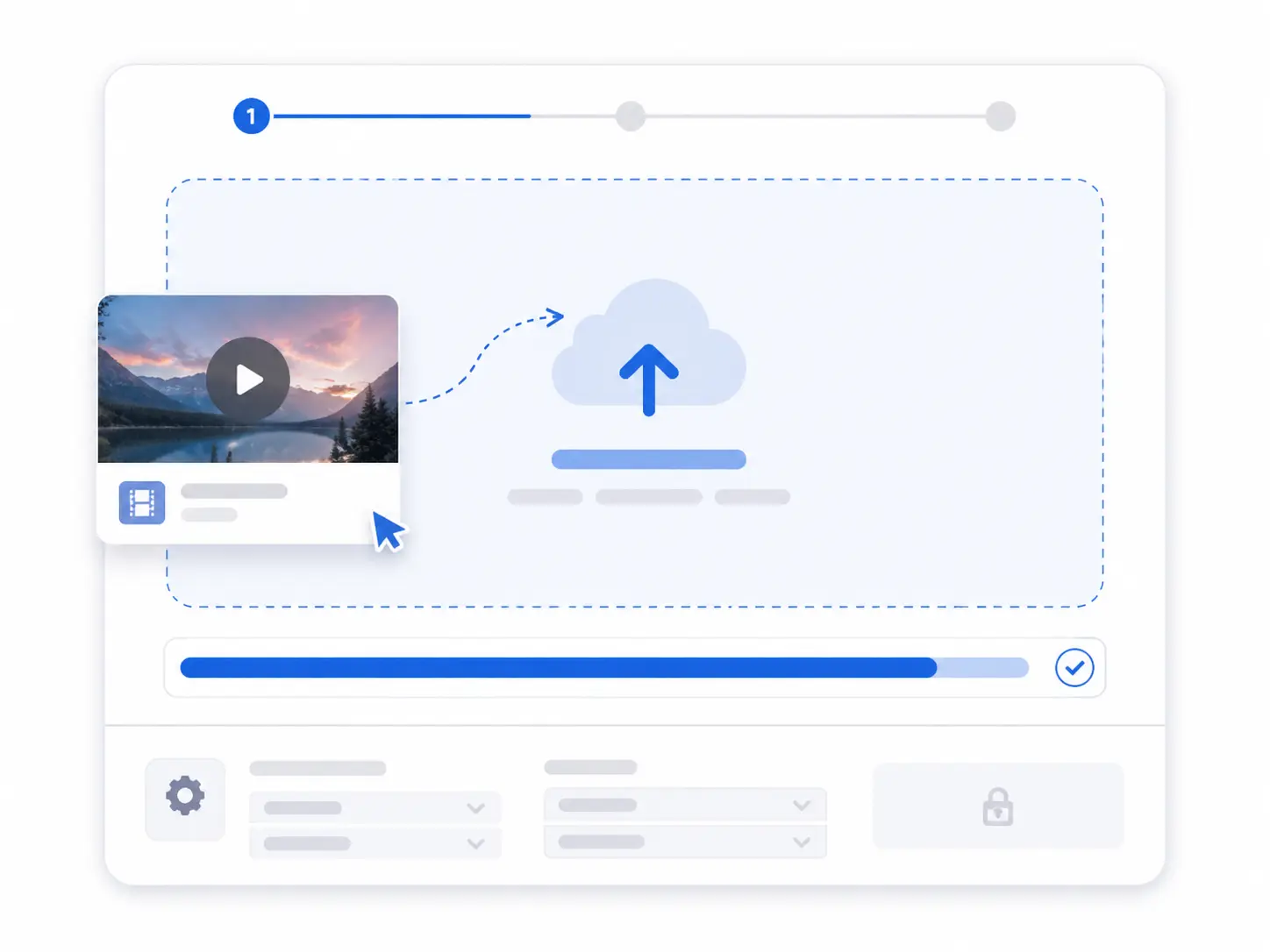
Step 1. Upload Your MP4 File
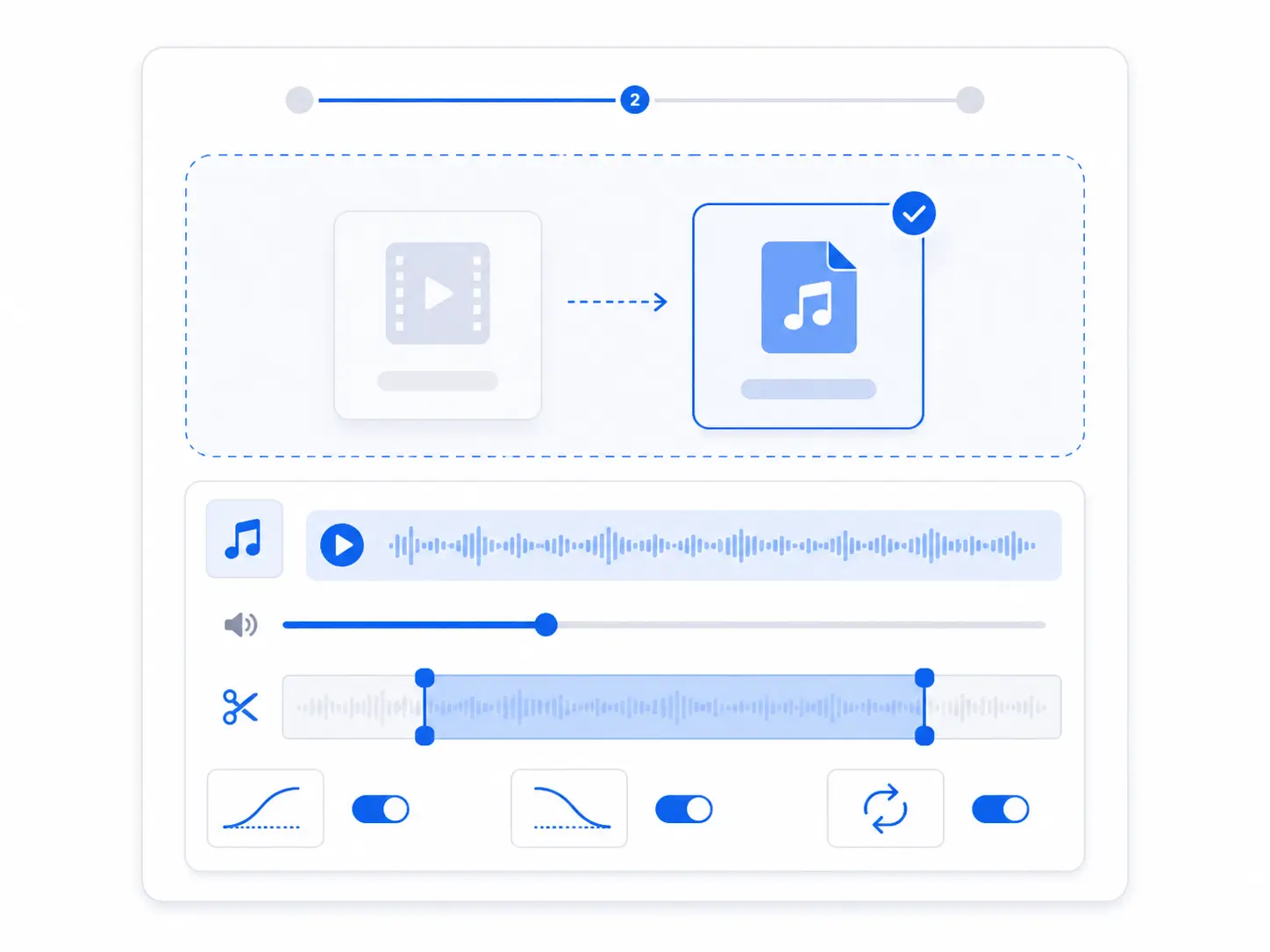
Step 2. Review the MP3 and Audio Settings
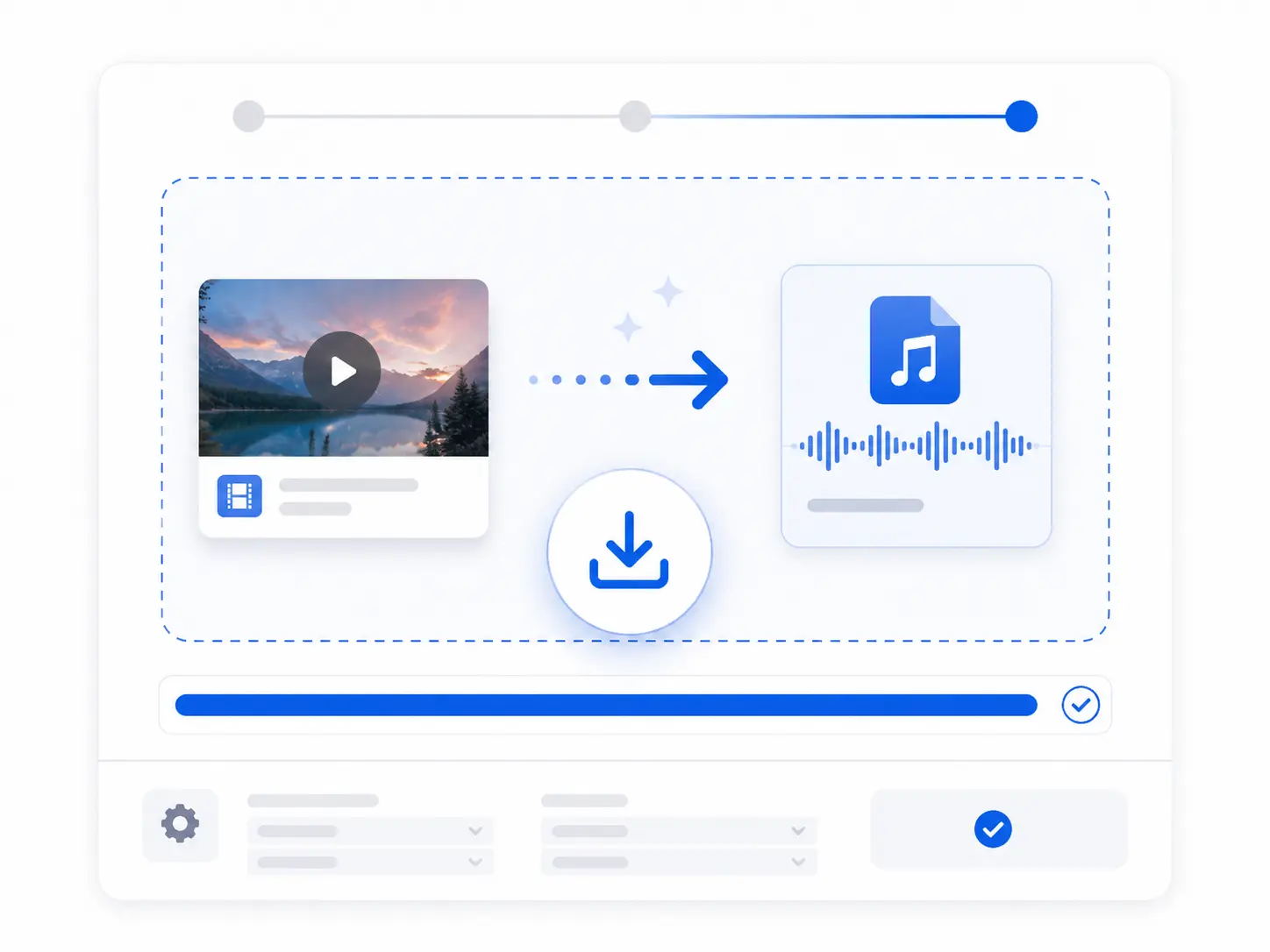
Step 3. Convert and Download the MP3
Who Uses an MP4 to MP3 Converter?
This online MP4 to MP3 converter is useful for professionals who need audio from video for review, organization, localization, or documentation.

Office Teams

Support and QA

Localization

Legal and Compliance

Archivists

Consultants
Why Use This Free MP4 to MP3 Converter?
Free
Use the free MP4 to MP3 converter for up to 100 conversions each day.
No Sign-Up Required
You do not need an account to convert and download an MP3. Sign in only when you want to access Recent Uploads, All Assets, or folders..
Works Online Without Installation
The MP4 to MP3 converter runs in a modern browser, so you do not need to download or configure desktop software.
No Watermark on the MP3
The downloaded MP3 does not include an added watermark. The resulting audio is ready for listening, editing, sharing, or further processing.
Works Across Common Devices
Use the MP4 to MP3 online converter through supported browsers on Windows, macOS, iPhone, Android, tablets, and other compatible devices.
Manage Files After Signing In
After signing in, files stay in Recent Uploads for up to 30 days. Move them to All Assets or a folder to keep them, or delete them anytime.
What Users Say About the MP4 to MP3 Converter
Frequently Asked Questions
Yes. You can use the free MP4 to MP3 converter for up to 100 conversions per day. No payment or account registration is required to start.
No. You can convert MP4 to MP3 online without registering an account. Upload your file, review the MP3 settings, and start the conversion.
You can upload an MP4 file up to 4GB. Larger files may take longer to upload and process depending on your connection speed and the content of the video.
Upload the MP4, keep MP3 selected as the output, and begin the conversion. The MP4 audio extractor separates the sound and creates a standalone MP3 file.
Yes. You can adjust the volume, trim the recording, apply fade-in or fade-out effects, and reverse the audio before conversion.
Yes. You can use the online MP4 to MP3 converter in a supported mobile browser on iPhone, Android, and tablets without installing desktop software.
MP3 is a compressed audio format, so the finished file may contain less audio data than the source track. The noticeable difference depends on the original recording and the conversion settings. Using the original MP4 rather than a repeatedly converted copy can help preserve more of the source quality.
Signed-in users can access uploaded files in Recent Uploads for up to 30 days. Move files to All Assets or a folder to keep them permanently, or delete them manually when they are no longer needed.