Transcribe M4A to Text Online for Free
Use Decopy's M4A to text converter to turn files up to 500 MB into searchable transcripts with timestamps, speaker labels, and TXT download.
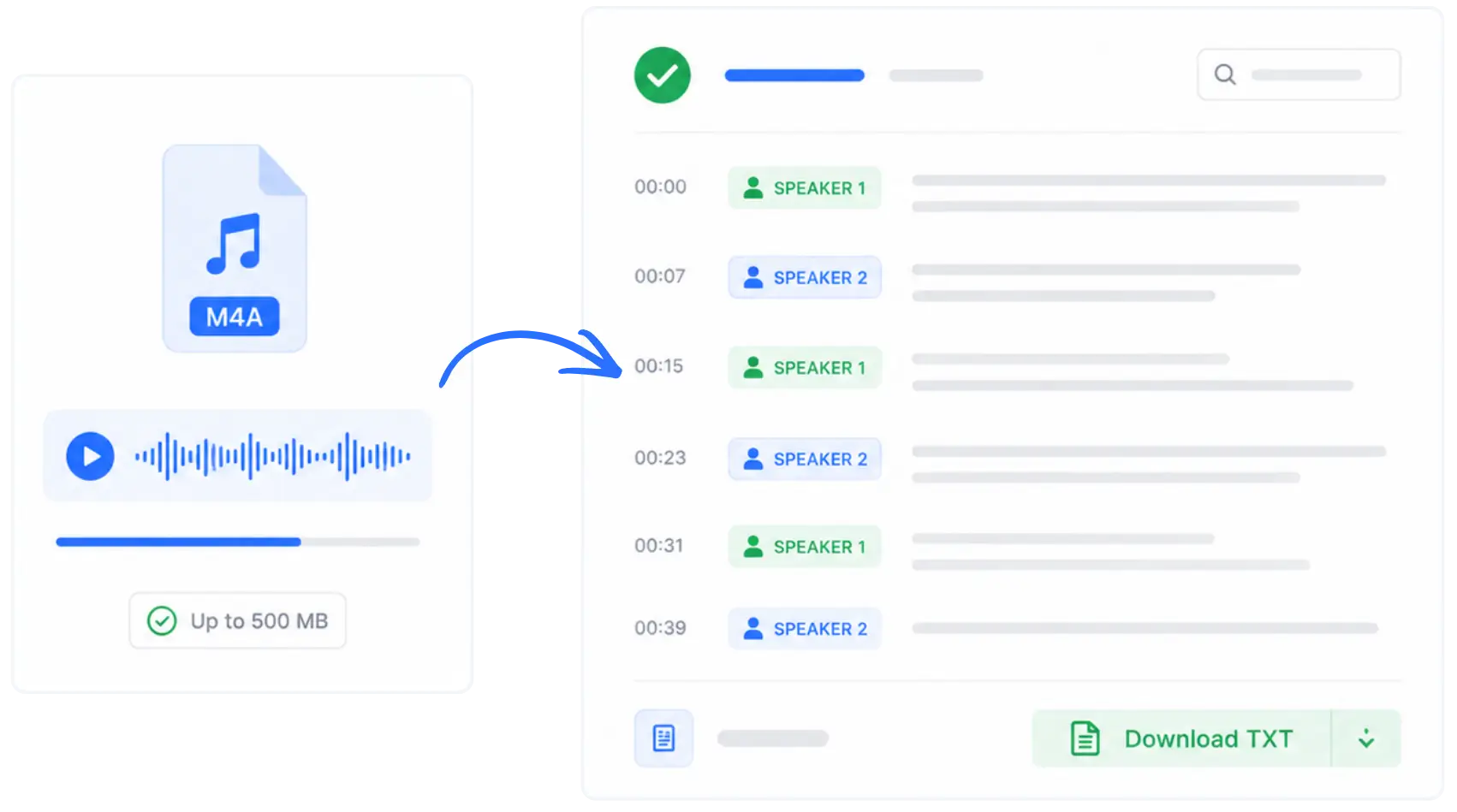
Preserve What Was Actually Said
An M4A recording may contain exact wording, names, numbers, and explanations that should not be reduced to memory alone. Upload it to turn speech into text online and keep a written record that stays close to the original conversation.

Give Unstructured Speech a Clearer Form
Spoken thoughts often include pauses, corrections, repeated points, and ideas introduced out of order. M4A transcription gives you a written starting point for separating questions, explanations, examples, and conclusions.

Create a Record Others Can Review
An audio file is difficult to comment on, approve, or discuss with someone who was not present. Use audio to text converter for M4A files to create a shared record that colleagues, clients, or collaborators can read and review together.

M4A to Text Converter Features
Decopy combines M4A transcription with tools for reviewing source audio, organizing conversations, finding evidence, and preparing the transcript for its next use.
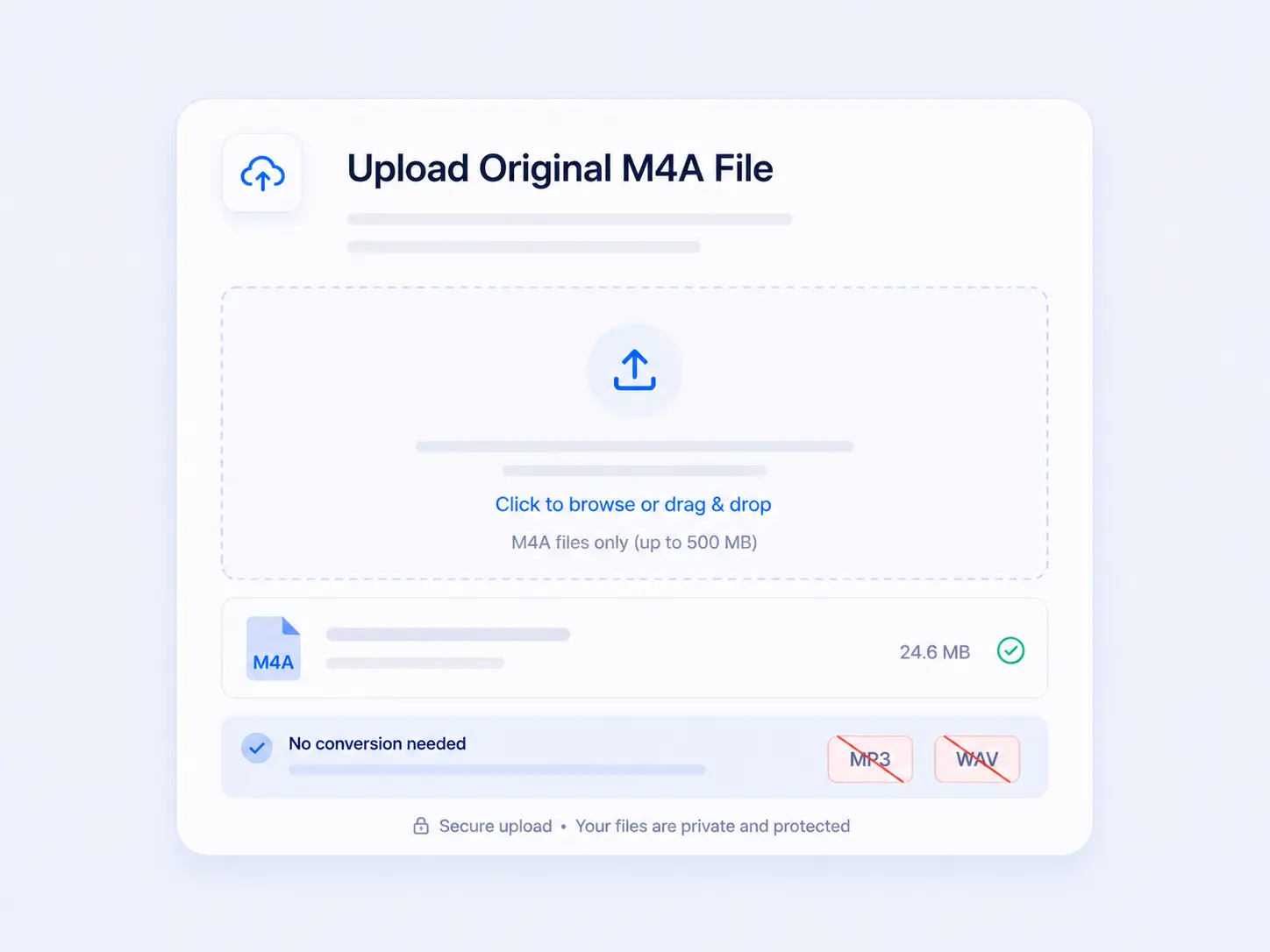
Upload the Original M4A File
Upload an M4A file up to 500 MB directly from your device. The M4A to text converter works with the recording you already have, so you do not need to create an MP3 or WAV copy before transcription.
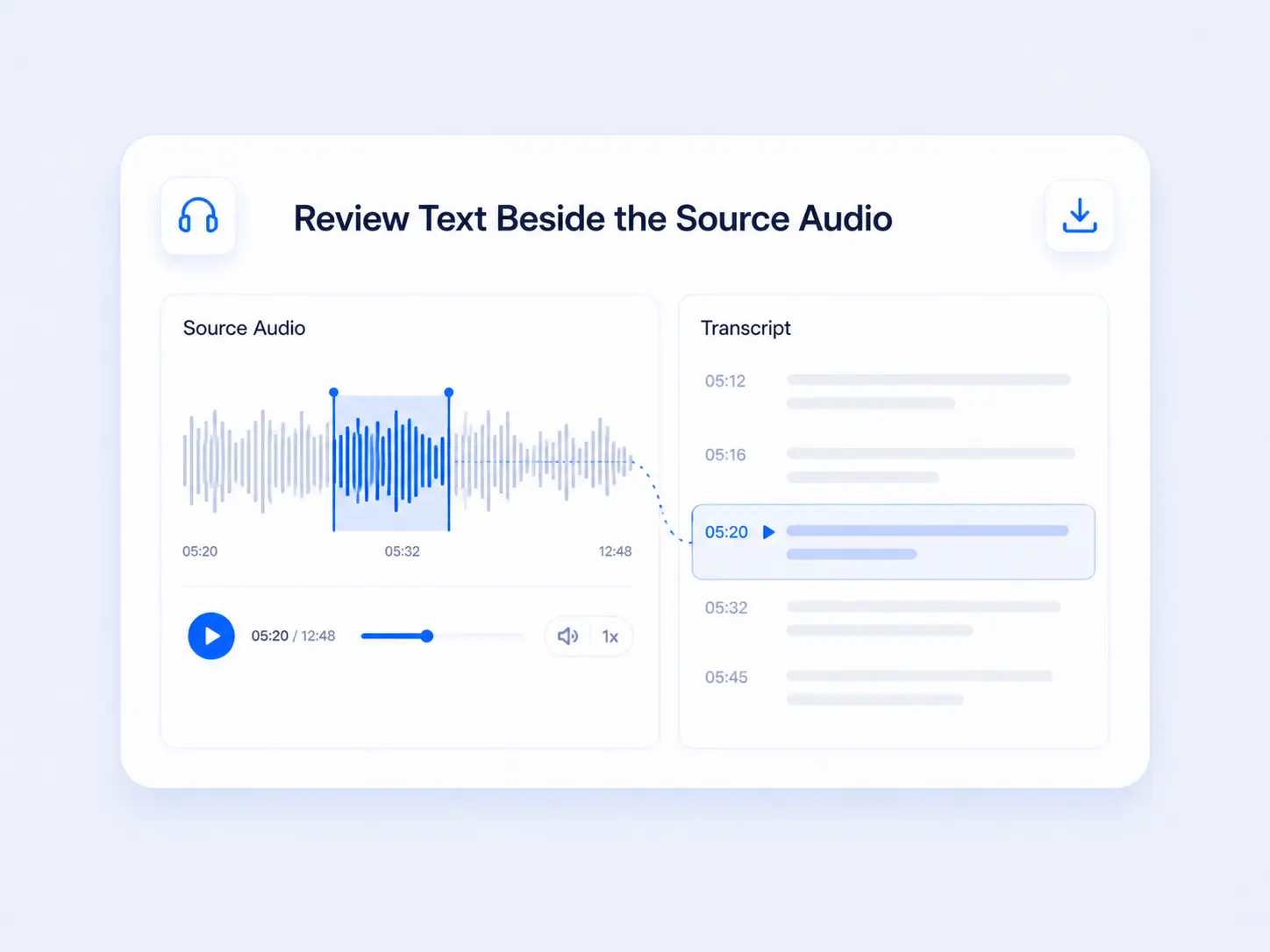
Review Text Beside the Source Audio
The generated M4A transcript stays connected to the recording through timestamps and audio playback. When a name, number, quote, or technical term needs checking, return to the relevant moment instead of searching through the full recording manually.
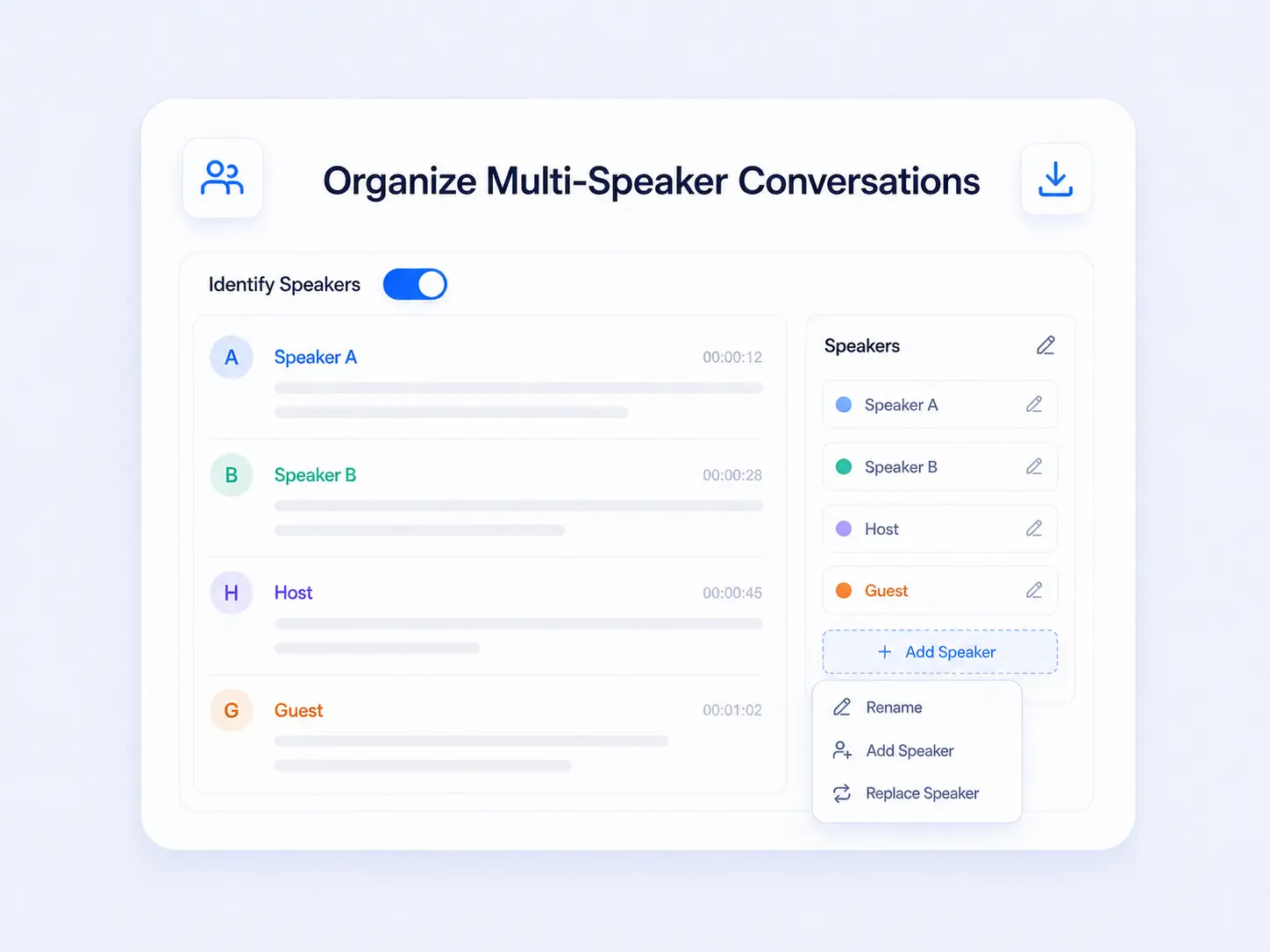
Organize Multi-Speaker Conversations
Turn on Identify Speakers before starting an interview or meeting transcription. Decopy separates recognized voices with speaker labels, and you can rename, add, or replace speaker names while reviewing the conversation.
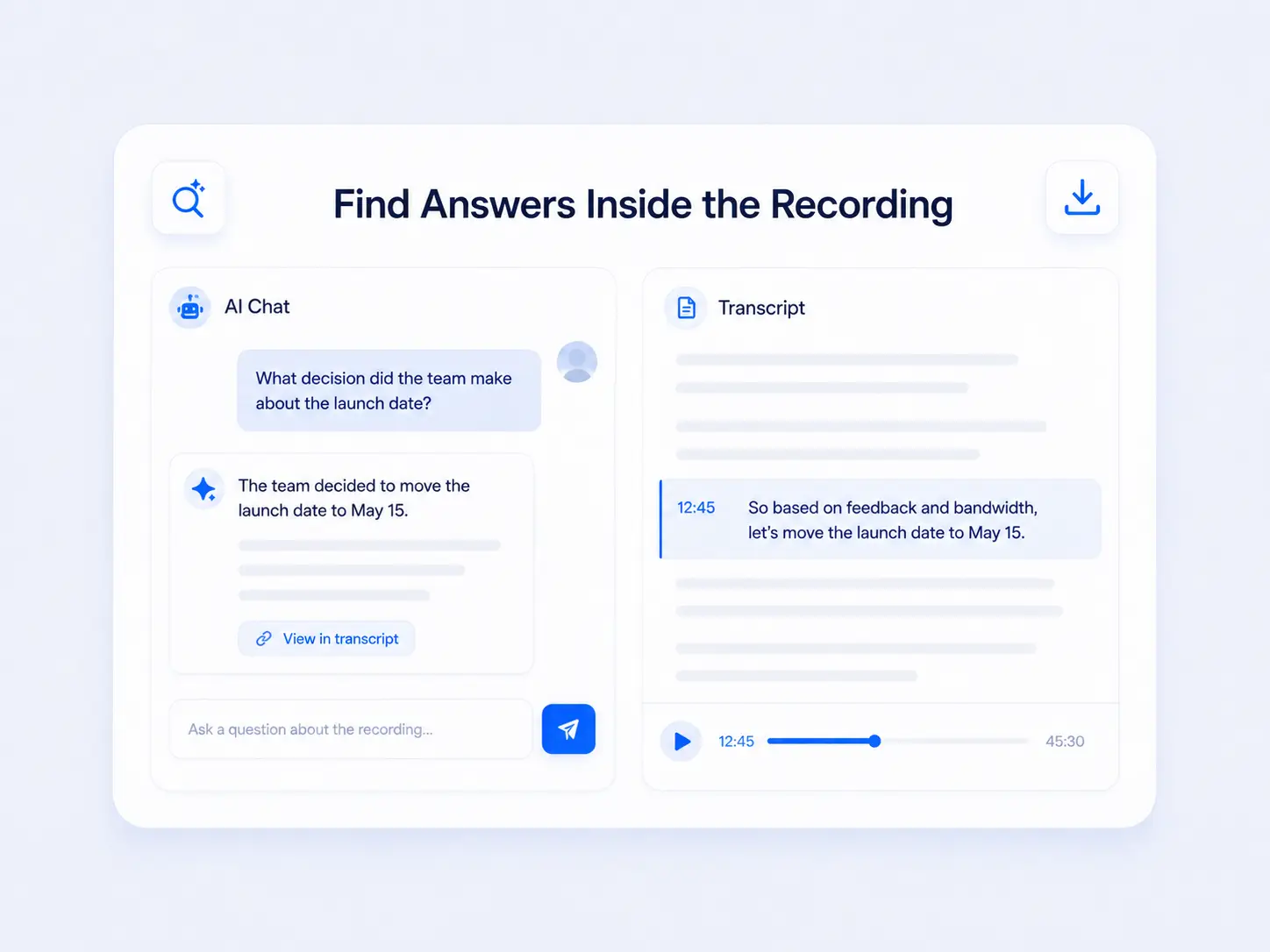
Find Answers Inside the Recording
Use AI Chat to ask focused questions about the completed transcript. Locate a participant's explanation, an unresolved issue, or a supporting example, then return to the transcript and audio when the source wording needs verification.
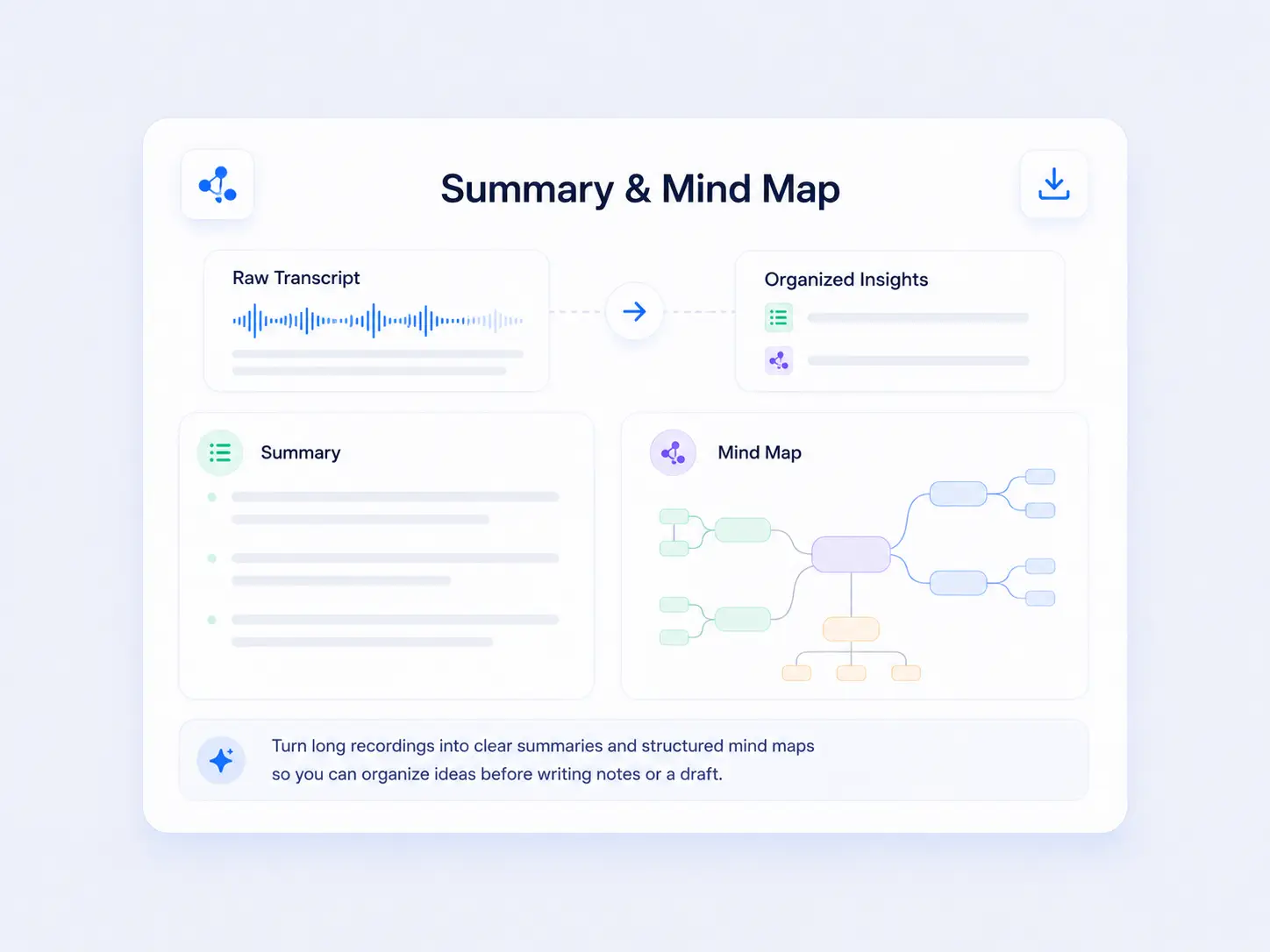
Organize Raw Speech with a Summary and Mind Map
Long recordings rarely arrive in a clean written structure. Generate a summary to identify the main points, or use a mind map to see how topics, arguments, and examples connect before preparing notes or a draft.
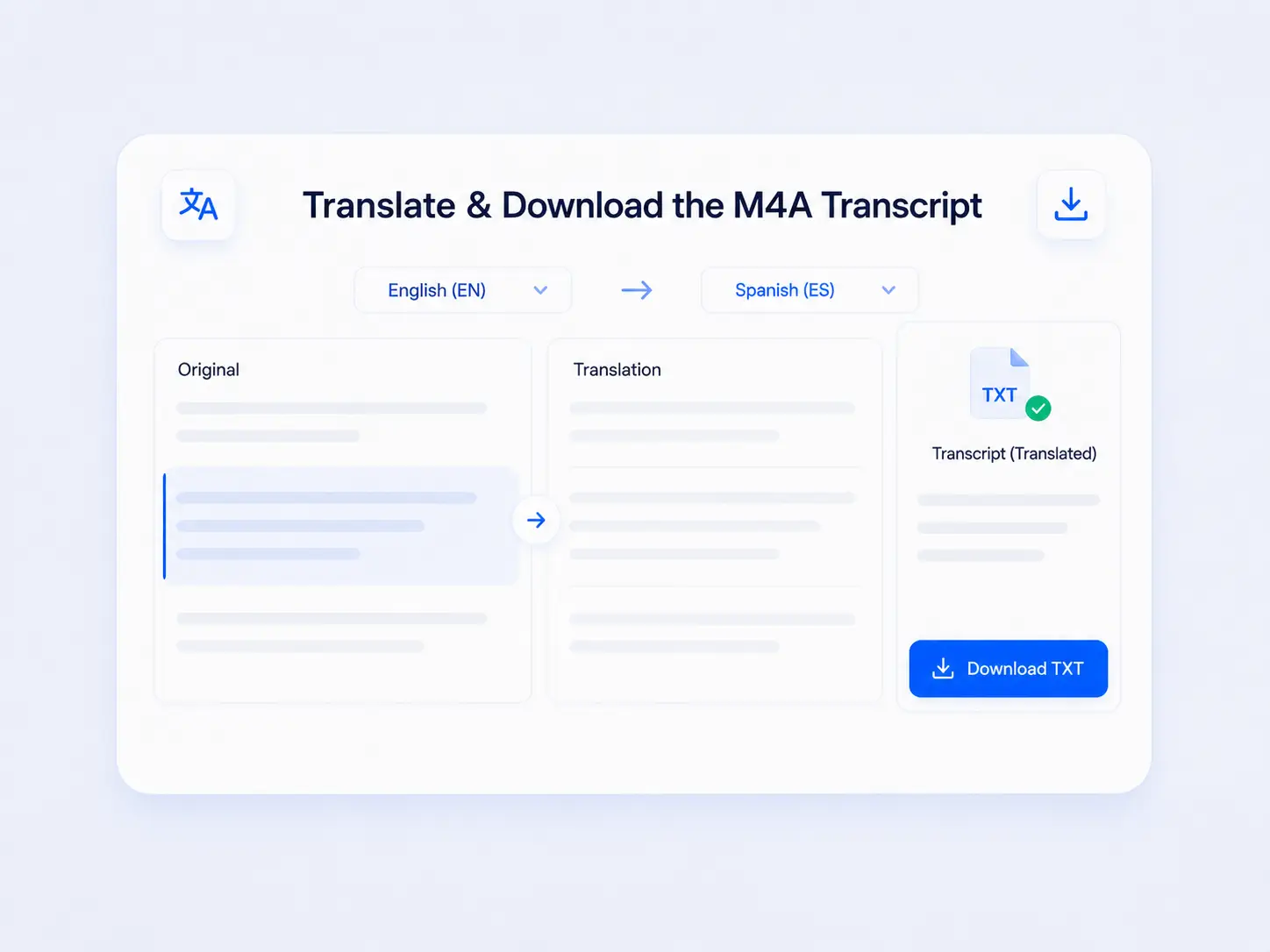
Translate and Download the M4A Transcript
Translate the completed transcript into an available target language when the recording needs to be understood by another audience. Download the final M4A transcript as a TXT file for documents, notes, research files, or further editing.
Practical M4A Transcription Workflows
These workflows begin with M4A files created by familiar recording apps and show how the content moves into the next tool or task.
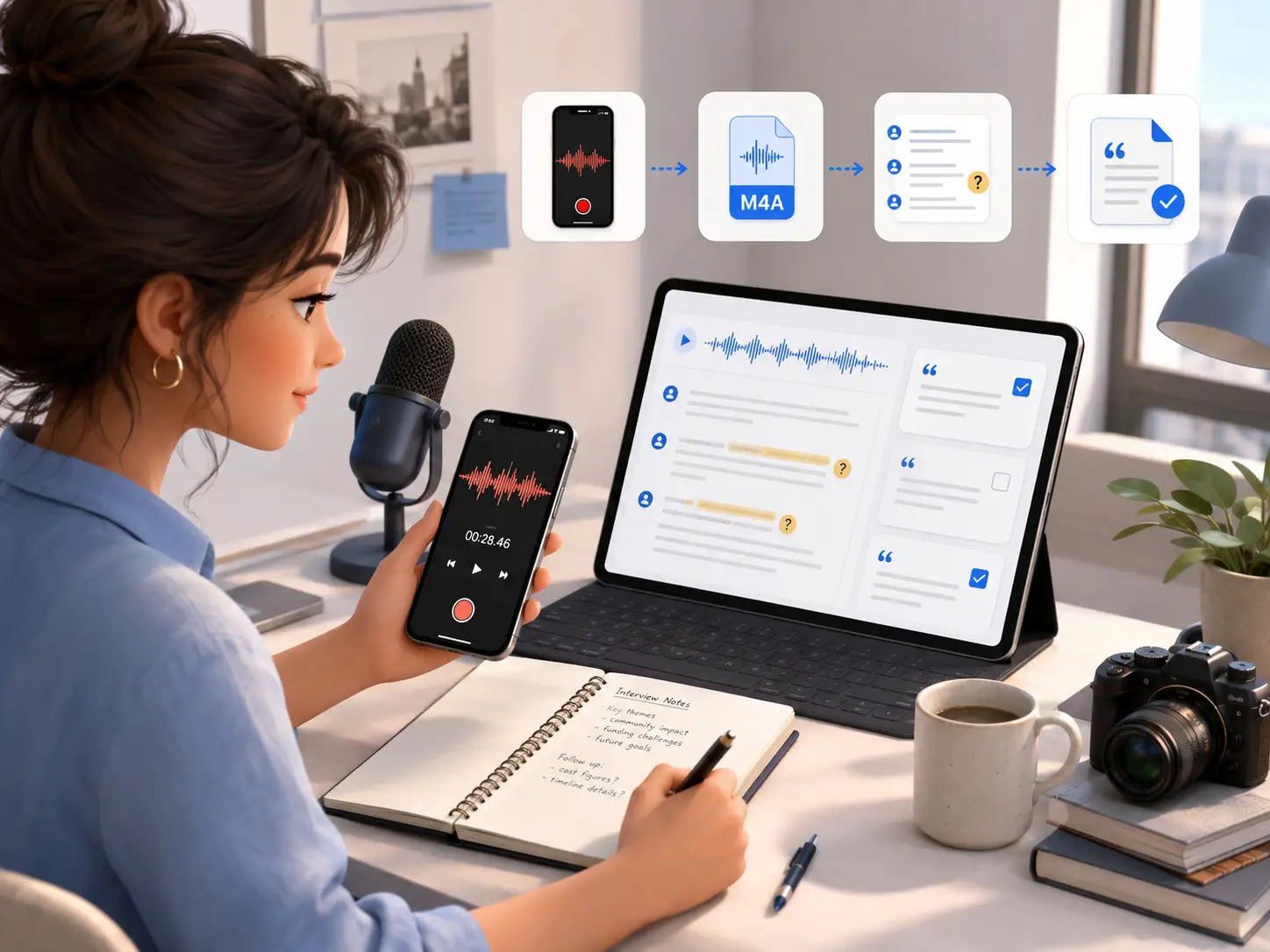
Build an Interview Draft from iPhone Voice Memos
An interview recorded on an iPhone is commonly exported as an M4A file. Create a workable first transcript, mark uncertain passages, and review only the sections that need confirmation before adding quotes or observations to a report.

Review a Three-Person Apple Voice Memo
A three-person discussion saved in Apple Voice Memos arrives as one continuous recording. Transcribe the M4A file, assign each voice a speaker label, and organize the discussion into decisions, responsibilities, and unresolved questions.

Prepare Lecture Text for NotebookLM
Convert an M4A lecture recording into text before adding it to NotebookLM. The transcript can serve as source material for study guides, topic summaries, and questions based on what was actually covered in class.
File Voice Notes in Apple Notes
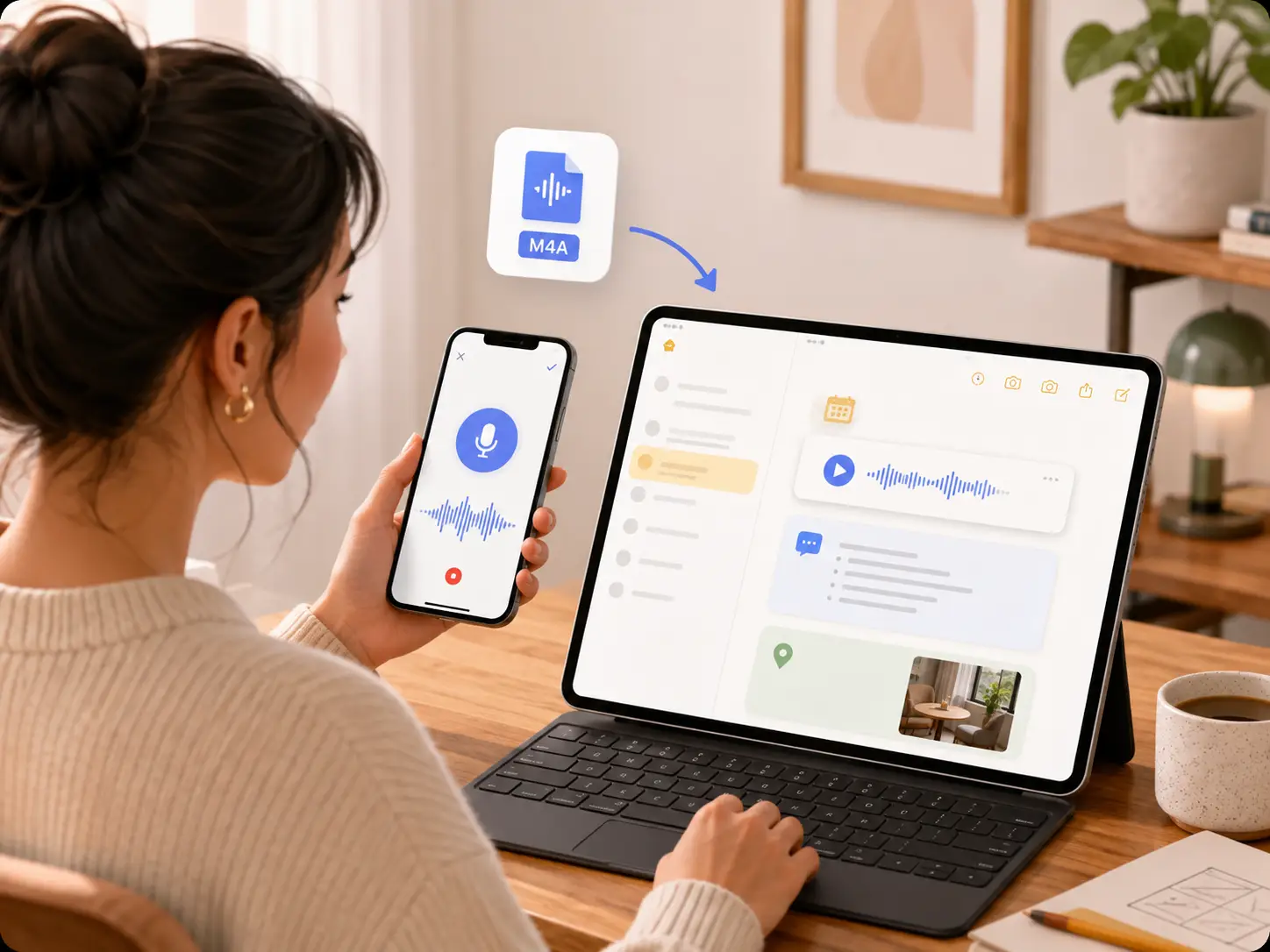
After exporting a spoken idea as an M4A file, convert a voice recording to text and save the result in Apple Notes with the recording date and a short summary.
How to Transcribe M4A to Text Online
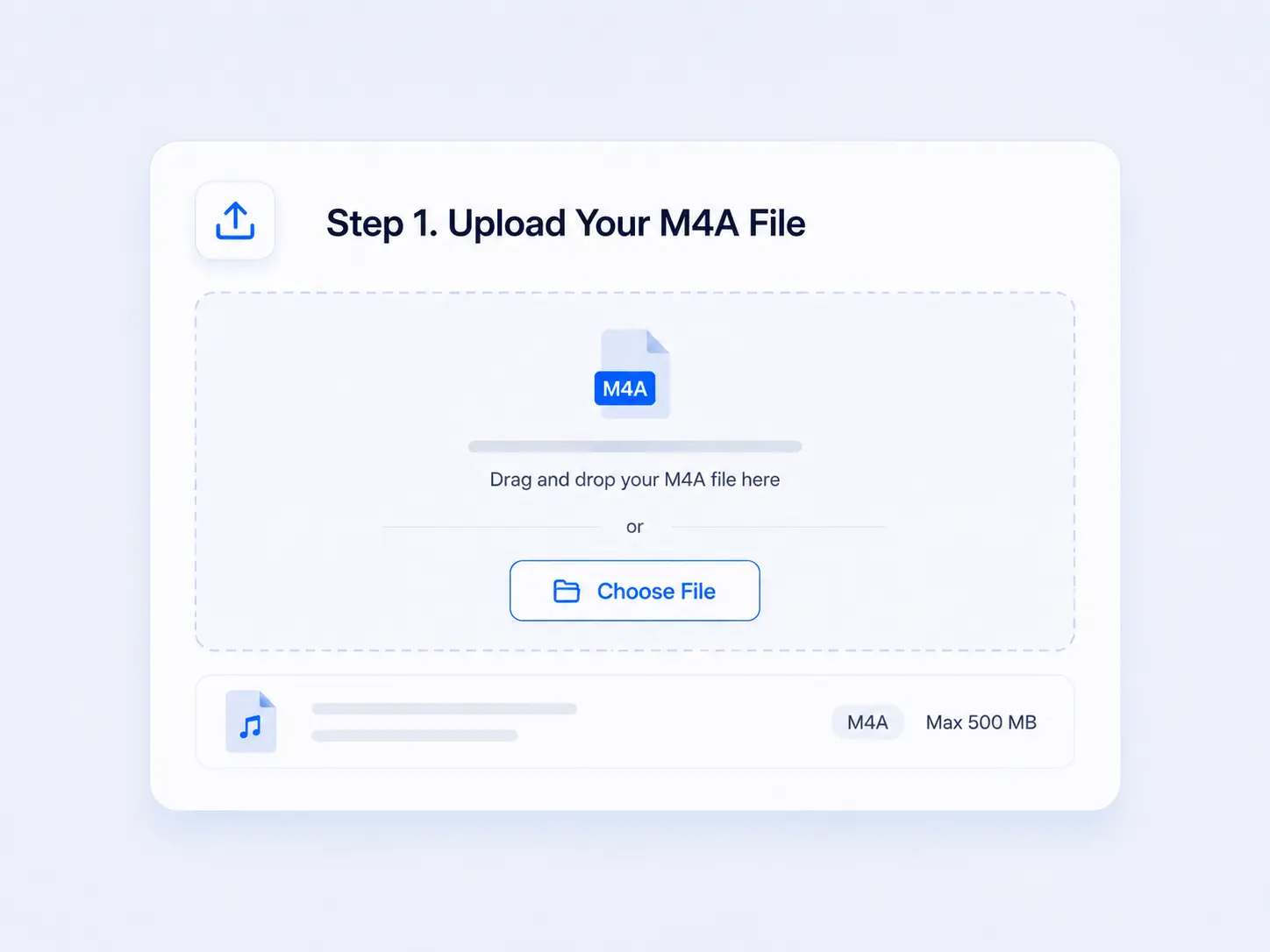
Upload Your M4A File
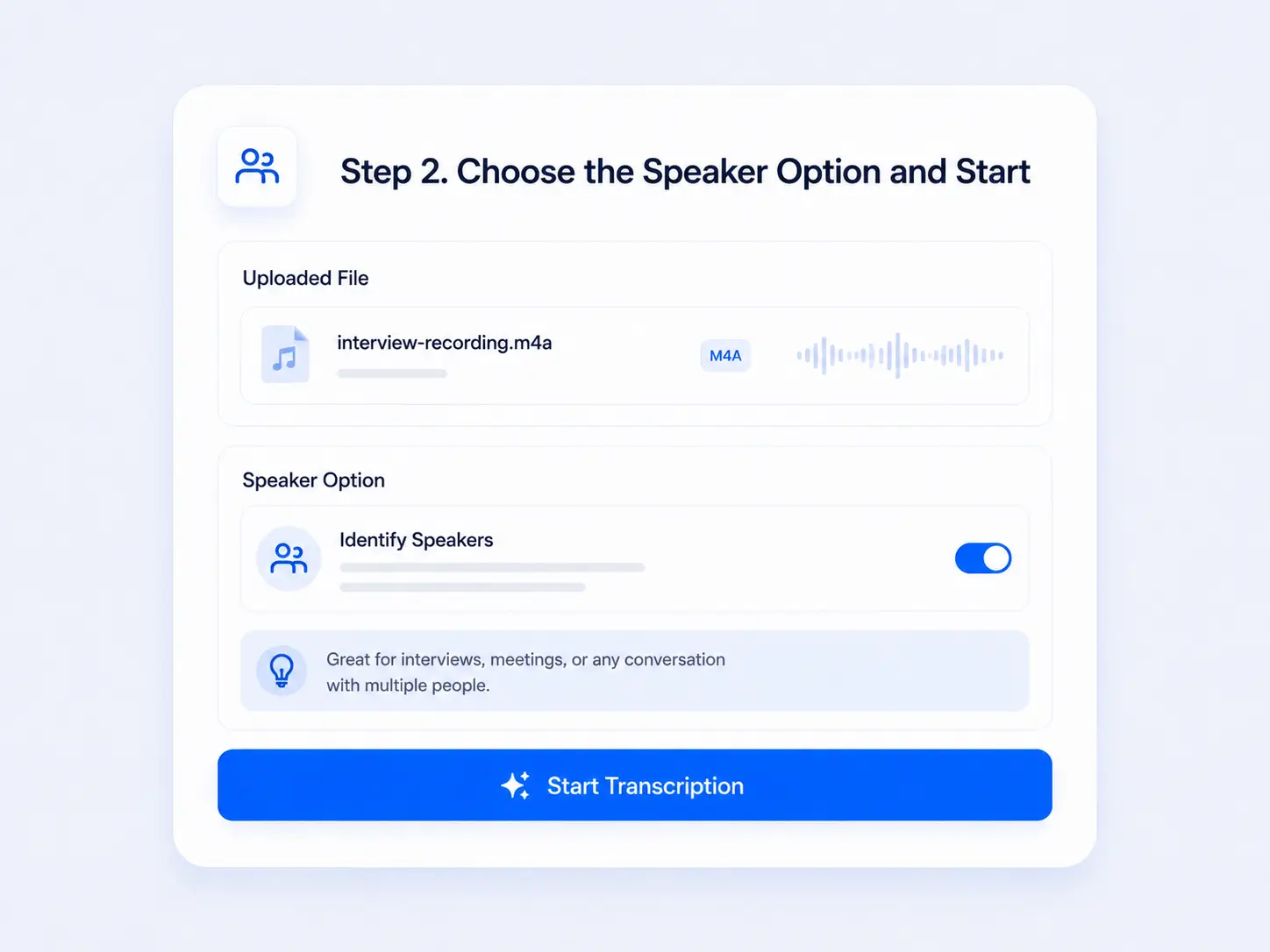
Choose the Speaker Option and Start
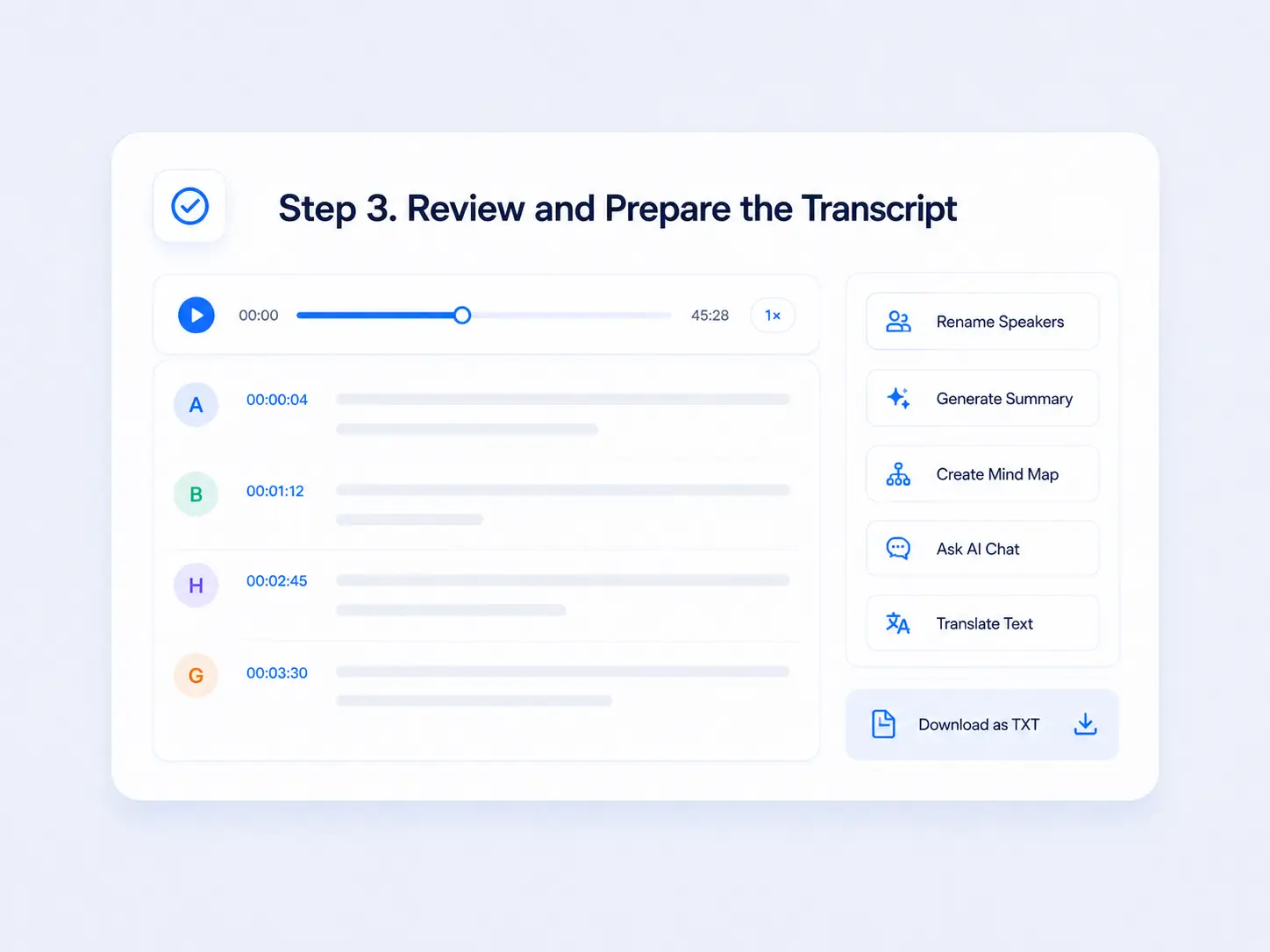
Review and Prepare the Transcript
Who Uses an M4A to Text Converter?
Beyond individual interviews, meetings, lectures, and voice notes, M4A transcription also supports teams that work with recorded audio on a regular basis.
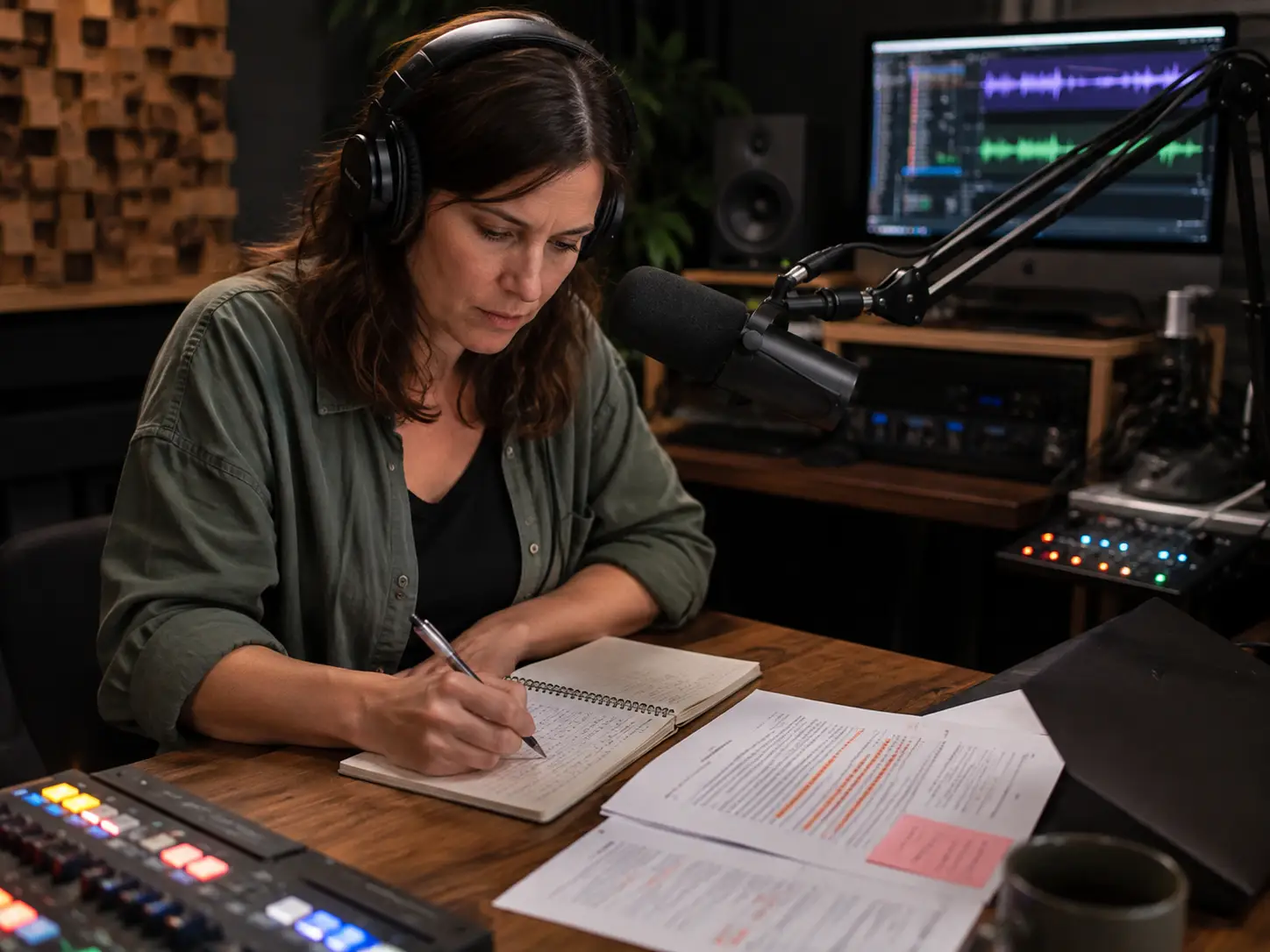
Podcast Producers and Audio Editors

Customer Support and QA Teams

Sales Enablement Teams
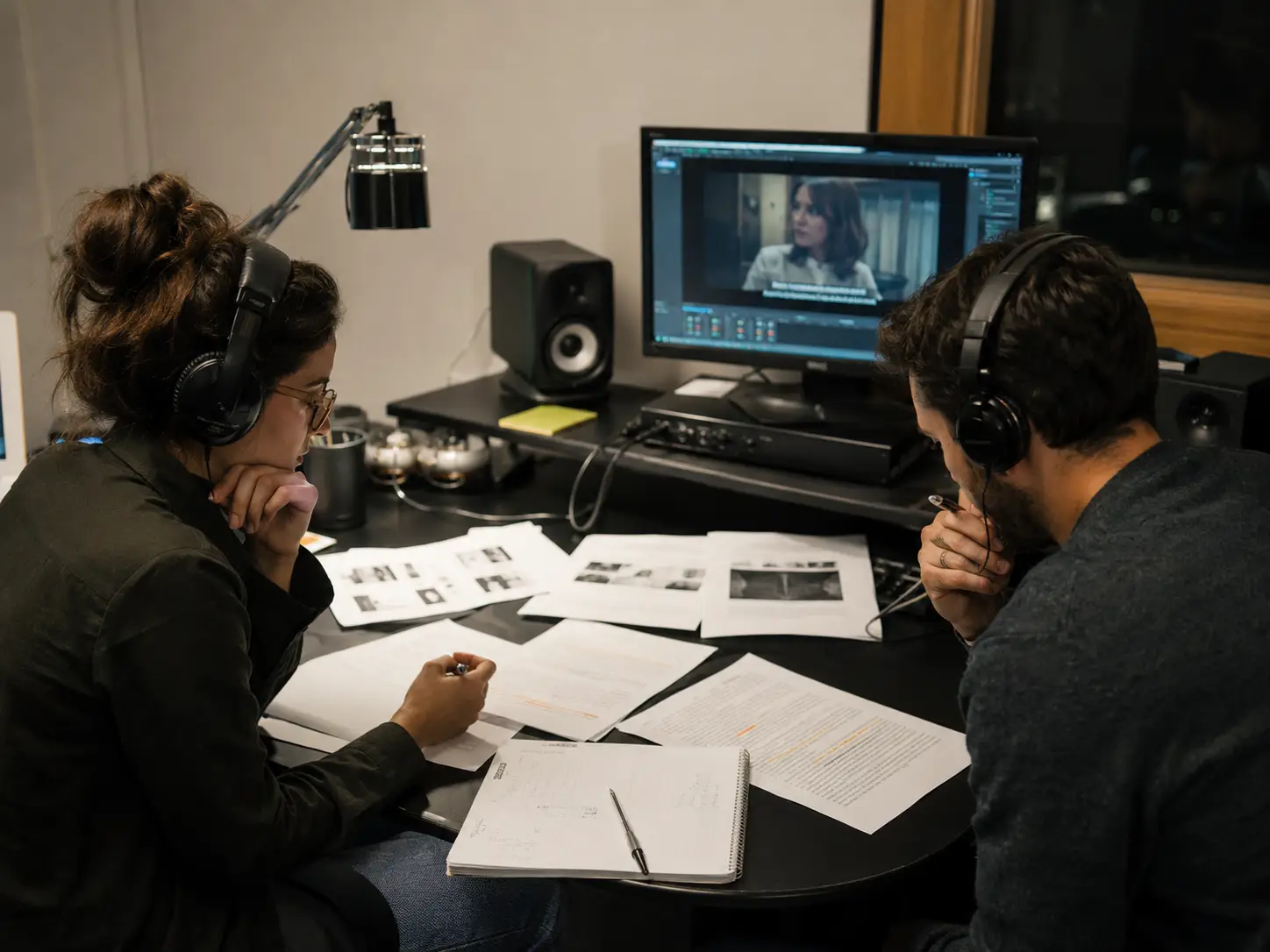
Localization and Subtitle Teams
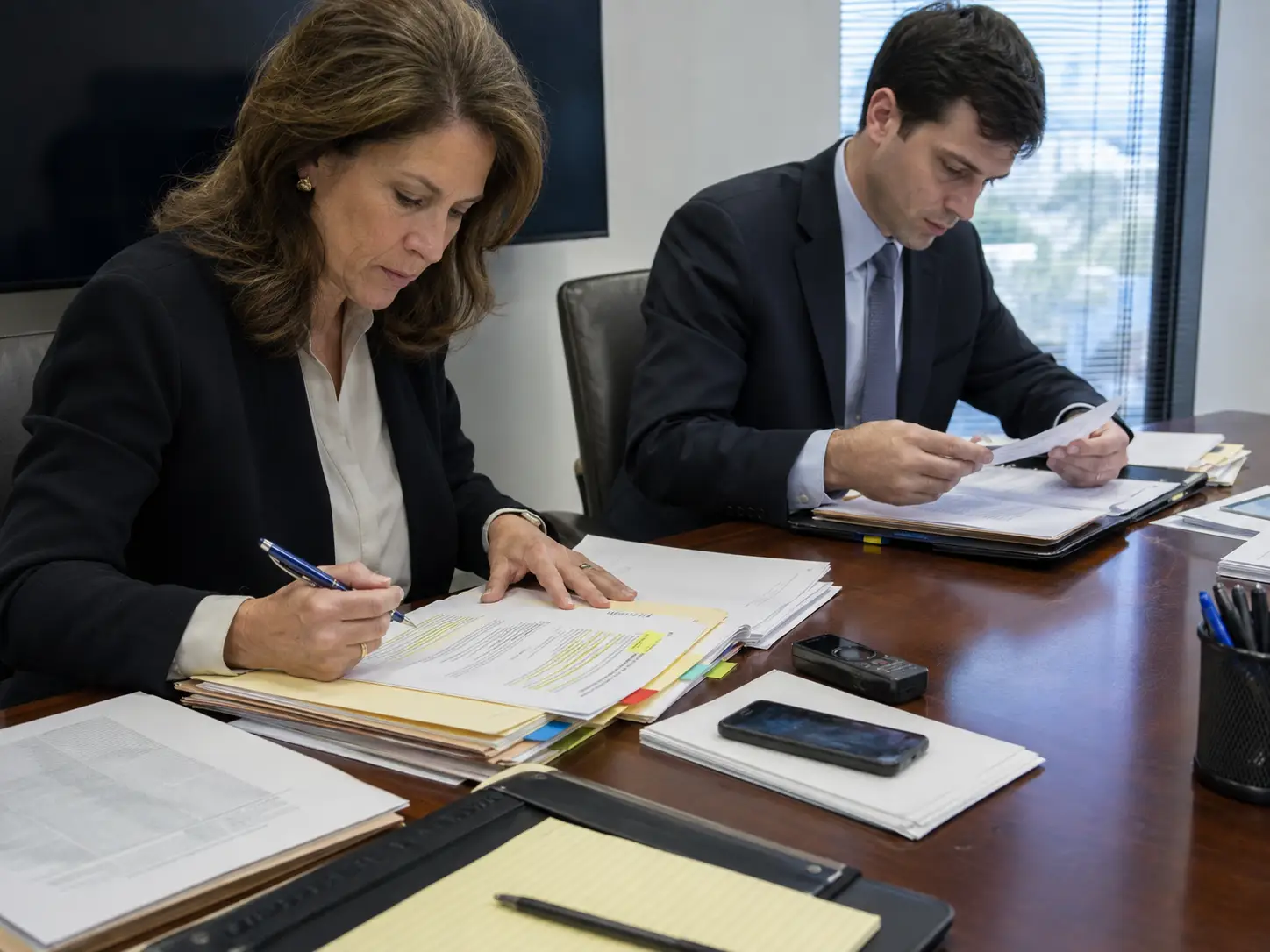
Legal and Compliance Reviewers

Knowledge and Training Teams
Why Use Decopy for M4A Transcription?
Free
Transcribe M4A to text for free with up to 10 daily transcriptions for audio no longer than 30 minutes. The upload area displays the current free allowance and limits.
Clear
See the current upload limit, free allowance, and recording-length requirements before submitting the file.
Diverse
Keep the full transcript available while using timestamps, playback, speaker labels, summaries, mind maps, and AI questions. This makes it easier to explore the recording without losing the path back to the source.
Online
Use the M4A to text converter in a supported desktop or mobile browser. You do not need to install a dedicated transcription application before uploading and reviewing the file.
Private
Your uploaded files and transcripts are not made public or used for model training. You can delete history and saved items when they are no longer needed. Deleted records cannot be restored.
Frequently Asked Questions
Upload the M4A file, turn on Identify Speakers if it contains more than one person, and start the transcription. Review the result with timestamps and audio playback, then download the finished transcript as a TXT file.
Yes. Decopy currently provides up to 10 free daily transcriptions for audio no longer than 30 minutes. Check the upload area for the current allowance before starting.
No. Decopy accepts M4A files directly, so converting the recording to MP3 is not required. Using the original file also avoids an extra processing step.
Yes. If the exported Voice Memo is an M4A file and remains within the upload limit, you can upload it to create a transcript. Transcription quality still depends on the clarity of the recorded speech.
Yes. Upload the M4A audio file and enable speaker identification when the meeting includes multiple participants. Review decisions, names, dates, and responsibilities against the source before using them in formal notes.
You can upload an M4A file up to 500 MB. Files larger than this limit need to be reduced or split before uploading.
Yes. Turn on Identify Speakers before starting. Decopy separates recognized voices with speaker labels, and you can correct the labels during review.
Yes. Timestamps connect transcript passages to corresponding positions in the source audio, making important details easier to verify.
Accuracy depends on the source recording. Clear speech, close microphones, limited background noise, and minimal speaker overlap generally produce a cleaner first transcript. Always review names, numbers, quotations, and specialized terms.
Processing time varies with the recording length, file size, upload speed, and current demand. Larger or longer M4A files generally take more time to process.
Yes. After the M4A to text conversion is complete, download the transcript as a TXT file for notes, documents, archives, or further editing.
Direct VTT and SRT downloads are not currently available on this M4A transcription page. The completed transcript can currently be downloaded as TXT.
Yes. After the original M4A transcription is complete, translate the transcript into an available target language and review important passages before using or sharing the result.
Uploaded recordings and transcripts are not made public or used for model training. You can delete your history and saved items when they are no longer needed, and deleted records cannot be restored.