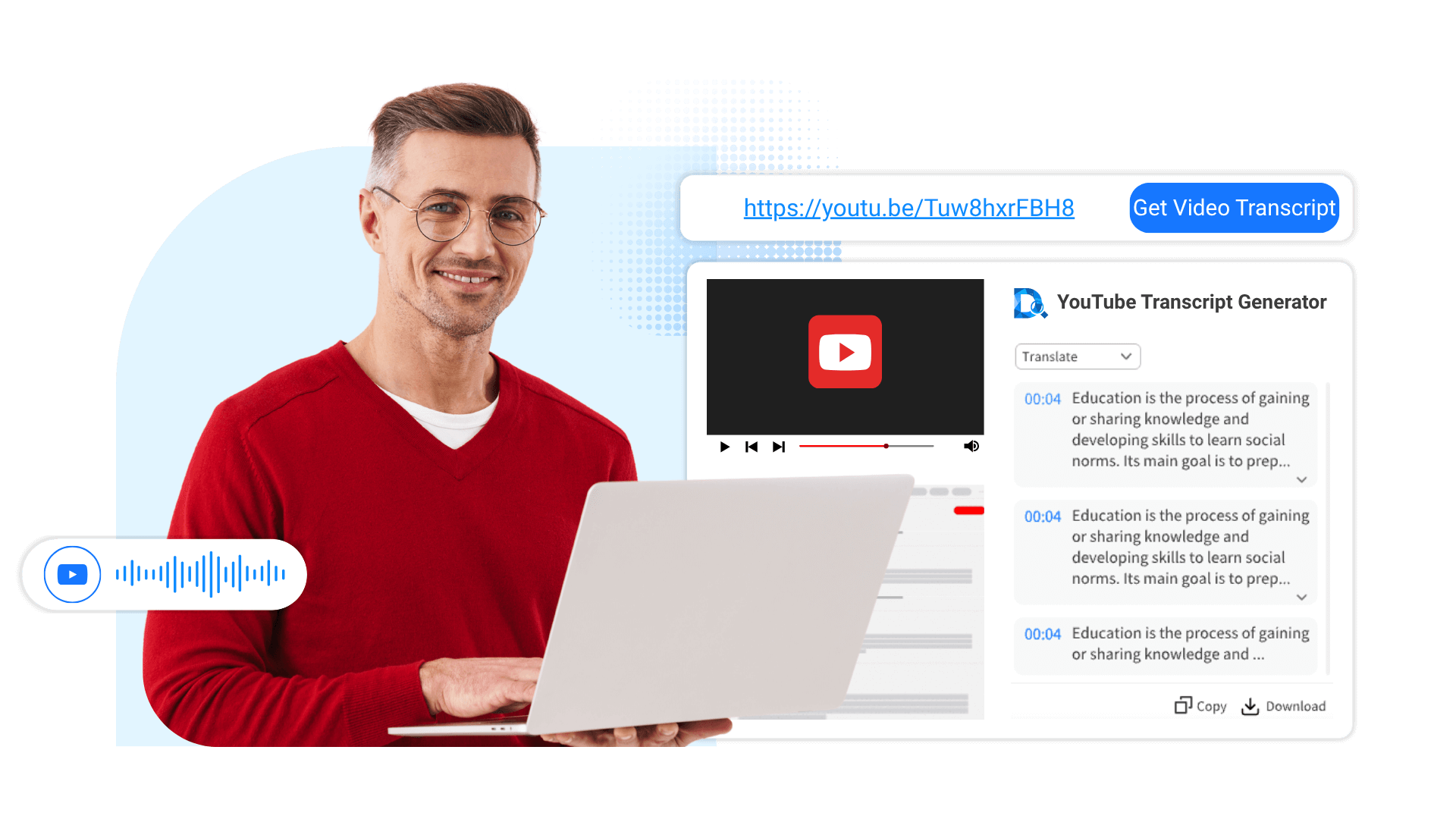
How to Get a Transcript of a YouTube Video: 5 Ways
Have you ever saved a useful YouTube video to Watch Later, only to never open it again?
This guide explains how to get a transcript of a YouTube video in five different ways, including YouTube's built-in transcript, a public video link, browser extensions, uploaded media files, and manual review.
This guide explains how to get a transcript of a YouTube video in five different ways, including YouTube's built-in transcript, a public video link, browser extensions, uploaded media files, and manual review.
Many people treat YouTube as a platform they watch once and close.
They find a useful video, save it for later, and tell themselves they will come back to study it. But when they finally need the information, the problem becomes obvious:
At what minute did that quotation appear? Was that figure mentioned in the first half or the second half? A one-hour interview cannot always be watched again from the beginning.
For content creators, the problem is even clearer. Many people focus on the topic, thumbnail, and editing, while overlooking another valuable step: extracting the complete script of a strong video and studying how it opens, develops its ideas, creates turning points, and keeps viewers interested through the ending.
That is why knowing how to get a transcript of a YouTube video is useful for more than simply reading captions. It turns a video that can only be watched in sequence into a document that is easier to review, study, and work with.
Why Get a Complete YouTube Video Transcript First?
The most direct way to make use of the information inside a YouTube video is not to keep dragging the progress bar. It is to get the complete transcript first.
A YouTube video is designed to be watched from beginning to end, but that is not always the most efficient way to use the information inside it.
When you need to find a specific point, check a statement, or review a long recording later, searching through the timeline can take much more time than expected.
A transcript changes the way you interact with a video. Instead of relying only on playback, you have a written version that is easier to review and follow.
In the past, getting this text was not always simple. If a video had captions, users still needed to copy the text manually. If no captions were available, the only option was to repeatedly play, pause, and type the content themselves. Long recordings, unclear audio, and technical terms could make the process even slower.
Today, there are more flexible ways to get a YouTube video transcript.
When a video already has captions, you can use YouTube's Show transcript option. When you need a complete transcript from a video link, YouTube transcript generator can help create the text and prepare it for further use.
🔍 Five Ways to Get a Transcript of a YouTube Video
Choose the method that matches what you need, then jump directly to that section:
- Use YouTube's Built-In Transcript
- Generate a Transcript from a YouTube Video Link
- Use a YouTube Transcript Browser Extension
- Upload a Video or Audio File
- Review and Correct the Transcript Manually
You do not need to try all five methods.
First decide whether you only want to find one line on the YouTube page, or whether you need a complete YouTube transcript for further use. Different needs call for different methods.
Decide First: View the Transcript on YouTube or Paste the Link Elsewhere?
Before starting, separate two actions that are often treated as the same thing.
YouTube's built-in Show transcript option displays the caption track that already belongs to the video. If the creator supplied captions, or YouTube generated automatic captions, you can usually open the transcript and select any line to jump to the matching point in the video.
The other option is to copy the public video link and paste it into Decopy.
This means you do not have to remain on the YouTube page or select the captions section by section. When processing is complete, you can view the full transcript, search the text, use timestamps to locate the original passage, and copy or export the result. When the video has no usable caption track, Decopy can recognize the speech and generate new transcript text.
Use YouTube when:
You only need to confirm a few lines while staying on the original video page.
Paste the link into Decopy when:
You need a complete, searchable transcript, or the video does not provide usable captions.
| What You Need | Better Method |
|---|---|
| Confirm a few lines from the original YouTube video | Use YouTube's built-in transcript |
| Get a complete transcript from a YouTube video link | Use a YouTube transcript generator |
| Get text from a video without available captions | Generate a transcript from the video's speech |
| Work with YouTube videos frequently in the browser | Use a YouTube transcript browser extension |
| Work with a video or audio file you already have | Upload the file to a transcription tool |
| Prepare text for formal quotation or high-accuracy use | Generate a draft and review it manually |
Knowing how to get a transcript of a YouTube video is not only about checking whether captions exist. The right method also depends on how you plan to use the text afterward.
Method 1: Use YouTube's Built-in Transcript
If the video already has captions, the built-in panel is usually the most direct way to view a YouTube transcript without leaving the video page.
You do not need to install software or leave the video page. The transcript moves with the playback, and selecting a line takes you straight to the matching part of the video.
This method works well when you only need to confirm a quotation or read while the video plays. For a long video, a complete script, or text that needs to be copied and saved elsewhere, the built-in panel may feel more limited.
How to Open a YouTube Transcript on Desktop
If you are trying to learn how to open a transcript on YouTube, the desktop workflow starts in the expanded video description.
- Open the YouTube video you want to review.
- Find the description below the video title.
- Select More if the description is collapsed.
- Find Show transcript in the expanded description.
- Open the transcript panel.
- Select any line to jump to the matching part of the video.
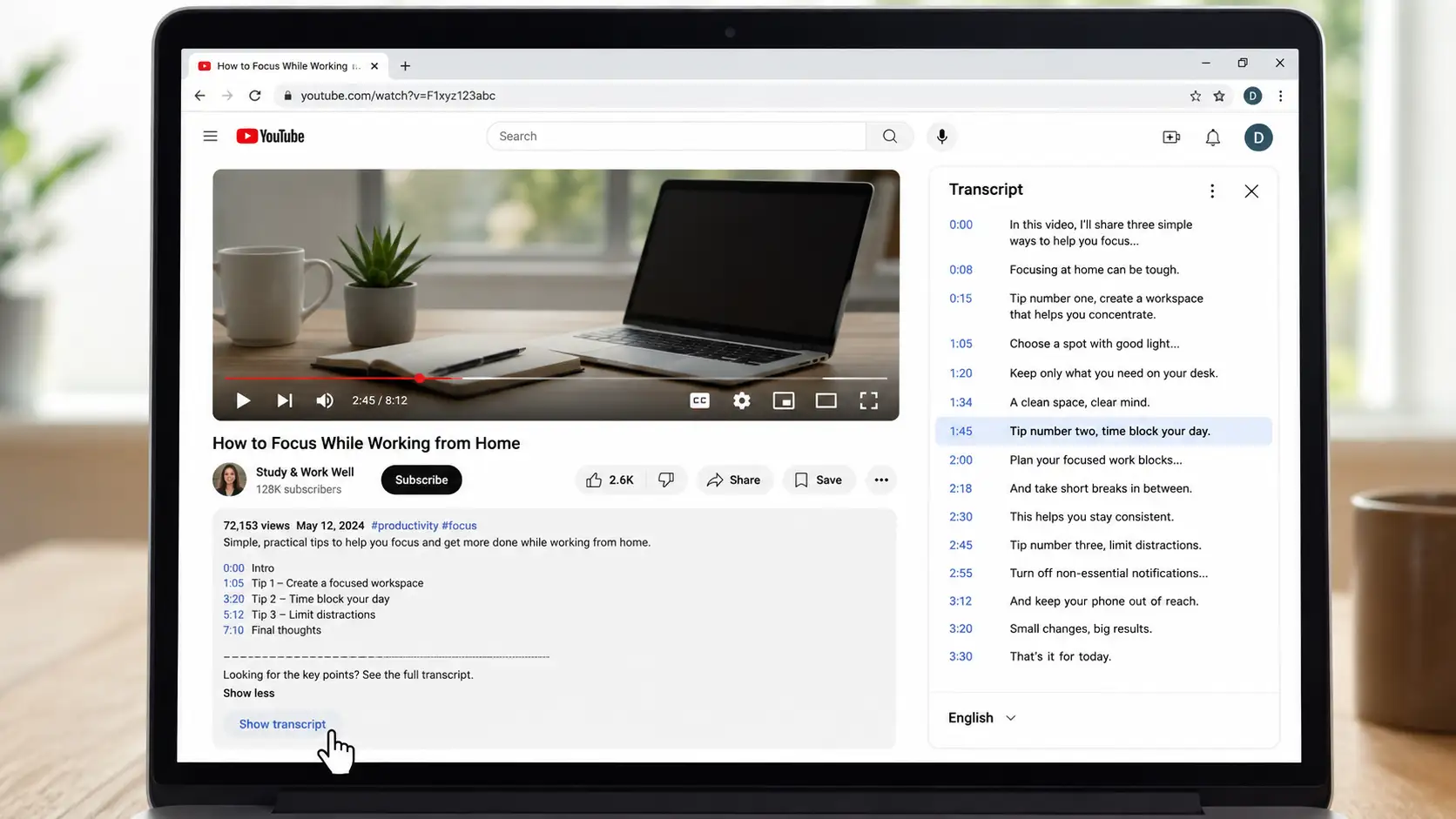
On a wider desktop screen, the transcript usually appears beside the video. As the video continues to play, the panel moves through the current caption text.
When you only need to verify one statement, this is often enough. Find the relevant line, select its time position, and play a short section before and after it to confirm the full context.
How to See a Transcript on YouTube Mobile
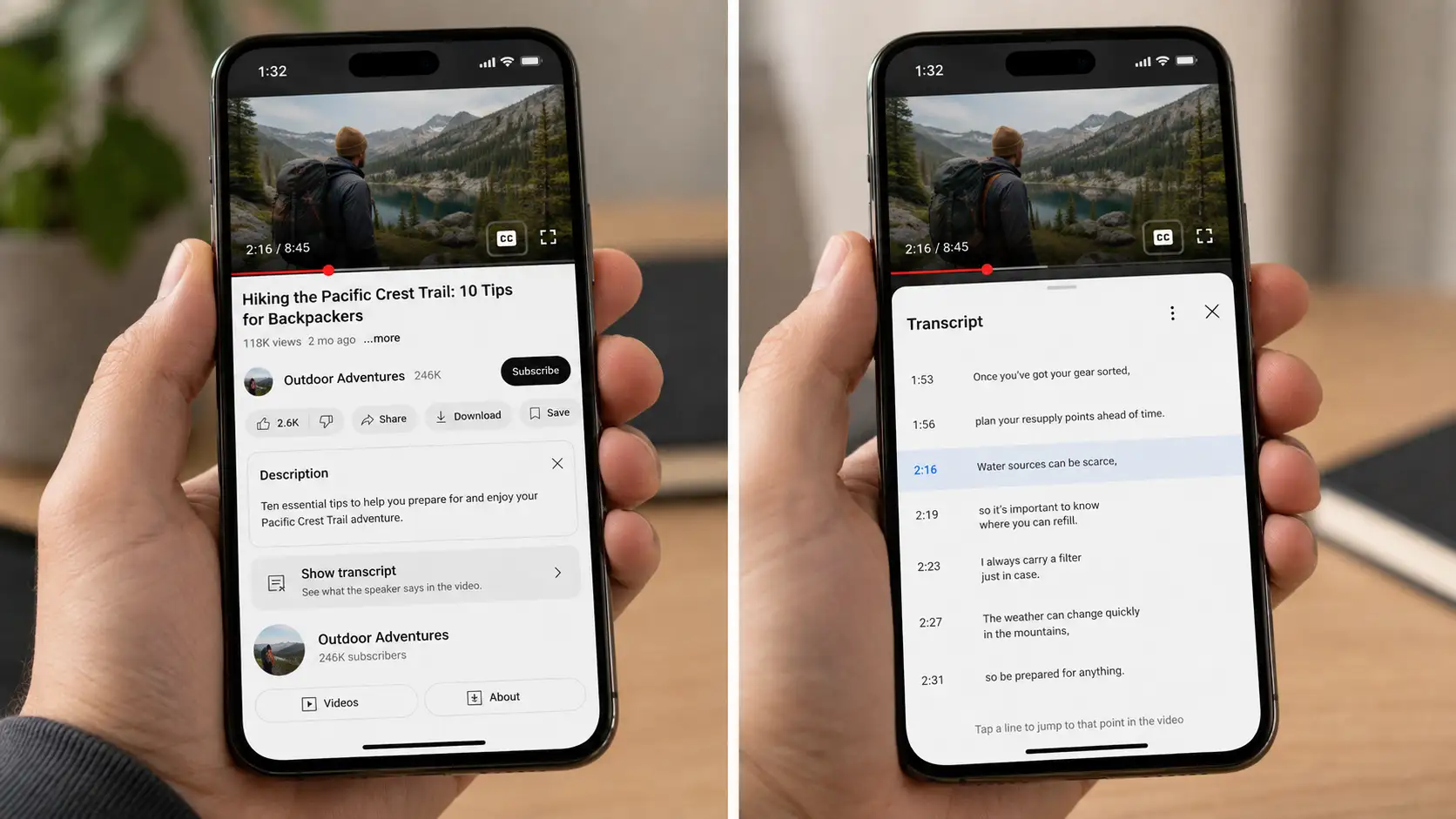
The mobile entry point also appears in the video information area, although its exact position may change between the YouTube app, a mobile browser, and different interface versions.
- Open the video in the YouTube app or a mobile browser.
- Expand the video description.
- Find Show transcript.
- Open the full transcript.
- Select a line to return to that point in the video.
When the option is missing, check whether the player shows CC. YouTube's built-in transcript depends on an available caption track, so videos without captions may not provide a complete transcript option.
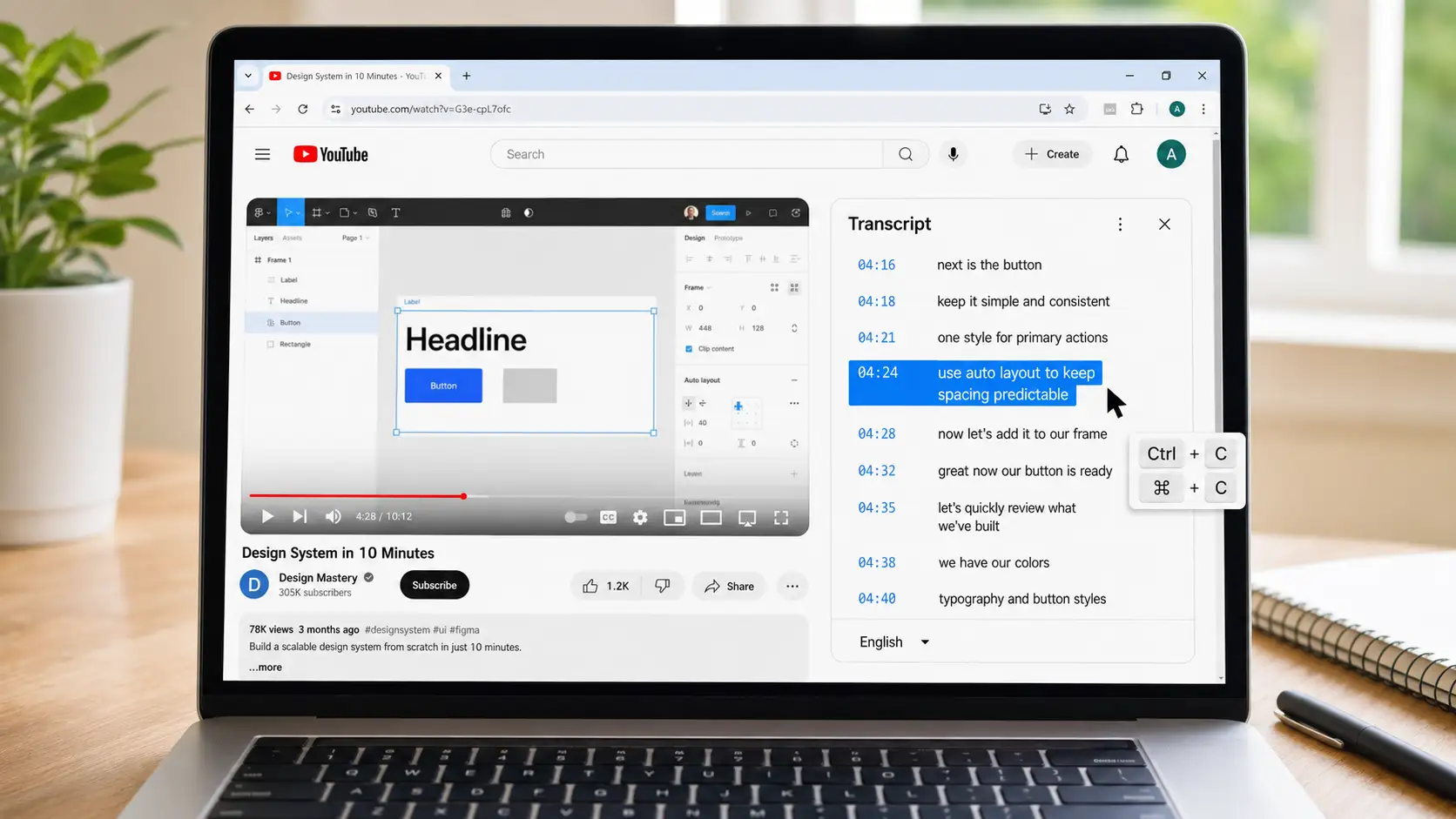
How to Copy a YouTube Transcript
On desktop, open the transcript panel and use your cursor to highlight the text you need. Press Ctrl + C on Windows or Command + C, then paste the passage into your notes, document, or research file.
Copying a short passage directly from YouTube works well when you only need one quote or section. If text selection is unavailable on mobile, or you need the complete transcript, a dedicated transcript tool provides a more convenient way to copy and save the text.
Is There a Shortcut to Show the Transcript on YouTube?
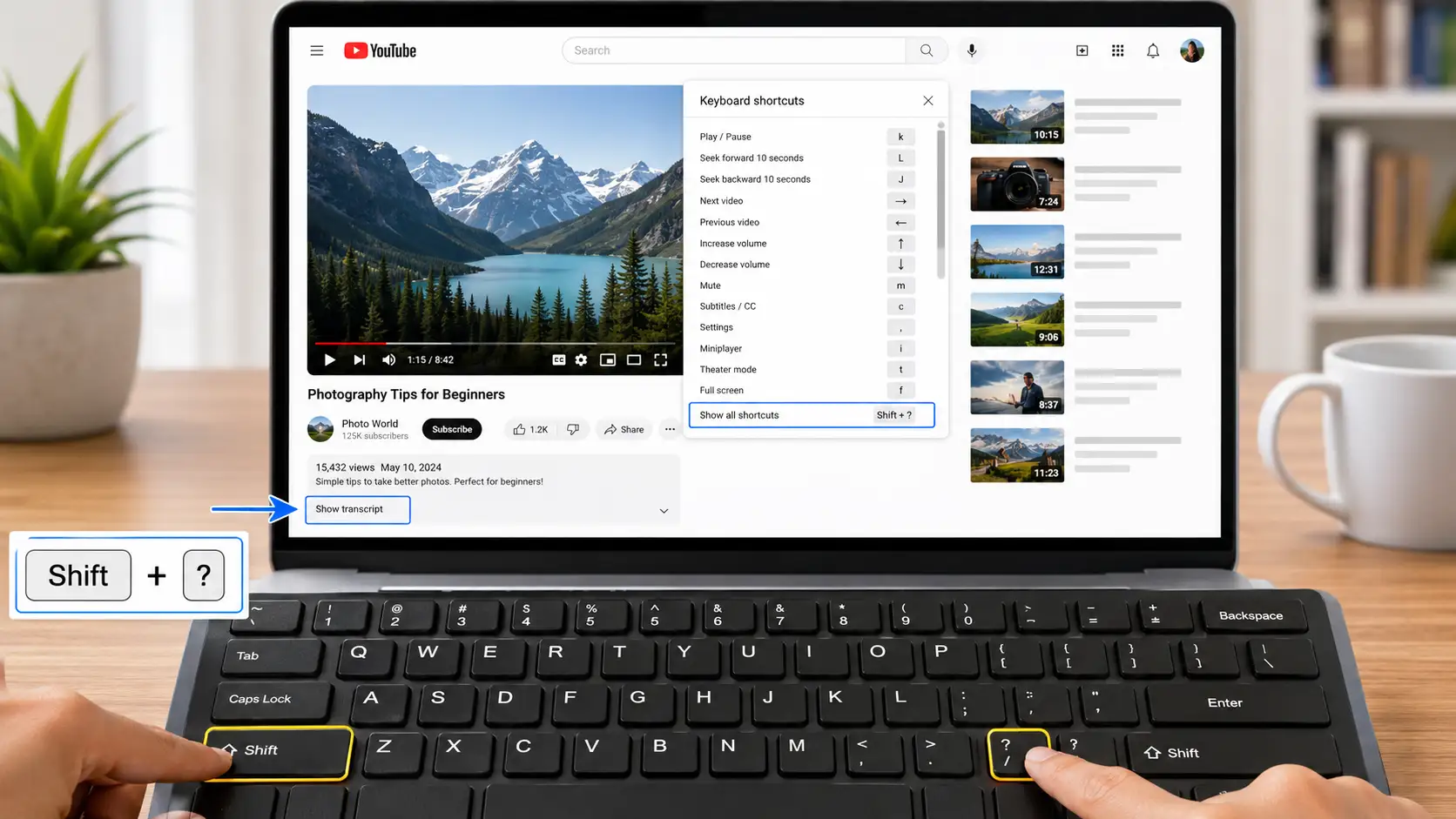
YouTube does not currently list a dedicated shortcut that opens the transcript panel.
On desktop, pressing Shift + ? opens YouTube's keyboard-shortcut list. Those shortcuts control playback, captions, volume, and navigation, but Show transcript still needs to be opened from the video description.
The browser commands Ctrl + F on Windows and Command + F on macOS are not shortcuts for opening a YouTube transcript. They only search text that has already loaded on the page. They cannot open the panel or create text for a video without captions.
How to Search a YouTube Transcript
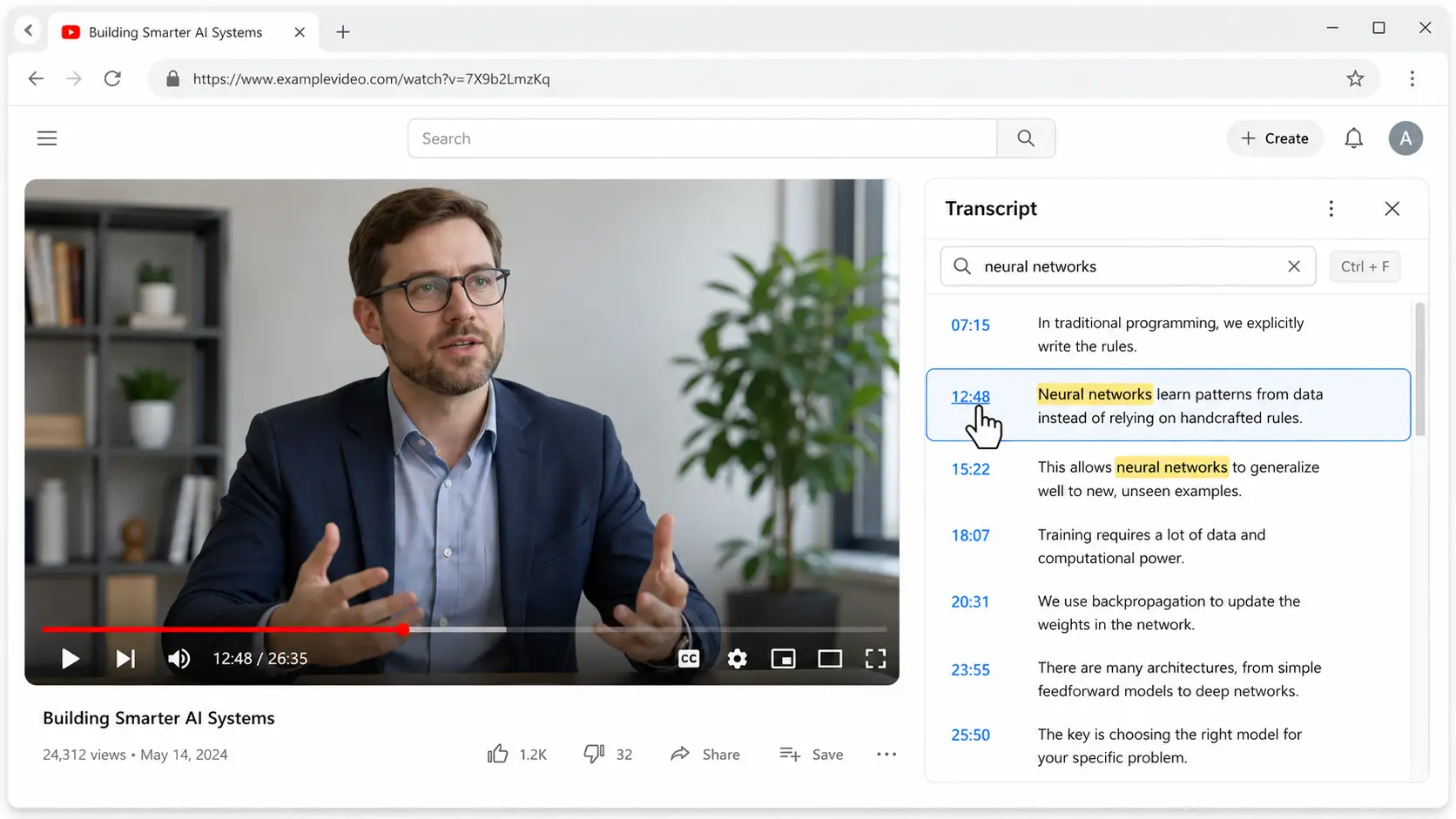
Some transcript panels include a search field. When there is no separate search box, use the browser's page-find command after the transcript has fully loaded.
Search tip: A broad topic word is often less useful than the most distinctive part you remember. Search for a surname, number, technical term, or unusual phrase to locate the correct passage faster.
After finding a match, select the timestamp and play a short section around it. A YouTube transcript search helps locate the content, but it does not guarantee that every name, number, or quotation has been recognized correctly.
Automatic captions can be affected by accents, background noise, overlapping speech, and technical vocabulary. Any line prepared for publication should still be checked against the original video.
Method 2: Paste the Link into Decopy to View or Generate a YouTube Transcript
The native transcript panel is convenient for a quick check. It becomes less practical when the video is long, or when you need to search, copy, and keep working with the text.
In that situation, you can convert a YouTube video to text by pasting the URL into Decopy. When processing is complete, the full YouTube video transcript appears on the results page, where the text can be reviewed alongside its original time positions.
This method is not limited to videos without captions.
When captions already exist, the link gives you a more focused way to read, search, and use the complete transcript. When no usable captions exist, the speech can be recognized and converted into new text.
How to Get a YouTube Transcript from a Video Link
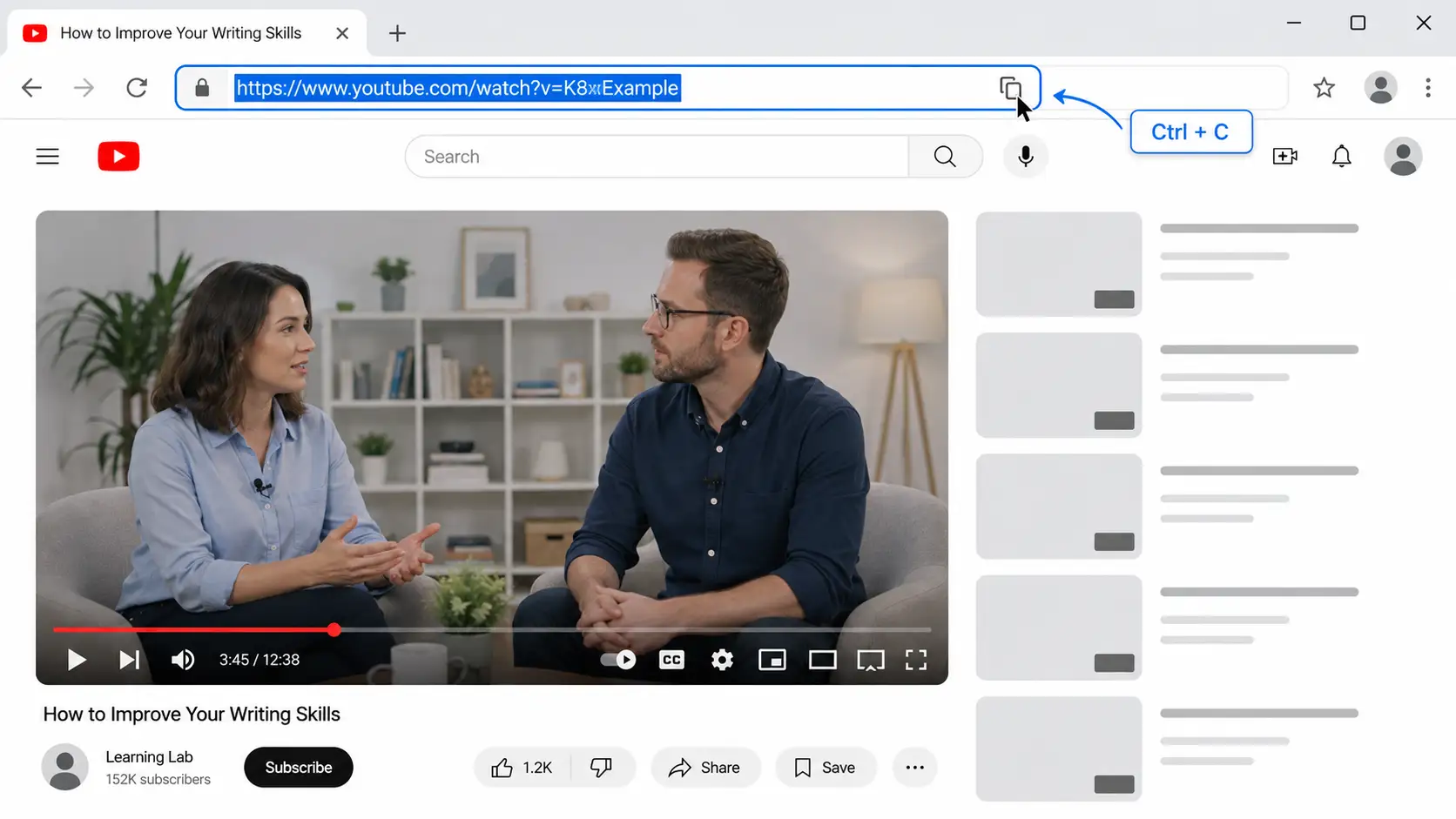
- Open the public YouTube video.
- Copy the URL from the browser address bar or the video's sharing menu.
- Open the YouTube Transcript Generator.
- Paste the full video link into the input area.
- Submit the link and wait for processing to finish.
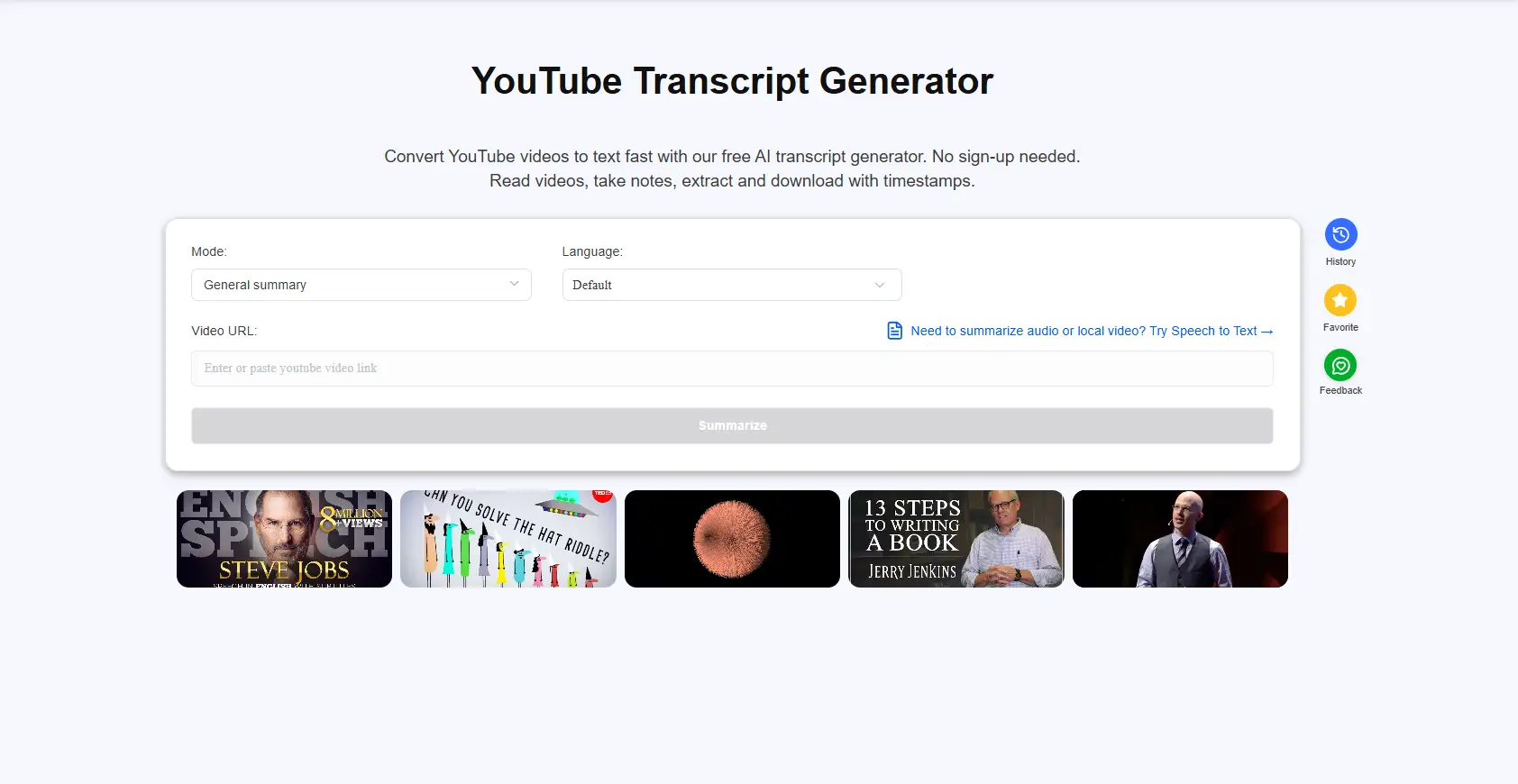
- Read the complete transcript on the results page.
- Search for a name, number, term, or part of the sentence you remember.
- Use timestamps to return to the matching part of the video.
- Copy selected text or save the complete result as needed.
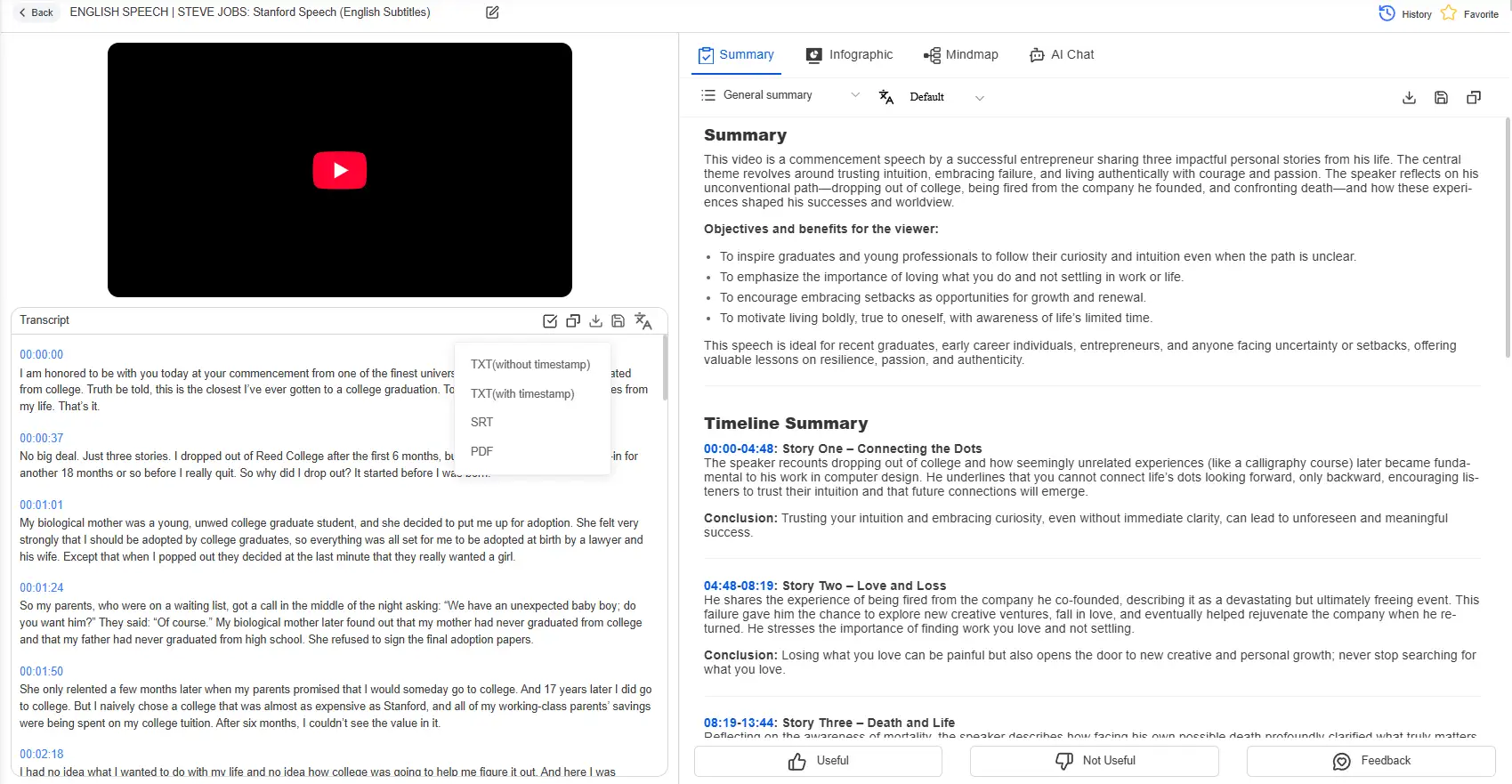
You do not need to download the video first, and you do not need to select the captions line by line on YouTube.
This is also the most natural place to generate a transcript from a YouTube video when you need a complete text workspace rather than a temporary panel beside the player.
How to Download a YouTube Transcript
To download a YouTube transcript, paste the public video link into Decopy and generate or retrieve the transcript. Review the result, choose whether to keep the timestamps, and download the transcript in an available format such as TXT, SRT, or PDF.
If you uploaded the video yourself, you can also open YouTube Studio, select Subtitles, choose the relevant language, and download the caption file. The regular YouTube watch page does not provide viewers with a standard button for downloading the complete transcript.
Why Paste the Link When the Video Already Has Captions?
The advantage of YouTube's own panel is speed. It works well for reading while watching and for checking a few lines.
A one- or two-hour video, however, can turn the panel into a long stream of text. When you want to move several passages into notes, script analysis, or research material, you may still need to select small sections and copy them into another document.
After the video link is processed in Decopy, the complete text is presented in one place. You can search first, then read the surrounding paragraphs, without following the video's playback order line by line.
When the transcript needs to be saved or reorganized, you also avoid copying many small sections from the YouTube panel.
What If the YouTube Video Has No Captions?
Sometimes the problem is not that Show transcript is difficult to find. The video simply has no usable caption track.
Refreshing the page, switching browsers, or continuing to look for the button will not create text that does not exist. The speech needs to be recognized again, which means using speech recognition to transcribe the YouTube video rather than trying to open a caption track that does not exist.
A transcript generator can process the spoken audio and create new text even when the uploader did not provide captions.
After generation, do not treat the entire result as a finished document immediately. Check the beginning, middle, and end, then review names, brands, numbers, abbreviations, and technical terms more closely.
For personal notes, checking the main passages may be enough. For research, reporting, formal documents, or public quotations, use the timestamps to verify every important detail against the original video.
What Can You Do After Viewing the Transcript in Decopy?
Once the complete text is available, you can search it directly, select a passage and return to the matching time in the video, copy the full transcript, or export the result for further work.
When the goal is to find one quotation, search for the key phrase and return to the video for confirmation. When the goal is to organize a course, study a script, or build a reference archive, keep the full text and timestamps for the next stage of the work.
Compared with a temporary transcript panel on YouTube, this method is more useful when the transcript needs to remain part of your workflow.
Method 3: Use a YouTube Transcript Browser Extension
For someone who works with YouTube videos frequently, a browser extension can make transcript-related tasks faster by reducing repeated steps.
A YouTube transcript extension places transcript or video-analysis features closer to the YouTube page. Instead of copying links and opening new tabs every time, users can access additional tools while watching or reviewing videos.
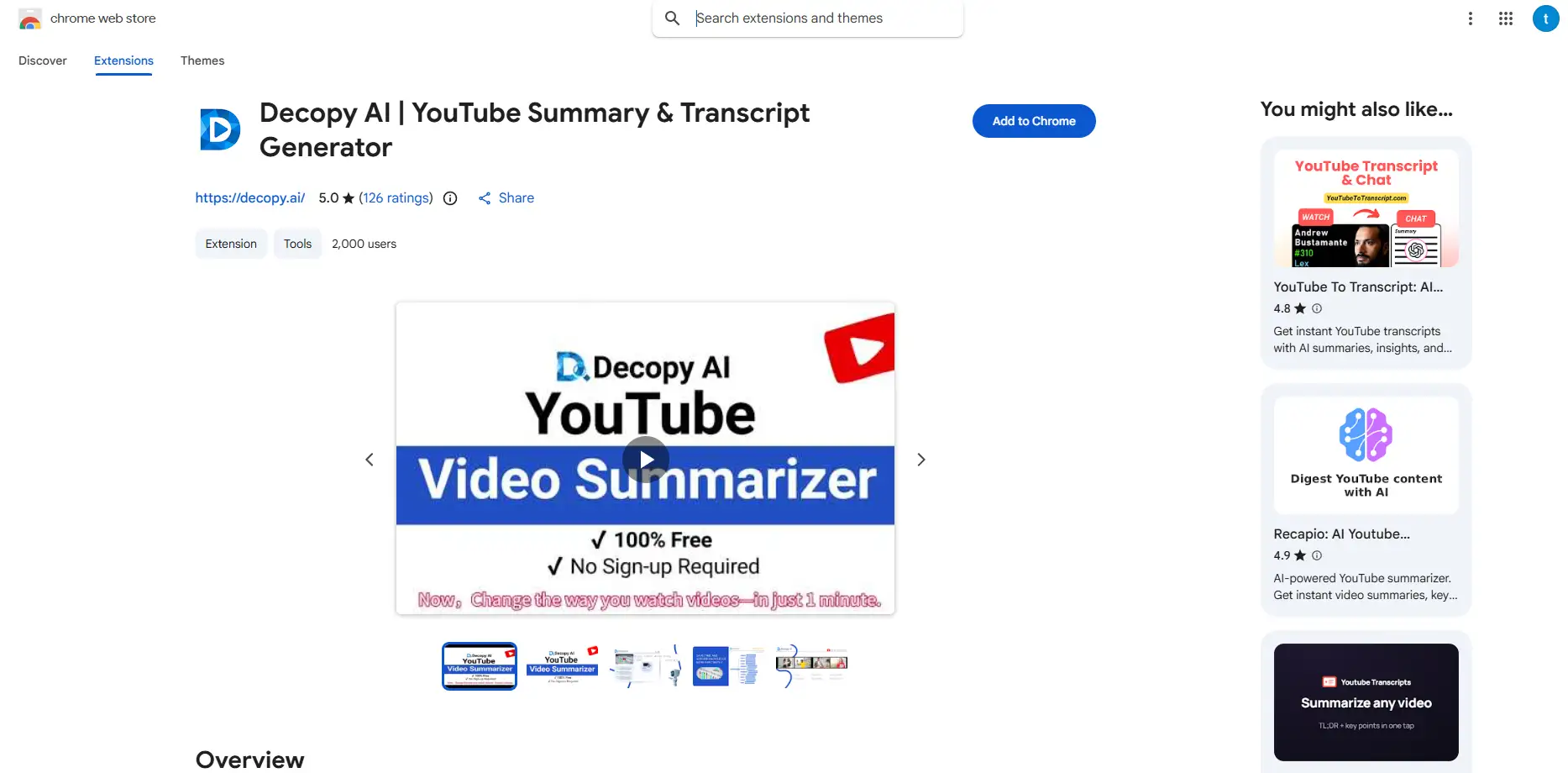
Decopy also provides a Chrome extension that helps users summarize and work with YouTube videos directly from the browser. It is useful when you want to quickly understand a video's main ideas without leaving the viewing page.
Basic Workflow
- Search the Chrome Web Store for a YouTube transcript or video-summary extension.
- Check the developer information, permissions, and recent user reviews.
- Install the extension and reopen the YouTube video.
- Open the transcript or summary feature from the video page.
- Review the generated content and continue with your workflow.
The main difference between browser extensions is not where the button appears. It is what the extension can actually help you do.
Some extensions only display transcript text that already exists on YouTube. Others connect with AI services to analyze the video, summarize key points, or create additional text-based information.
Before installing an extension, check whether it matches your goal. A user who only needs to read existing captions may need a different tool from someone who wants AI summaries, transcript search, or content organization.
For occasional use, opening a transcript tool directly may be simpler than installing an extension. For people who frequently review YouTube videos, an extension can reduce repeated actions and keep useful features closer to the video page.
Method 4: Upload a Video or Audio File for Transcription
If the recording is already saved on your device, you do not need to find or publish a video link first. Upload the file to a video to text converter to transcribe the spoken content directly.
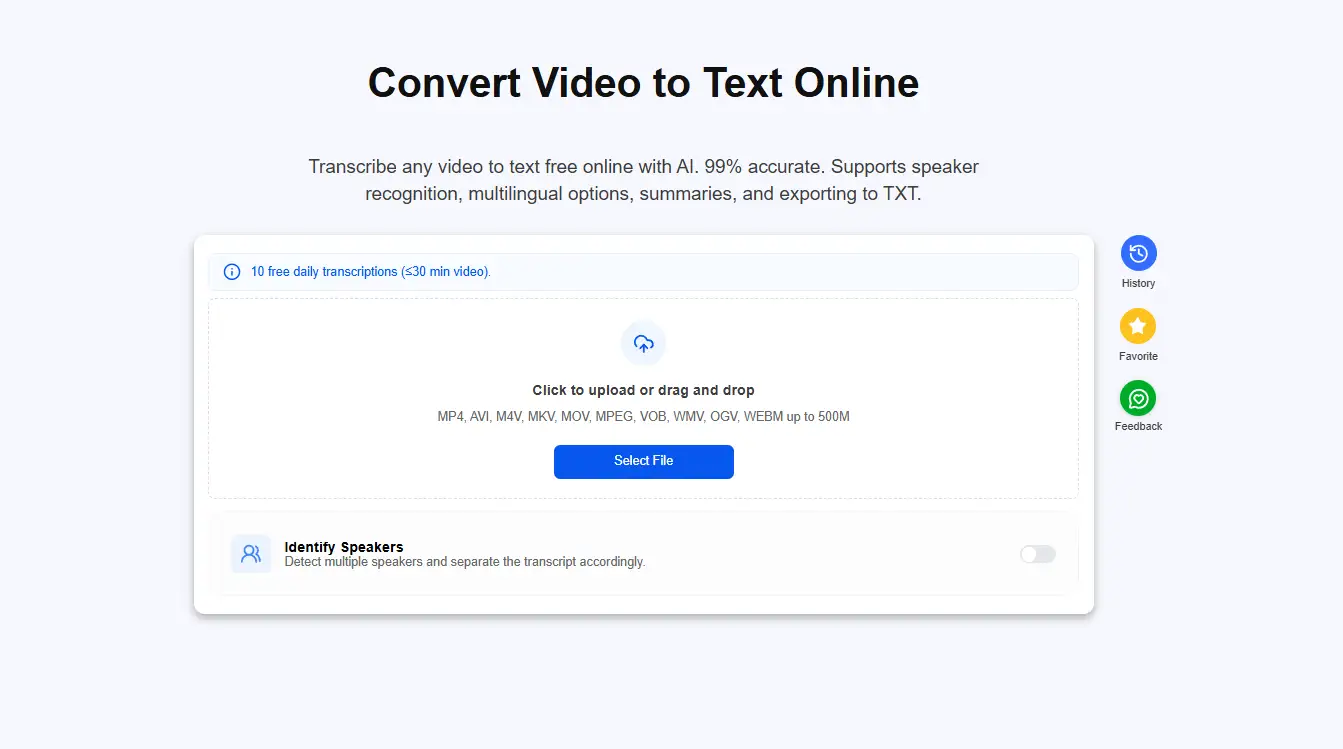
How to Transcribe an Uploaded File
- Locate the original video or audio file.
- Check the supported format, file-size limit, and duration limit.
- Upload the file.
- Select the correct spoken language.
- Start automatic transcription.
- Wait for the text to be generated.
- Review names, numbers, and technical terms.
- Organize speaker labels and timestamps when needed.
- Save the reviewed result.
The advantage of uploading the original file is access to the best available audio source.
A video downloaded from the web or compressed several times may have lower volume, distortion, or stronger background noise. When the original recording is available, processing that file usually gives the transcription system a more stable source.
Privacy note: For private or internal recordings, review the platform's storage and deletion rules before uploading. Only process content you own or have permission to use.
Method 5: Transcribe Manually or Review the Text by Hand
Automatic tools save time, but manual review still matters.
When a small wording difference could change the meaning, the safest approach is to confirm the text by hand. Legal, medical, academic, journalistic, and formal brand material should not depend entirely on an unchecked automatic transcript.
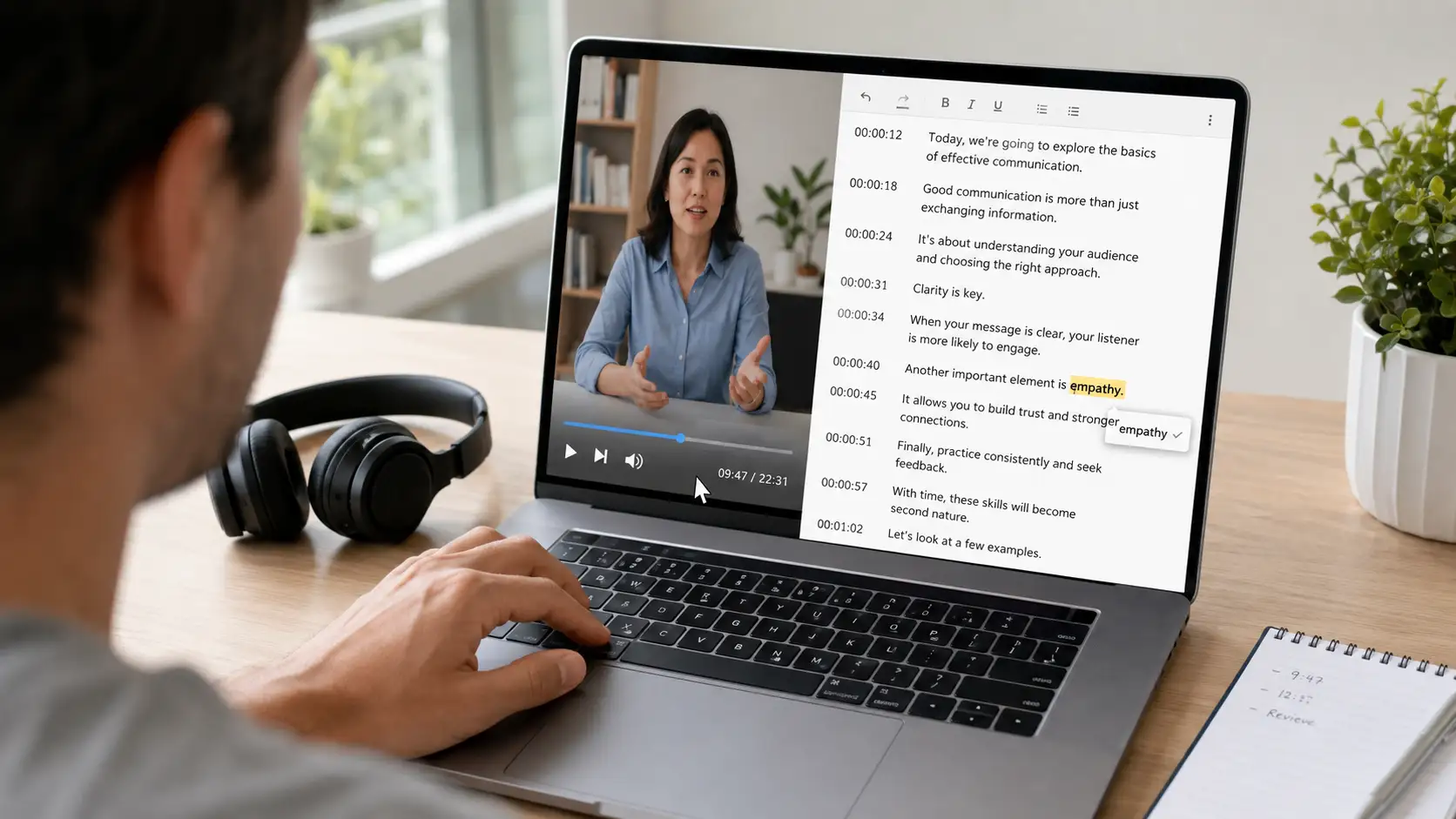
Fully Manual Transcription
- Play the video once to understand the subject and identify the speakers.
- Divide the video into shorter sections.
- Pause after one or two sentences.
- Type what you hear.
- Add timestamps at important points.
- Mark speaker changes.
- Replay unclear sections.
- Watch the video again and proofread the full transcript.
This is the slowest method, but it gives the greatest control over wording, speaker labels, and formatting.
Automatic Draft with Manual Review
A more common workflow is to generate a first draft, then review it by hand.
You do not need to spend equal time on every ordinary sentence. Focus first on names, numbers, technical terms, negative statements, and the exact lines you plan to quote publicly.
This keeps the speed of automatic transcription while reducing the chance that an important error reaches the final document.
Why Is the Transcript Missing from Some YouTube Videos?
The transcript shown on YouTube depends on the video's existing caption track. When no usable captions exist, Show transcript may not appear.
When the option is missing, check whether the player shows CC, expand the full description, and try opening the video in a desktop browser.
When the transcript is still unavailable, the issue may not be a hidden entry point. The video may simply have no caption track that YouTube can display. Continuing to look for the button will not solve that problem.
Use this order:
- Check whether the video player shows CC.
- Expand the full video description.
- Refresh the page or use a desktop browser.
- Confirm that the video can be played publicly.
- If the transcript is still missing, paste the link into Decopy and generate the text from the speech.
When the missing element is the text itself, the solution is to generate the text rather than keep searching for an entry point that is not there.
The Most Valuable Work Starts After You Get the Transcript
Getting the text is not the final goal.
The value of a transcript is that it changes a video that must be consumed in sequence into information that can be searched and reorganized.
Find the Part of the Video You Actually Need
An important explanation may appear for only a few seconds.
After you get the transcript, you no longer need to drag the progress bar based on memory. Search for the words you remember, then use the timestamp to return to the matching point.
For long interviews, courses, and podcasts, this can remove a large amount of repeated viewing. You do not need to consume the entire recording again. You only need to verify the relevant part.
See How a Video Organizes Its Ideas
For a content creator, a complete script reveals the structure more clearly than watching alone.
You can see whether the opening introduces the problem immediately, how long the background takes, how one idea connects to the next, where the turning point appears, and how the ending encourages the viewer to keep watching.
Studying a script does not mean copying it. The valuable part is the sequence of information, pacing, and logic, not replacing a few words in someone else's sentences.
Use the Transcript with AI for Further Organization
The complete text can also be used with ChatGPT, Claude, or another AI assistant.
Instead of asking only for a summary, explain what you need: course notes, a content outline, a comparison of viewpoints, or a fact-checking list. When useful timestamps remain in the transcript, the AI output is easier to verify against the original video.
A prompt can be as specific as this:
text
Organize the main points in the same order as the video.
Keep the original wording and timestamps for names, numbers, and quotations.
Do not add information that does not appear in the transcript.
Mark any uncertain statements or claims that need to be checked.
AI can speed up organization, but it cannot replace source verification. When material will be quoted publicly, the original wording and time position in the video should remain the final reference.
What Should You Look for in a YouTube Transcript Generator?
Before using a transcript generator for an important project, test it with a video you already know well. Check whether it recognizes names, numbers, technical terms, and changes between speakers correctly. Timestamps should also match the spoken content closely enough that you can return to the original moment for verification.
Video length and language support matter as well. A tool that works for a short English clip may perform differently with a long interview, several speakers, background noise, or another language. If the transcript will be shared or referenced later, confirm that the result remains easy to navigate and export in a suitable format.
For sensitive recordings, review how uploaded files and generated transcripts are handled before submitting them. The most reliable choice is one that performs consistently with the type of video you actually plan to transcribe.
Frequently Asked Questions
How Do I Get a Transcript of a YouTube Video?
If the video has captions, expand the YouTube description and select Show transcript. You can also copy the video link and paste it into Decopy to view a complete, searchable transcript. If the original video has no usable captions, Decopy can recognize the speech and generate new text.
How Do I See a Transcript on YouTube?
Open the video description and select Show transcript. When the transcript opens, select any line to jump to the matching point in the video. The option normally depends on the video having an available caption track.
How Do I Get a YouTube Transcript from a Link?
Copy the public video URL, paste it into Decopy's YouTube Transcript Generator, and submit it. When processing is complete, you can view the full transcript, search the text, and use timestamps to return to the original video.
Do I Still Need Decopy When the Video Already Has Captions?
Not always. YouTube's built-in transcript is enough when you only need to confirm a few lines. Pasting the video link into Decopy is more convenient when you need to search the complete text, read it in one place, copy longer passages, or save the result.
Can I Get a Transcript If a YouTube Video Has No Captions?
Yes. YouTube's built-in transcript depends on an existing caption track, but speech-recognition tools can process the audio and create a new transcript. Important names, numbers, and quotations should still be checked against the original video.
Is There a Shortcut to Show the Transcript on YouTube?
YouTube does not currently list a dedicated shortcut for opening the transcript panel. Press Shift + ? to view the available keyboard shortcuts, but Show transcript still needs to be opened from the video description.
How Do I Search a YouTube Transcript?
Use the transcript panel's search field when one appears. Otherwise, use the browser's page-find command after the transcript has loaded. Search for a distinctive name, number, term, or part of the sentence you remember, then verify the result at the matching timestamp.
How Do I View a YouTube Transcript on Mobile?
Open the video in the YouTube app or a mobile browser, expand the description, and find Show transcript. The exact position may vary between interface versions. Videos without captions may not show the option.
How Accurate Is an Automatically Generated YouTube Transcript?
Accuracy depends on accent, audio quality, background noise, technical vocabulary, and overlapping speakers. Automatic text is often useful for reading and searching, but names, numbers, factual claims, and quotations should be checked against the video.
What Is the Difference Between YouTube Captions and a Transcript?
Captions are timed to play with the video. A transcript presents the spoken content as continuous text that is easier to review and reference. YouTube's built-in transcript is created from the caption track.
Can I Use a YouTube Transcript with ChatGPT or Claude?
Yes. A transcript can be used to create summaries, notes, outlines, comparisons, and question lists. Keep useful timestamps and verify quotations, numbers, and factual claims against the original video.
Final Thoughts
Many videos are not lacking in value. Their value is simply trapped inside the timeline.
Saving a video does not make its information easier to retrieve. Once the speech becomes text, the information inside the video becomes much easier to revisit and apply.
Once you understand how to get a transcript of a YouTube video, a saved recording becomes much easier to return to, search, and organize.
When a video already has captions and you only need to check a few lines, YouTube's Show transcript option is the most direct method.
When the text needs to support notes, research, or future reference, the better approach is to create a transcript from a YouTube video and keep the result as a searchable record. This also works when no usable captions exist because the spoken audio can be transcribed directly.
Browser extensions suit frequent page-level work. File uploads suit private or locally stored recordings. Manual review protects accuracy when the wording matters.
Getting the text is not the end.
When you no longer need to watch the whole video again, and can instead find the original quotation, understand the structure, and turn hours of video into reusable reference material, the transcript begins to show its real value.
The purpose of studying content is not to copy it. It is to understand the pattern behind it.