

↑
What AI Video Summarizer Does
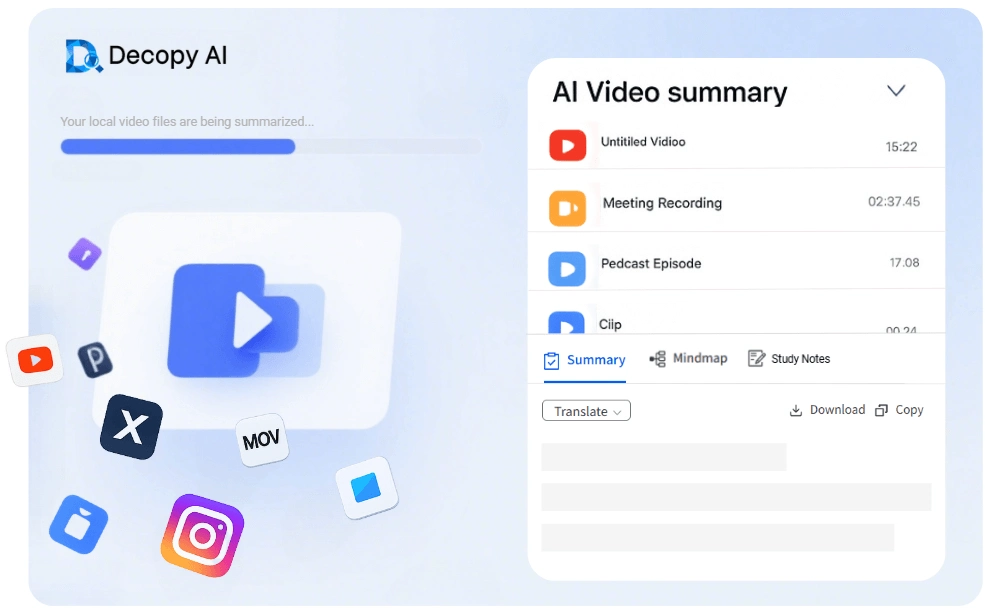
A video summarizer turns long recordings into key points you can read quickly. Decopy's AI video summarizer transcribes speech, summarizes the content, and AI video describer important visuals like slides and charts. No sign-up is required. For documents or text, try our AI summarizer free.
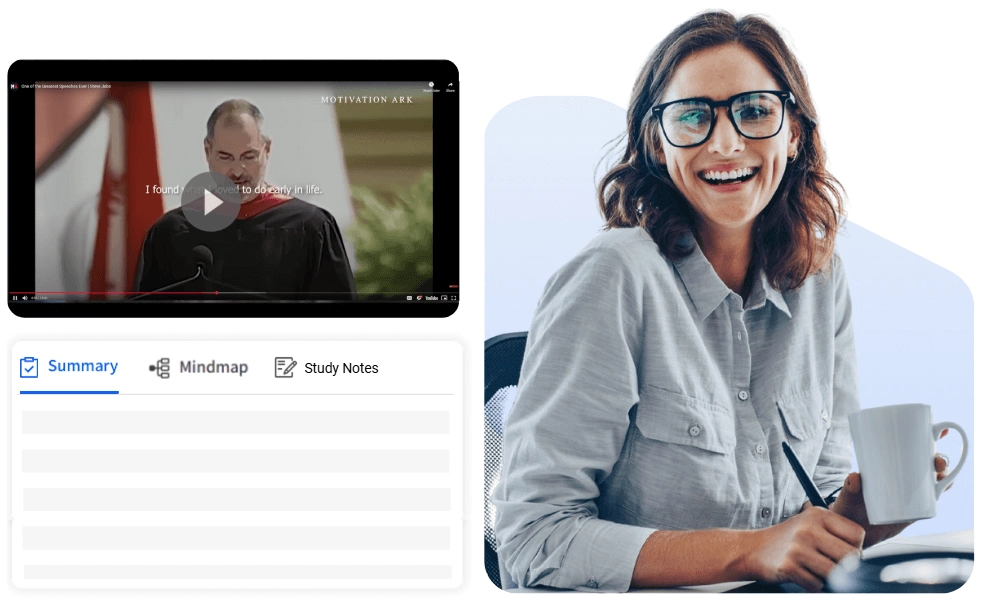
AI Video Summarizer for MP4, MOV, and Local Files
Process local videos directly without conversion or third-party uploads. The AI video summarizer supports MP4, MOV, MKV, and WMV files, from screen recordings and camera clips to downloaded lectures. Summarize short videos or multi-hour recordings in one workflow. For audio-only files, summarize audio instead.
Video Describer: Describe What Happens on Screen
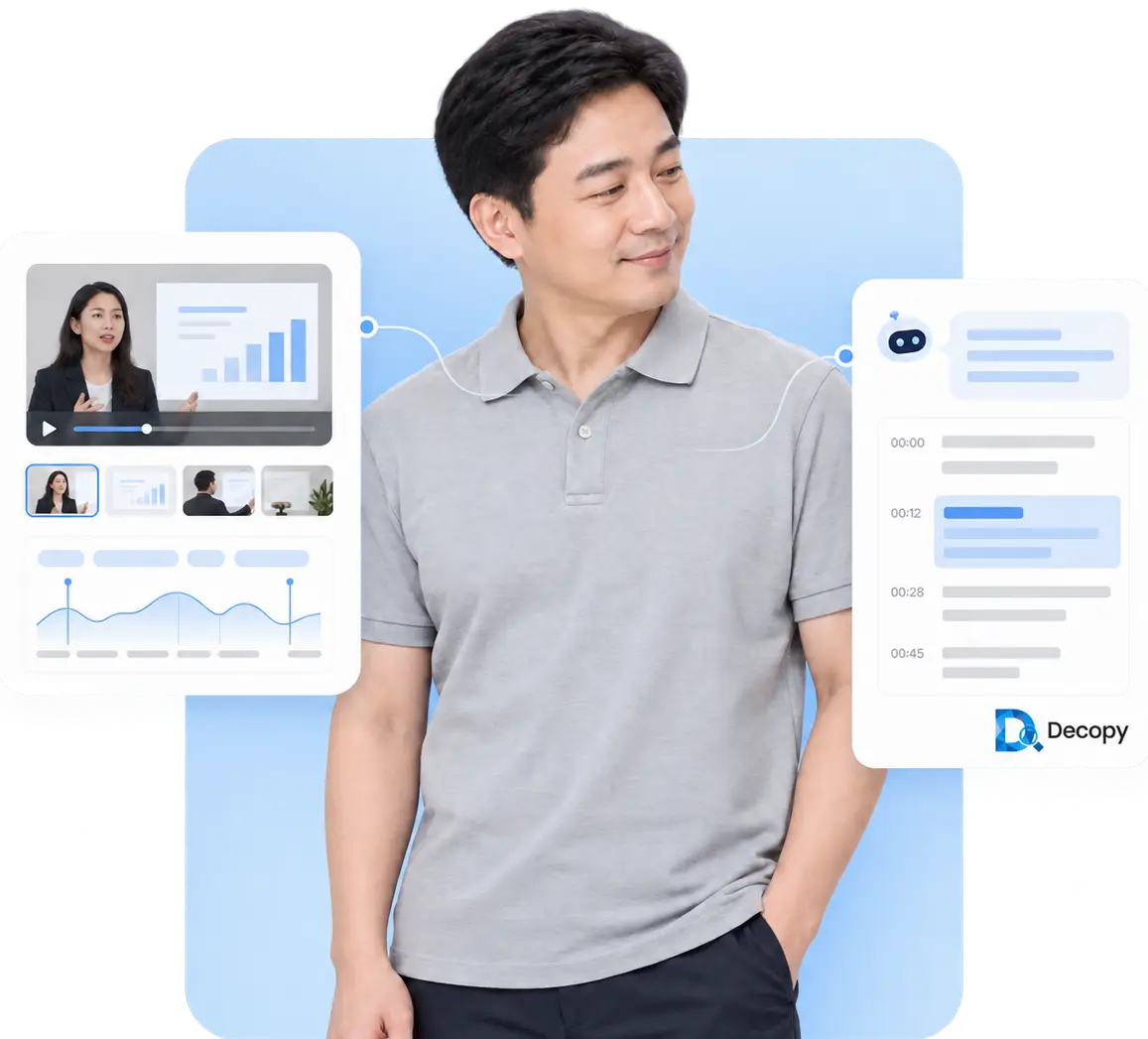
Videos contain important details beyond speech, including slides, charts, and on-screen text. Use the video description mode or a custom prompt to let AI describe the video frame by frame. The AI video describer extracts visual details alongside the transcript, while AI chat lets you ask questions about any moment.
Key Features of the Video Summarizer
AI video summarizer with multi-format, multilingual support and easy export.

Choose a Prompt or Create Your Own
The mode picker includes built-in prompts for AI notes, meeting minutes, report summaries, video analysis, and more. If none fits your needs, create a custom prompt and guide the AI with your own instructions.
Analyze, Transcribe, and Summarize Together
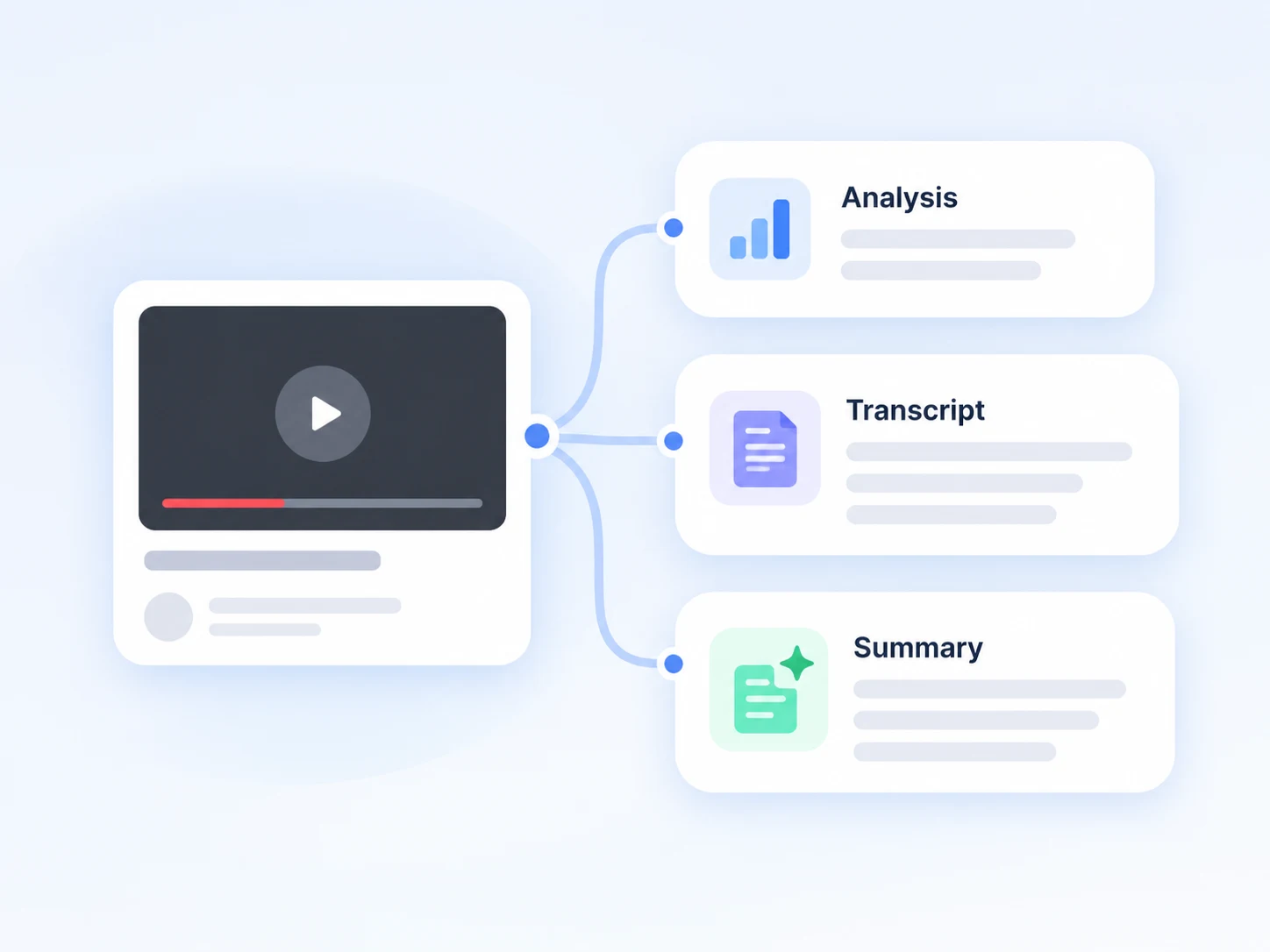
Summarizing is only the final step. The tool analyzes structure, extracts key points, transcribes audio, and creates a summary with the original context and evidence. The video analysis prompt is designed for this workflow.
Select Language or Auto-Detect
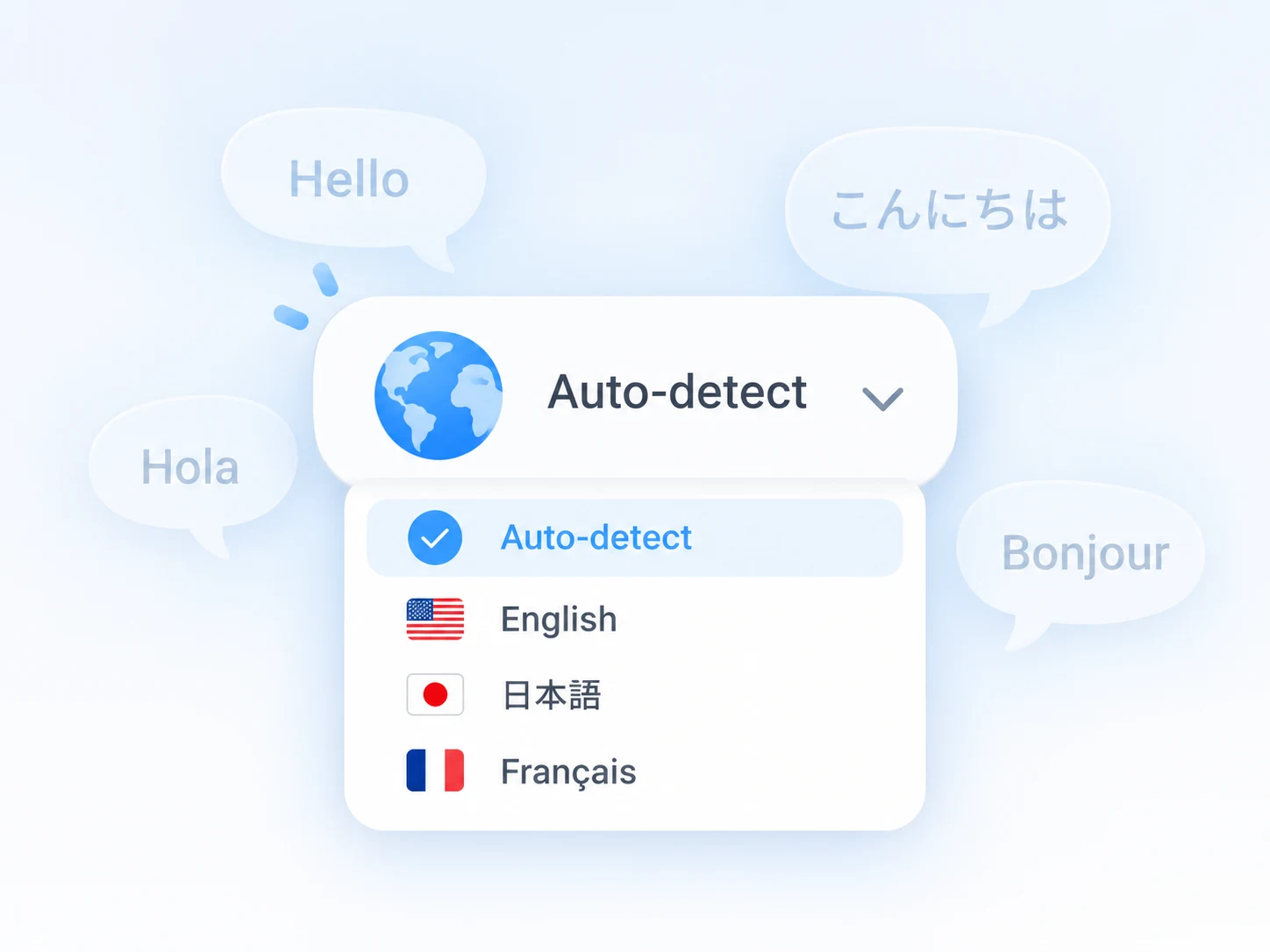
Keep Default mode for automatic language detection, or choose from 27 languages for the transcript and summary. Embedded subtitles are also recognized, helping maintain accuracy in noisy audio or overlapping speech.
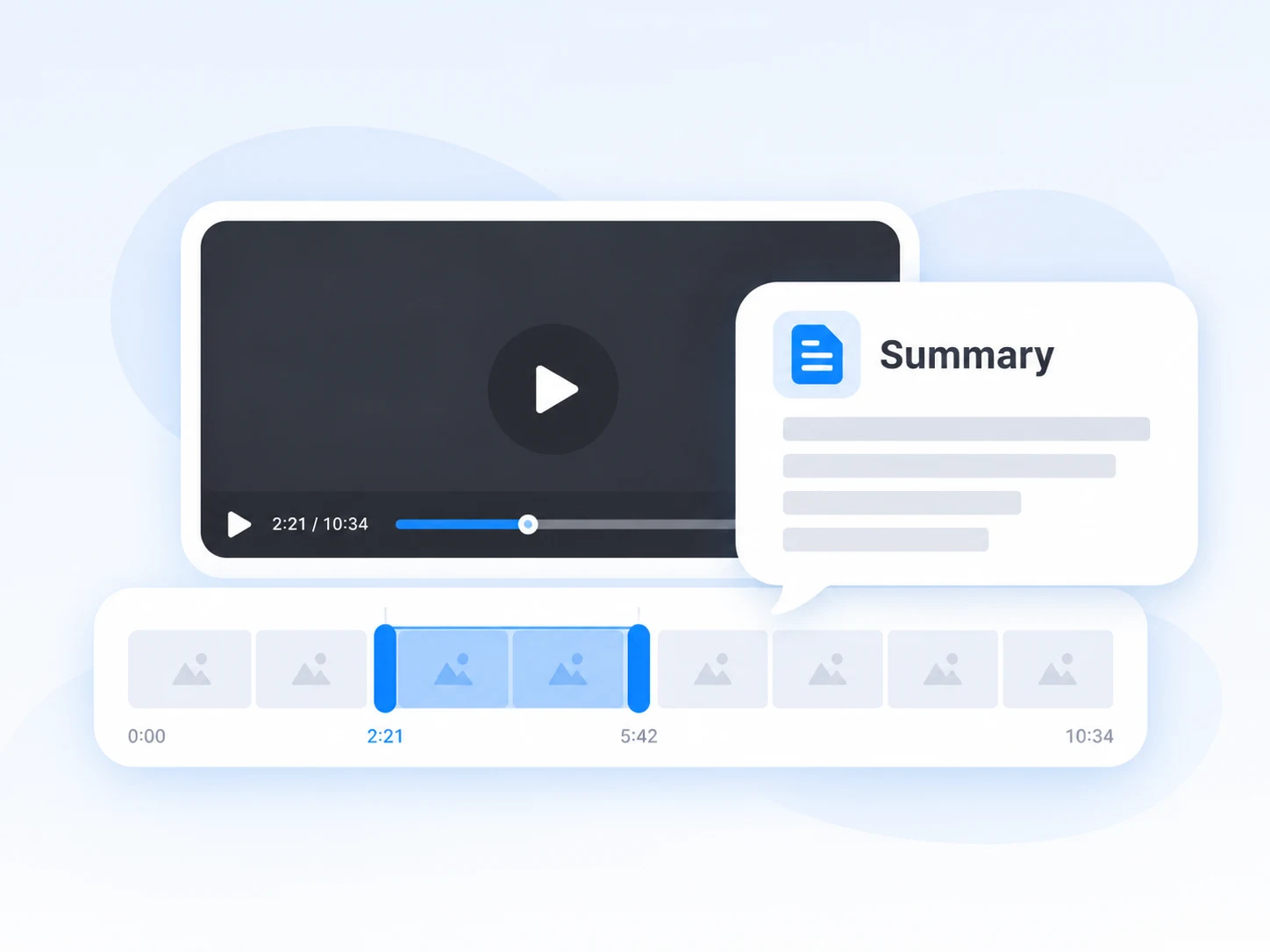
Summarize Full Videos or Specific Parts
Process the entire video by default, or select a specific segment for a focused summary. Useful for finding key moments in long recordings, interviews, or lectures.

Four Ways to Review Results
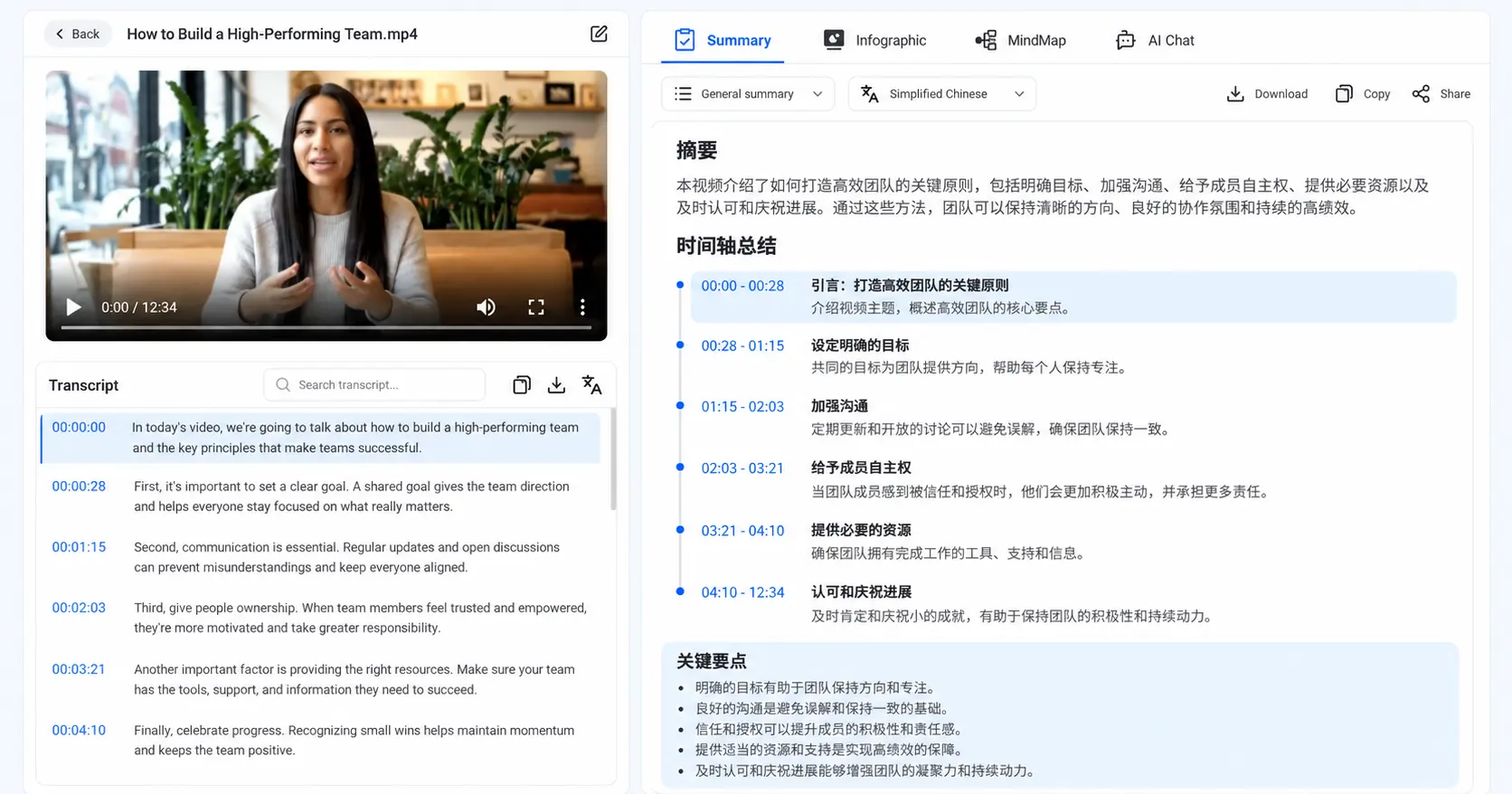
Each result includes four views: summary for reading, infographic for sharing, mindmap for understanding connections, and AI chat for follow-up questions. The timestamped transcript lets you search key terms, jump to specific moments, and verify details without replaying the video.
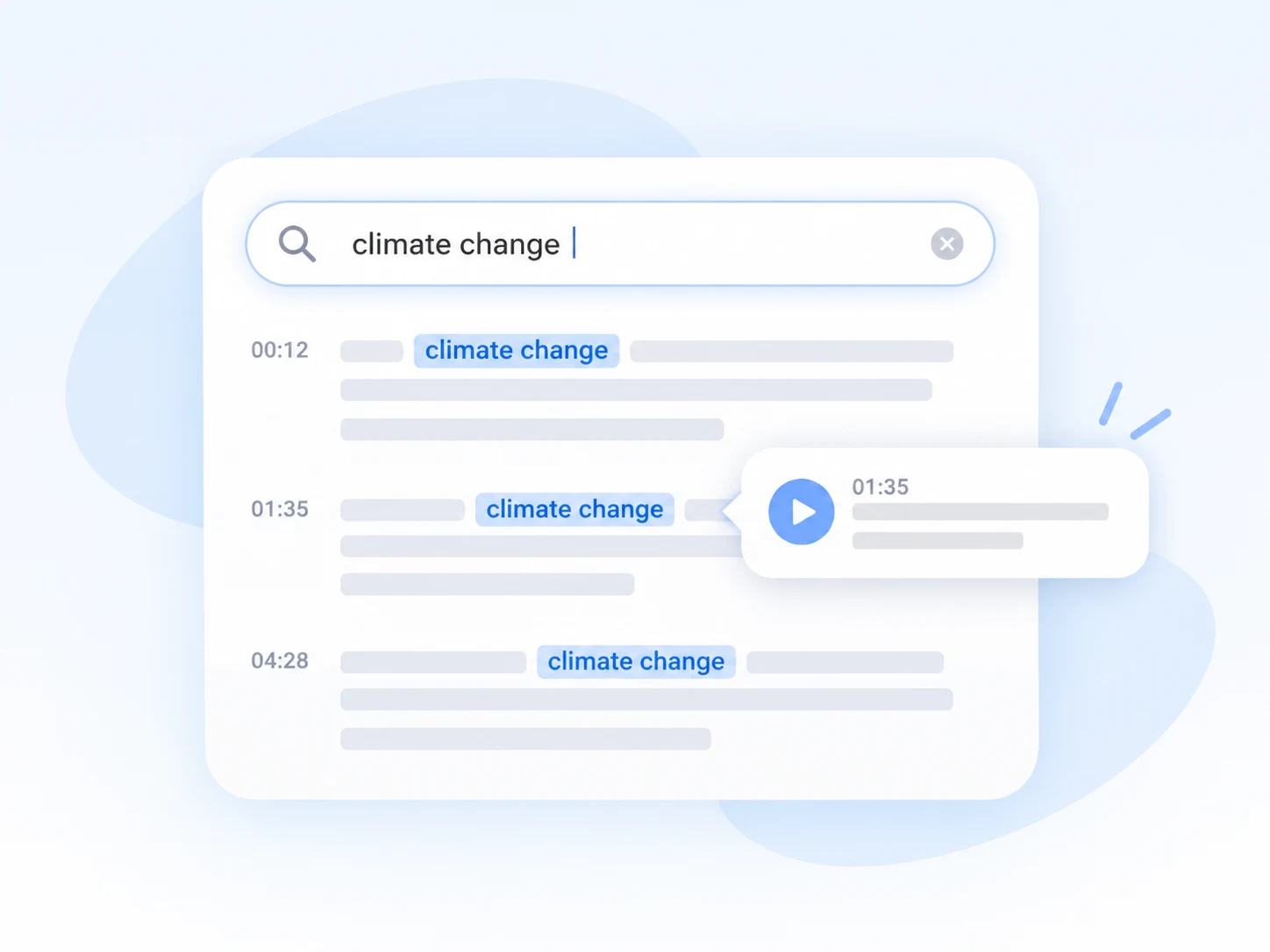
Search Inside Your Video Transcript
Search names, topics, or keywords inside the transcript and jump directly to the related moment. Find important information faster without replaying the entire video.
How to Summarize a Video in 3 Steps
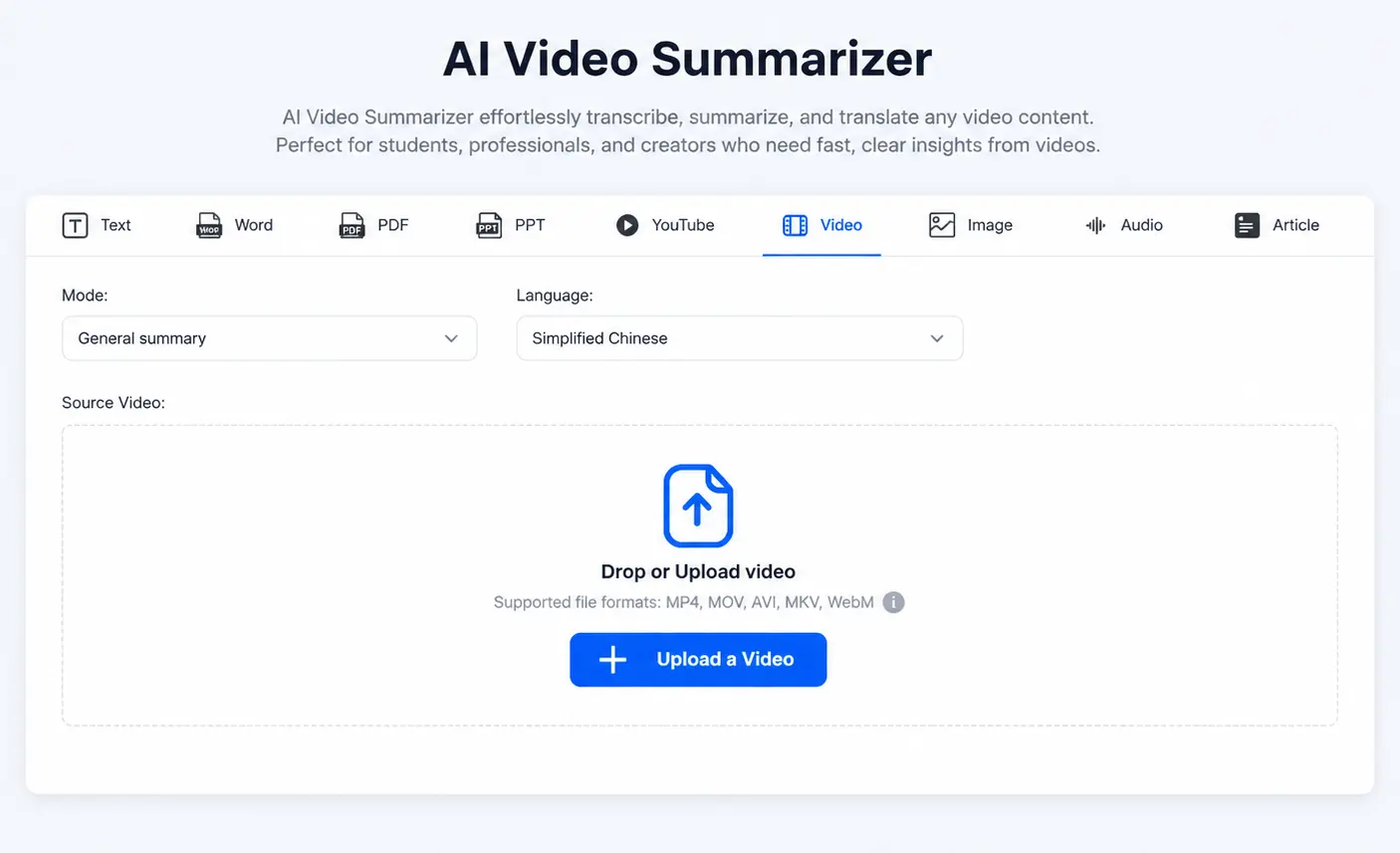
Step 1
Upload the File
Drop the video into the box or upload it from your device. Decopy helps you summarize videos with AI
without preparing files first. No account is required.
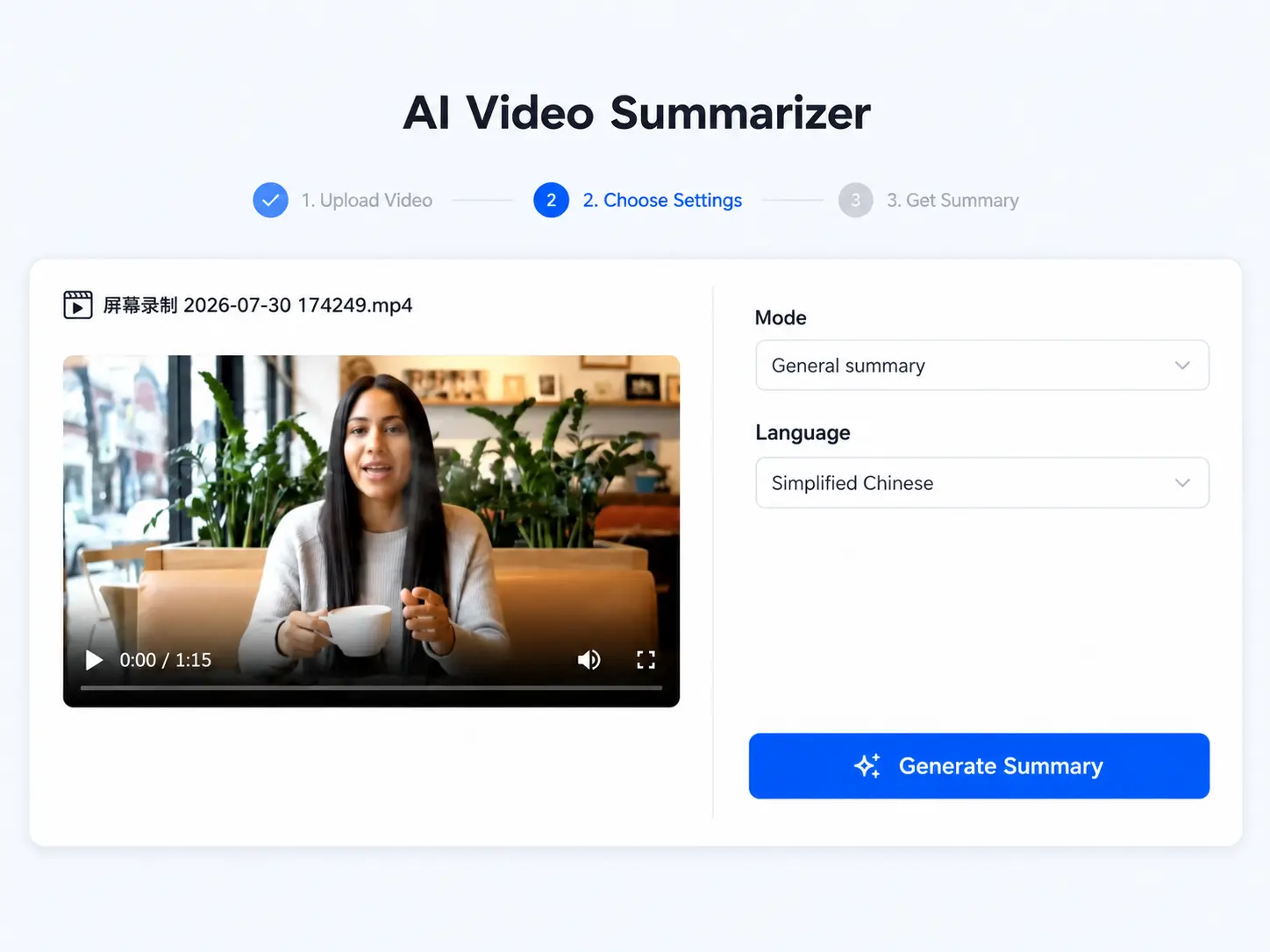
Step 2
Choose Settings
Select a prompt, language, and whether you want to summarize the full video or a specific segment. Use
built-in modes or create your own instructions for different content types.
Step 3
Read, Check, and Export
The summary, infographic, mindmap, and AI chat panel appear together. Read the summary, check a claim
against the timestamped text, and copy or download the result.
Where a Video Summary Saves the Most Time
Lectures and Recorded Classes
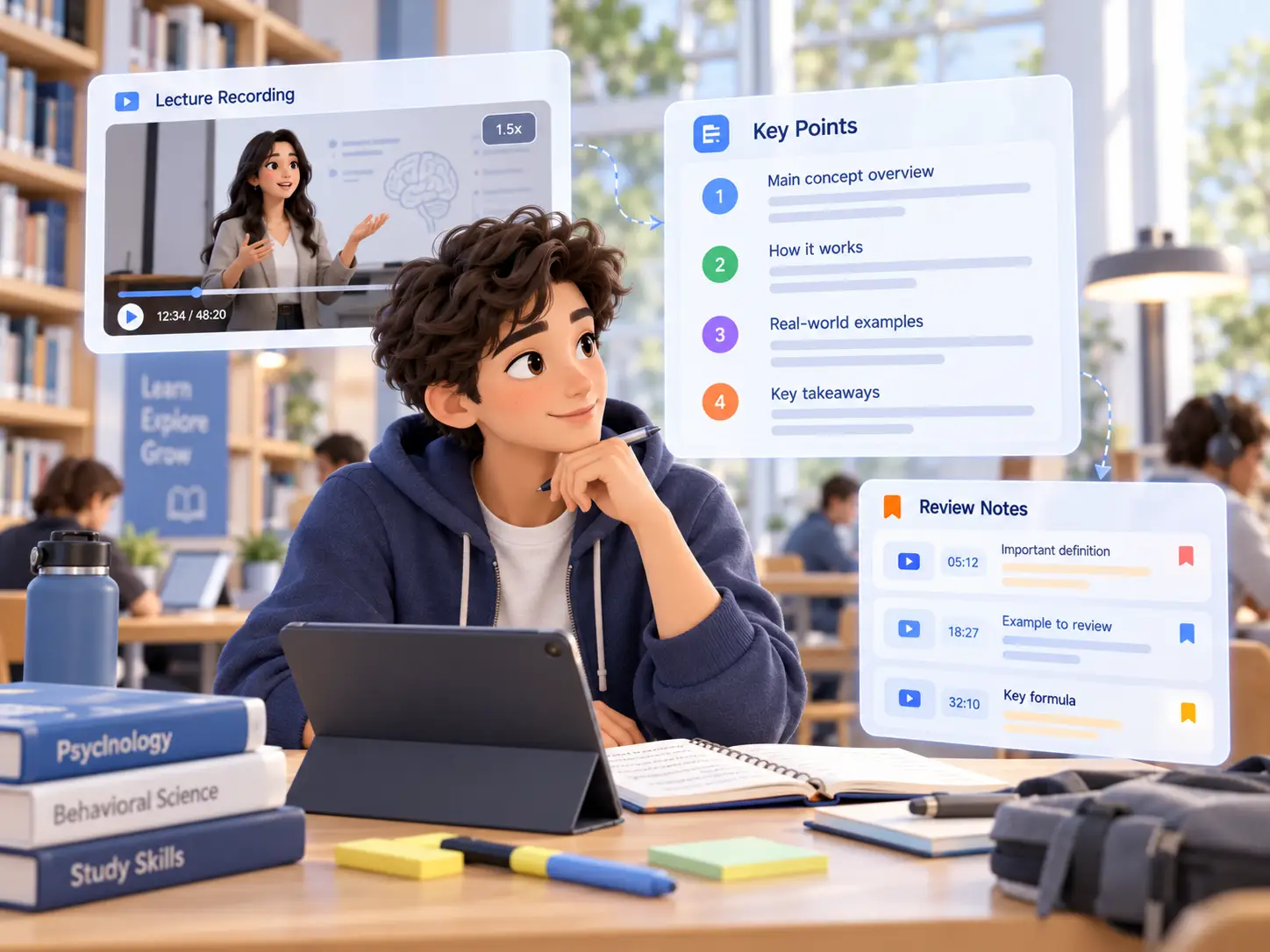
Turn a full lecture into a page of key points and a set of review notes, then revisit only the sections you flagged.
Meetings and Webinars
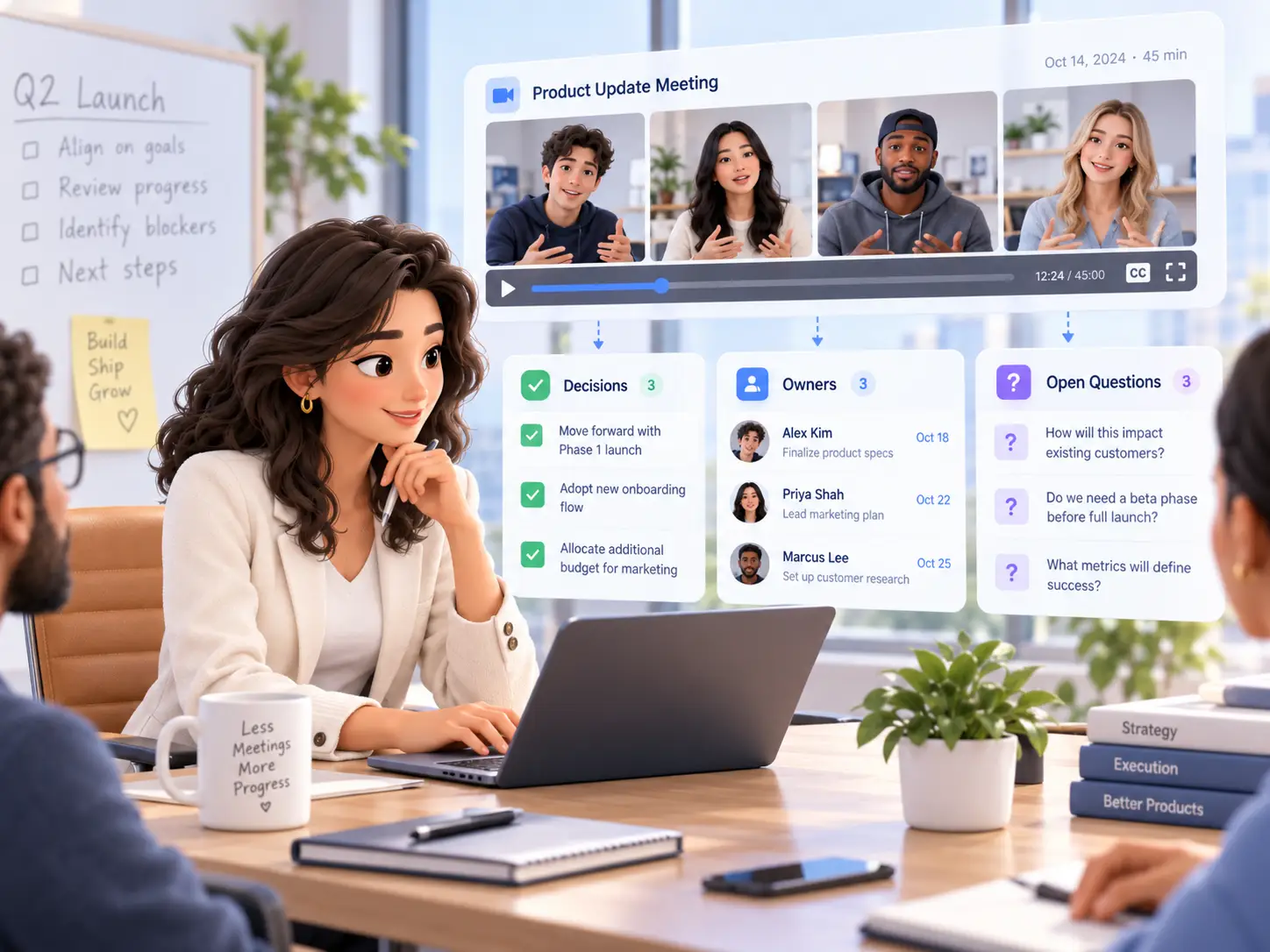
Pull the decisions, owners, and open questions out of a call recording so nobody has to sit through the replay.
Interviews and Research Footage
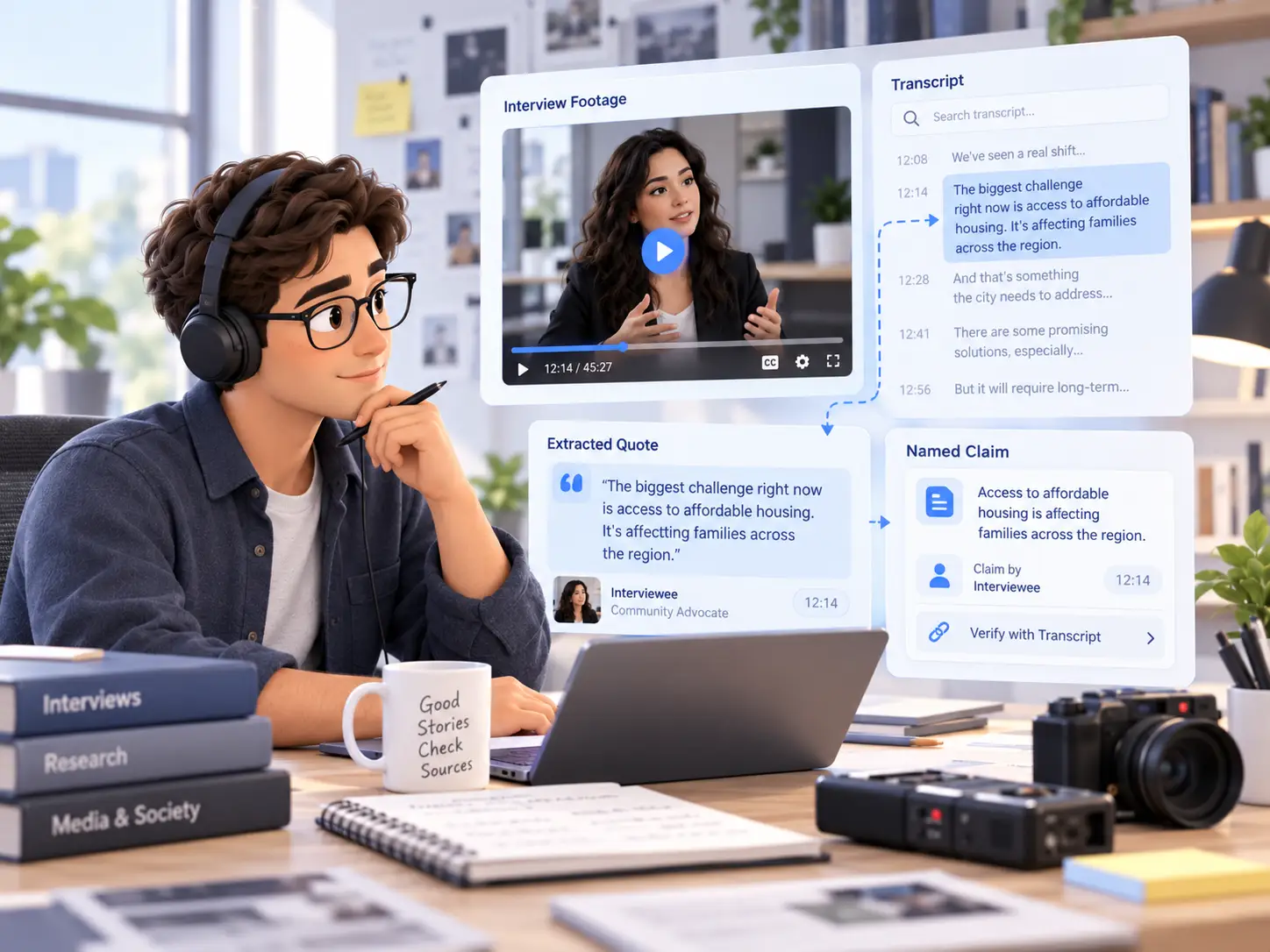
Extract quotes and named claims from long conversations, with the written record there to verify the exact wording.
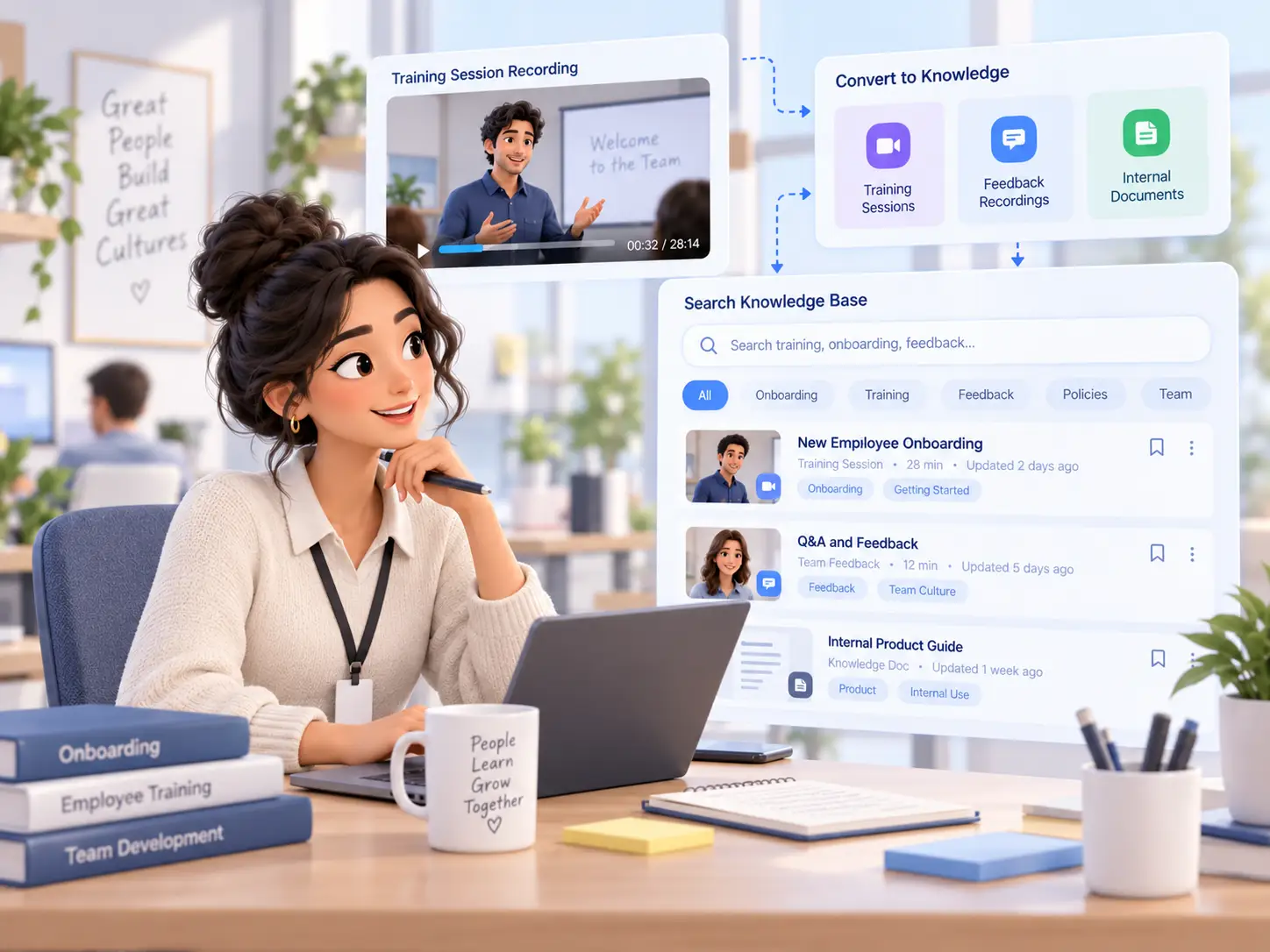
Training and Internal Knowledge
Convert onboarding sessions and feedback recordings into searchable entries your team can find later.
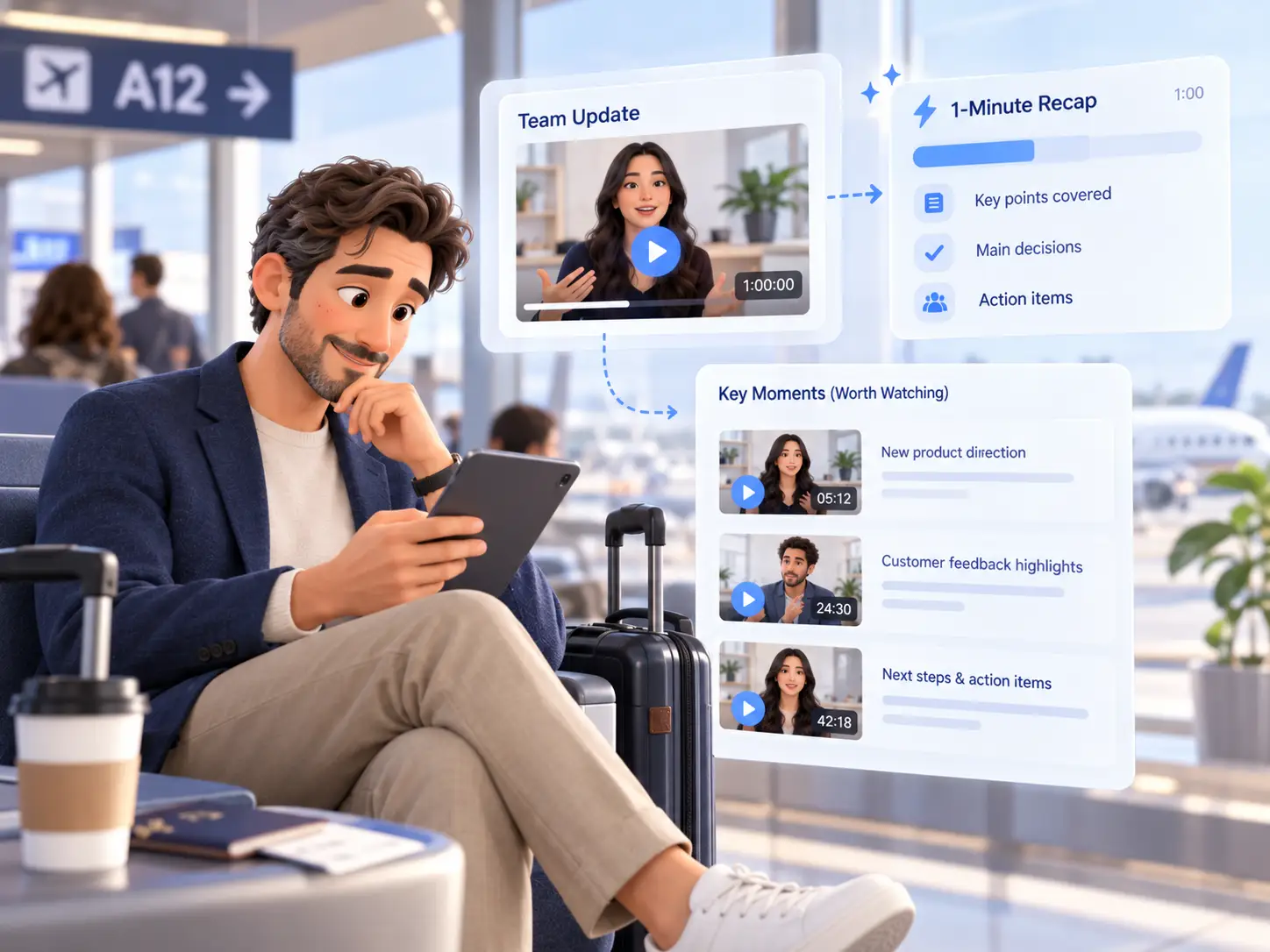
Recordings You Would Otherwise Skip
A recap of an hour-long file gives you the gist in a minute, and the timestamps tell you where it is worth watching properly.
Who Uses the Video Summarizer
- Students and Educators
- Content Creators
- Business and Product Teams
- Trainers and HR Teams
- Anyone Reviewing Footage in Bulk
Students and Educators
Students revise from a summary first and watch only the difficult parts. Educators hand out structured notes alongside the recording.

Content Creators
Creators find the highlight moments, write scripts from them, and repurpose one recording across several formats.
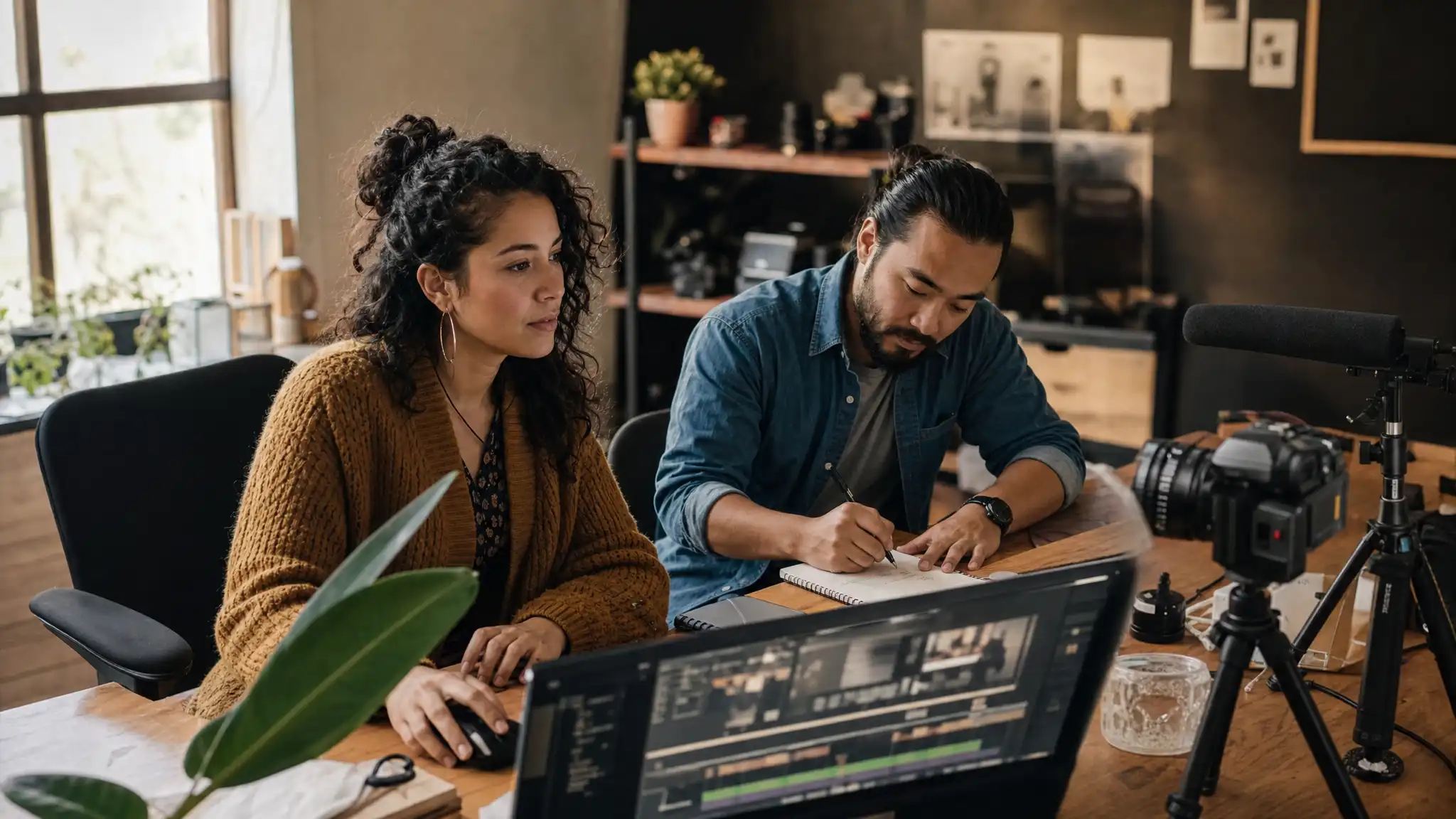
Business and Product Teams
Teams that sit in back-to-back calls use the summary to catch up on what they missed without booking another meeting.

Trainers and HR Teams
Trainers turn a session into reusable material and keep a written record of what was covered.

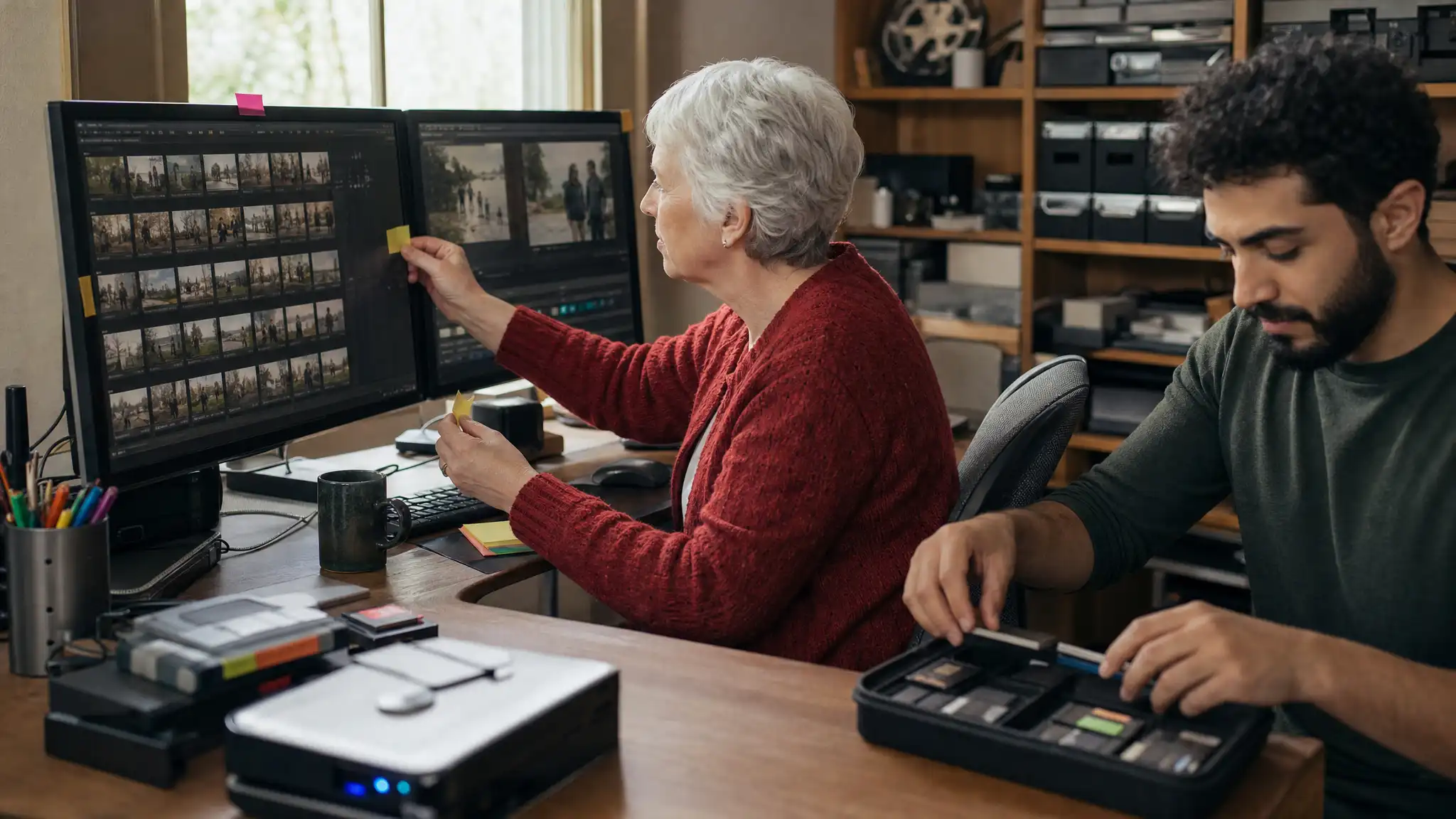
Anyone Reviewing Footage in Bulk
When the task is to go through many clips and keep the few that matter, summaries make the first pass fast.
Why Choose Decopy's Video Summarizer
Free to Try, No Sign-Up
Open the page, upload a file, and read the result. There is no account and no card.
Private by Default
Your uploads are processed securely, and you control whether to save or delete your results.
Fast Enough to Use Between Tasks
Most files finish in seconds to a few minutes depending on length. A recording that would cost an hour of watching comes back as one page while the meeting is still fresh.
Honest About the Limits
Where audio is unclear, heavily accented, or badly captioned, the tool flags the uncertainty rather than inventing a point, and the text is there when the exact wording matters.
Edit, Copy, and Export
Edit the text, copy it, or download it. The result moves into a doc, a ticket, or a message without reformatting.
Newbie-Friendly
No complicated settings or confusing menus. Just upload your video and get your summary in a few clicks. Get started instantly even if you’re using a video summarizer for the first time.
What Users Say About the Video Summarizer
— Alex M., Content Creator, Media Company
— Sarah L., Marketing Specialist, SaaS Company
— Daniel R., Research Assistant, Education Organization
Frequently Asked Questions (FAQs)
Can Decopy summarize a video from a link?
This page works with local files. If your video lives on YouTube, the summarize a YouTube video tool handles link-based videos end to end.
Can I summarize an MP4 without uploading it to YouTube?
Yes. This page is built for files you already have, so an MP4, MOV, or WMV on your device is summarized here without ever touching YouTube. When the source is a link rather than a local file, the YouTube video summarizer tool is the right fit instead.
What video formats does the AI video summarizer support?
MP4, MOV, MKV, WMV, and other common formats, uploaded exactly as recorded with no conversion step.
Can I summarize only part of a video?
Yes. The whole file is processed by default, and you can mark a segment when you only need one section.
Can an AI video describer describe what happens in a video?
Yes. Open the mode picker and choose the describe option, or write a custom prompt asking the AI video describer to describe the video. The written description of visuals, including on-screen text and charts, appears alongside the transcript, and you can continue asking questions in AI chat.
How many languages does the video summarizer support?
27, or leave the language on Default and the tool detects it from the recording. Subtitles embedded in the video are recognized as well.
How accurate is the video summary?
The AI keeps what is relevant and drops the filler. Very short clips, heavy accents, or low-quality captions reduce accuracy, and the tool says so rather than guessing. Check the text when precision matters.
Is my video upload private when using an AI video summarizer?
Yes. Files are encrypted while they are processed, and you decide whether to keep or remove the result.
How long can the video be?
Hours-long recordings run through the same flow as short clips; processing time scales with length.
What can I export from the video summary?
The summary, infographic, and mindmap can be copied or downloaded for use in a doc, a ticket, or a message.
Can an AI video summarizer summarize long videos?
Yes. An hour-long recording comes back as a short recap of the key moments, with timestamps for anything worth watching in full.